Zapier Next Gen Zaps Tutorial: Describe a Workflow in Claude and Deploy It to Zapier
Your re-engagement Zap stopped at contact 500, and nobody noticed until a sales rep asked why the list had not moved in a week. That is the classic Zapier ceiling: a 500-item loop cap, branches that never rejoin, and a failure that sits silent until a human trips over it. Zapier announced Next Gen Zaps at ZapConnect on September 23, 2026, and the new format removes all three limits.
Quick answer
Request Next Gen Zaps early access on a paid Zapier plan, connect Zapier MCP to Claude, ChatGPT, or Cursor, load the zapier:build-workflows skill, describe the workflow, then review, test, and deploy it. Zapier runs it on a trigger.
The hard part is not describing the workflow, it is giving the AI a definition of done it cannot misread: a vague prompt builds a Zap that runs happily on the wrong rows.
Checked on 2026-11-14 against the Zapier help guide for getting started with Next Gen Zaps, the Zapier MCP explainer, and the ZapConnect 2026 recap. Interfaces change fast, so if a menu or label differs, trust the linked page.
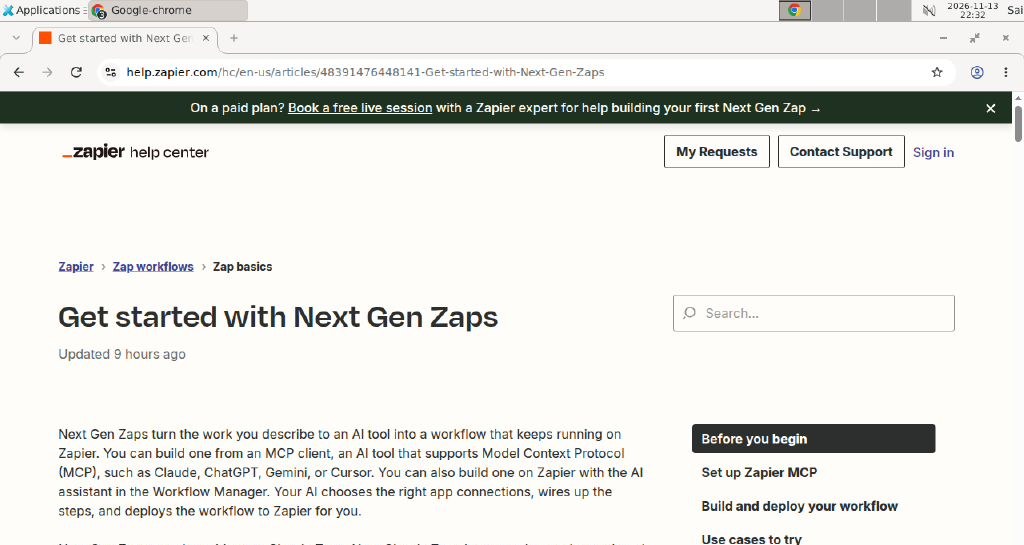
Zapier’s official Next Gen Zaps guide, checked on 2026-11-14.
Evidence: what actually changed
Zapier’s own announcement puts it plainly: “Next Gen Zaps turn the work you describe to an AI tool into a workflow that keeps running on Zapier.” You describe, the AI builds, Zapier runs it on its own schedule.
Zapier MCP gives your AI access to more than 9,000 apps and more than 40,000 actions, with Zapier handling app connections, credentials, and rate limits, according to the Zapier MCP explainer.
Three numbers decide whether the new format is worth your time. First, the 500-item loop cap is gone: the official guide’s example is finding every HubSpot contact untouched for 90+ days, a job a Classic Zap physically cannot finish. Second, building and running is free during early access on Professional, Team, and Enterprise plans, and task billing starts December 1, 2026, with a completed run counting at least 1 task. Third, the build is not free forever: each successful MCP tool call your client makes while building uses 2 tasks at the Zapier MCP rate.
Read the self-healing claim carefully. Zapier’s guide says that if a run fails, “an agent can diagnose the problem and prepare a fix,” and that after successful runs it “can also suggest improvements.” That is Agentic Management, on by default, and every fix lands as a new version you can review in version history. It cannot repair a broken credential at the source app.
What is different from a Classic Zap
| Capability | Classic Zap | Next Gen Zap |
|---|---|---|
| Loop size | 500-item cap | Whole lists, no cap |
| Branching | Paths split, never rejoin | Branches split and rejoin |
| Loops | One level | Nested loops, steps after loops |
| Waiting | Short delays only | Durable waits up to a year, cancellable mid-run |
| Human review | Not built in | Pause until an event arrives or a time limit passes |
| Failure handling | Replay manually | Agentic Management diagnoses and prepares a fix |
| Build method | Visual editor only | Natural language, canvas, or code (TypeScript) |
| Observability | Zap history | Workflow Manager with step-level runs and versions |
The example workflow is the re-engagement list from Zapier’s own guide: find every HubSpot contact untouched for 90 days or more and add them to a re-engagement list. A bad run is visible and reversible here, which is what you want from a first build.
Prerequisites
- A Zapier account on a Professional, Team, or Enterprise plan, with early access granted.
- An MCP client: Claude, ChatGPT, Gemini, Cursor, or VS Code. This tutorial uses Claude.
- A connected account for each app in the workflow, for example HubSpot and Slack.
- A test list or small segment to run against first, not your full production list.
Step 1: Request early access
Submit the request on the early access page. On a Team plan, it must come from an account owner or admin; on Enterprise, contact Zapier Support. Approval is not instant, so do not build production workflows on it yet.
On Enterprise workspaces, an owner or super admin can enable early access per workspace, such as a sandbox, once the account is listed. Use a sandbox for your first builds, and do not run sensitive workflows through Next Gen Zaps during early access.
Step 2: Create a Zapier MCP server
Next Gen Zaps work through Zapier MCP: on its own it lets your client run actions in your apps, and Next Gen Zaps add a Zap that keeps running afterward.
Go to mcp.zapier.com and create a server for your client. Each MCP client needs its own server, so create one for Claude and a separate one if you later add Cursor. Zapier MCP runs on your existing plan, with no separate billing.
New to Zapier MCP? The Zapier MCP setup guide on this site covers the same server creation and connection flow, including the per-client server rule.
Step 3: Connect Claude and load the build skill
Connect Claude to the server you just created, usually by signing in to Zapier from inside Claude. Then tell Claude to use the zapier:build-workflows skill, which installs the tools your workspace needs and confirms your account has early access. If the skill is missing, the account is not yet on the early access list.
Claude can take 3 to 12 hours to refresh its tools list on its own. If you use Claude Desktop, restart the app to refresh the list right away. That delay looks exactly like a broken connection, so restart first.
Step 4: Describe the workflow in plain language
Tell Claude to use the zapier:build-workflows skill, then describe the Zap you want in plain language, using the template below with your own apps and thresholds. For this tutorial: “Every Monday at 9 a.m., find every HubSpot contact with no activity in the last 90 days, add them to the list Winback Q4, and send me one Slack summary with the count and the first 10 names.”
Say what “untouched” means before the AI has to guess: the exact field, the number of days, the list name, and what the summary should contain. A prompt that says “find stale contacts” builds a Zap that uses whatever “stale” means to the model.
Step 5: Review, test, and deploy
Claude will walk you through choosing the right app connections, creating the workflow, testing it, and deploying it to Zapier. Review each step before you approve it, especially the trigger, the filter, and every app connection the AI picked. A wrong connection is the quietest failure mode here, because the Zap runs fine against the wrong account.
Test on your small segment first: run the deployed Zap once on demand and read the output, the count found, the list used, and the summary message. Only widen it to the full list after the test matches what you expected. The Zap runs in Zapier, not in Claude.
Step 6: Watch it in the Workflow Manager
Open the Workflow Manager in Zapier and find your Zap. You can also build one without an MCP client: in the left sidebar, click Automations, select Next Gen Zaps, then click + Create, and build with the AI assistant or import a Classic Zap. The Workflow Manager shows every step and run, plus retries and run history.
After the first scheduled run, check the history for run count, timings, and retries. A run that retried three times and succeeded is a warning, not a success, because the next retry may hit a rate limit.
Step 7: Let Agentic Management watch it, with limits
Agentic Management is on by default. When a run fails, after a renamed field or an expired connection, the agent diagnoses the problem and prepares a fix, then publishes it as a new version. Set the boundary before the first failure: let it fix field mappings, but require approval for changes to recipients or data leaving Zapier.
Read the version history after any agent-applied fix: the diff tells you exactly what changed, and you can roll back from the same view if it looks wrong.
Copy-paste template: a build prompt that cannot be misread
Fill in the bracketed parts and delete the brackets. Anything marked “Example” is demo data, so replace it with your values.
Build a Next Gen Zap with these exact rules.
Trigger: [schedule or app event, e.g. every Monday at 9:00 a.m.]
Source: [app and object, e.g. HubSpot contacts]
Match rule: [exact rule, e.g. last activity more than 90 days ago
AND lifecycle stage is not Customer]
Action 1: [e.g. add each match to list "Winback Q4"]
Action 2: [e.g. send one Slack message to #marketing with the count]
Do NOT: [e.g. do not email the contacts]
Test first: run once against [test segment, e.g. 20 contacts tagged
test-winback] and show me the result.
Example — replace with your values: the list name “Winback Q4”, the Slack channel “#marketing”, and the 90-day threshold above are demo values from this tutorial, not your settings.
The “Do NOT” line is the most valuable part of the template. The AI will not invent a restriction you never stated, and a workflow that emails 2,000 contacts because you said “follow up with them” is a failure of the prompt.
When not to use this / Limits
Do not use Next Gen Zaps for your most sensitive workflows during early access. The missing Enterprise features explain why: audit log, Log Streams, change history per asset, action restrictions, custom data retention, approval requests, and managed app connections are not supported or not yet confirmed to work the same way. If your workflow touches legal documents, financial records, or private company files, keep it on a Classic Zap.
The format also has hard limits on code size, run wait time, sharing, and data retention. Sharing is viewer-role only during early access, and Sub-Zaps, global variables, templates, and autoreplay are not supported. If your automation depends on any of those, Next Gen Zaps cannot replace it yet. For a comparison against the other platforms, see the Zapier MCP vs n8n MCP comparison.
Cost / scale math
The arithmetic is simple while early access lasts, and worth modelling before task billing starts on December 1, 2026.
- Building and running: free during early access on Professional, Team, and Enterprise. From December 1, 2026, Next Gen Zaps use the same task-based pricing as the rest of Zapier, and a completed run counts at least 1 task.
- Building costs tasks today: each successful MCP tool call your client makes while building uses 2 tasks. A build session with 10 tool calls costs 20 tasks, and a long back-and-forth with 25 calls costs 50, before the Zap runs once.
- A run floor: if your re-engagement Zap runs weekly, that is 4 completed runs a month, so at least 4 tasks a month from December, before the actions inside the run.
We could not verify the exact per-action task count for a Next Gen Zap run beyond the 1-task minimum; vendor docs say Next Gen Zaps use the same task-based pricing as the rest of Zapier. Budget the 1-task floor as the minimum, and keep design sessions short: describe the workflow once, well, instead of iterating in chat.
Troubleshooting
| Symptom | Likely cause | Command to check | Fix |
|---|---|---|---|
The zapier:build-workflows skill is missing | Account not on the early access list | Ask Claude to list available Zapier skills | Confirm early access was granted |
| Claude shows no Zapier tools at all | Tools list not refreshed | Restart Claude Desktop and re-check the tools list | Restart the app, since Claude can take 3 to 12 hours to refresh |
| The Zap runs but on the wrong contacts | The filter definition was vague, so the AI guessed | Open the deployed Zap in Workflow Manager and read the filter step | Rewrite the definition with an exact field, days, and list name, then redeploy |
| Contacts get added twice | The Classic Zap was imported but never turned off | List running Zaps in Zapier and look for the original | Turn off the original Classic Zap, since importing creates a copy |
| The MCP client cannot connect | Client does not support Streamable HTTP | Check the client docs for Streamable HTTP support | Use a supported client, such as Claude, ChatGPT, Gemini, Cursor, or VS Code; Server-Sent Events are not supported |
Common mistakes
- Describing the outcome instead of the rule. “Clean up stale contacts” is an outcome; “last activity more than 90 days ago, lifecycle stage not Customer” is a rule. The AI can only build the second one.
- Testing on the full list. Run once against a small tagged segment first. A wrong filter on 20 test contacts is a lesson; the same filter on your whole database is an incident.
- Leaving the Classic Zap on after import. Importing creates a copy, and both versions run. Turn the original off as soon as the copy passes its test run.
- Connecting a production account to a first build. Zapier’s guide recommends a separate account, less-sensitive connections, or a dedicated test workspace, because an agent with access to private data and permission to send it elsewhere can act in ways you did not intend.
Test before you rely on it
- Run the Zap once on demand against a small test segment and read the full run output.
- Confirm the matched count equals the count you get by filtering the same rule by hand in HubSpot.
- Check that the summary message arrives in the right channel with the right names.
- Disconnect one app connection on purpose and confirm the run fails loudly and the diagnosis names the broken connection.
- Reconnect it, rerun, and confirm the run recovers without duplicate list additions.
- Open version history and confirm you can see each version and roll back.
Conclusion
Next Gen Zaps are not a faster Zap editor. They are a different contract: you describe the outcome in words, an agent builds the workflow, Zapier runs it on a trigger, and another agent watches it and proposes fixes when it breaks. The format earns its place the moment a workflow needs whole-list loops, branches that rejoin, or a wait longer than a few minutes.
Before your first production deploy, ask: if this workflow added the wrong 2,000 people to a list at 3 a.m., would anyone see it before the first email went out? If not, add the test segment, the summary message, and the approval boundary first. To go deeper, read the Zapier MCP server setup guide and the Zapier durable workflows tutorial next.
Frequently asked questions
What is a Next Gen Zap, and how is it different from a Classic Zap?
A Next Gen Zap is a workflow you describe to an AI tool and deploy to Zapier, where it keeps running on a trigger or schedule. Unlike a Classic Zap, it can loop over a whole list with no 500-item cap, split branches and rejoin them, nest loops, wait up to a year for a person, and heal itself when a run fails. Classic Zaps keep running unchanged alongside it.
Do I need a paid Zapier plan to use Next Gen Zaps?
Yes. Early access is available on Professional, Team, and Enterprise plans. If you are on a Team plan, the early access request must come from an account owner or admin. Enterprise accounts should contact Zapier Support for access. Building and running Next Gen Zaps is free during early access, and task billing starts December 1, 2026.
Which AI tools can build a Next Gen Zap?
Any MCP client that supports Streamable HTTP, including Claude, ChatGPT, Gemini, Cursor, and VS Code. You connect the client to Zapier MCP, load the zapier:build-workflows skill, and describe the workflow in plain language. You can also build one inside Zapier with the AI assistant in the Workflow Manager, without any MCP client.
What happens to my Classic Zaps if I import one into a Next Gen Zap?
Importing creates a copy. Your original Classic Zap keeps running unless you turn it off, so leaving both on causes duplicate runs. Turn off the original after you have tested the imported copy, or keep it as a fallback and pause it.
How much does a Next Gen Zap cost after early access ends?
From December 1, 2026, Next Gen Zaps use the same task-based pricing as the rest of Zapier, and a completed run counts at least 1 task. Building is free during early access, but app actions your MCP client runs while building, such as fetching sample data, already cost 2 tasks per successful tool call at the Zapier MCP rate.
Can a Next Gen Zap really fix itself when a run fails?
Partly. Agentic Management is on by default: when a run fails, for example after a renamed field or an expired connection, an agent diagnoses the problem and prepares a fix, then publishes it as a new version you can review in version history. You control what the agent may change without your approval, and it cannot fix problems it cannot see, such as a broken credential at the source app.