Zapier MCP Server Setup: Connect Claude, ChatGPT, and Cursor to 9,000+ Apps
Introduction
You ask Claude to follow up with a lead, and it drafts a perfect email. Then it stops. It cannot send the email, update the CRM, or log the call, because it has no hands in your apps. You copy the draft into Gmail, paste the lead into HubSpot, and update the spreadsheet yourself, which is exactly the busywork you asked the AI to remove.
The Zapier MCP server fixes that gap. It is a hosted bridge between your AI client and the apps Zapier already connects, so Claude, ChatGPT, or Cursor can take real actions in Slack, Gmail, Notion, and HubSpot without you writing an integration for each one. This guide sets it up in about five minutes, then locks it down so the AI can only do what you allow.
Quick answer
Create a Zapier account, connect the apps you want the AI to use, add the Zapier MCP server to your AI client, sign in with OAuth, and test one small read action first. Each successful call costs 2 Zapier tasks.
The hard part is not the connection, it is deciding which actions the AI may run, because the default agentic mode lets it enable new actions on its own.
Checked on 2026-11-13 against Zapier MCP and the Zapier MCP developer docs. Interfaces change fast, so if a menu or label differs, trust the linked page.
Evidence
Zapier’s own numbers show how fast this product moved from launch to everyday use. As of November 2026, the Zapier MCP page reports more than 500,000 MCP servers created, more than 25,000,000 tool calls completed, and more than 150,000 people who have run agent-led actions through Zapier. The same page puts the catalog at 9,000+ apps and 66,000+ triggers and actions, while the developer docs, last modified October 27, 2026, describe it as 9,000+ apps and 40,000+ actions.
Zapier states the value plainly on its MCP page: “Zapier MCP lets Claude, ChatGPT, Cursor, and any other AI client take real action in the apps that run your business, all with managed auth and permissions you control.” The key phrase is the second half. Other MCP servers hand you a credential to guard yourself, while Zapier holds the app credentials, manages OAuth, and logs every action in a History tab you can audit.
Prerequisites
- A Zapier account on any plan, including Free.
- Accounts in the apps you want the AI to touch, such as Slack, Gmail, or Google Sheets. Connect them in Zapier before you connect the AI.
- One MCP client: Claude (web or desktop), Claude Code, ChatGPT, Cursor, VS Code, or any client that supports MCP over Streamable HTTP.
- A browser for the OAuth sign-in. The sign-in happens in the browser even when the client is a terminal tool such as Claude Code.
Step 1: Connect your apps in Zapier first
The AI cannot use an app you have not connected, so do this before touching any MCP setting. Sign in to Zapier, open My Apps, and connect the two or three apps your first task needs. Start narrow. Slack and Google Sheets cover most first tests, and you can add more later without rebuilding the server.
Use the same Zapier account you plan to keep. The MCP server belongs to the account that creates it, and the AI acts with that account’s connections.
Step 2: Create your MCP server and pick a mode
Open mcp.zapier.com and sign in. Zapier creates a default server for you on first connect in supported clients, so you may already have one. If not, create a server and give it a plain name such as “Claude main”. Pick agentic mode for your first server; you can switch modes later in the server Settings tab, then refresh the tool list in your AI client, because many clients cache it.
- Agentic mode is the default for new servers. Your AI gets a fixed set of meta tools for discovering actions and enabling them, and it finds and adds the actions it needs during the conversation. Zapier pre-enables actions for the apps you already connected. This is the fastest way to start, and the right choice for a personal setup.
- Managed mode gives you a fixed list. You pick each action in advance at mcp.zapier.com, each one becomes its own tool, and the agent cannot add more. You can also lock specific field values per action, for example forcing every Slack message into one channel. This is the right choice for shared setups and anything that can send messages to customers.
Step 3: Connect Claude from the connector directory
Claude is the easiest starting point, and Zapier says so on its own page. In Claude, open Settings, then Connectors, and find Zapier, or go straight to the Zapier connector page and follow the connect button. Click Connect and sign in with your Zapier account in the browser window that opens.
Zapier creates your default server during this sign-in, so you need no URL and no token. When the flow finishes, ask Claude a small read-only question first, such as “List the Slack channels I can post to.”
Step 4: Connect Claude Code from the terminal
Claude Code connects to the same server over Streamable HTTP. The endpoint is https://mcp.zapier.com/api/v1/connect, and the Claude Code MCP docs describe how remote HTTP servers are added. Run this command in your terminal:
claude mcp add --transport http zapier https://mcp.zapier.com/api/v1/connect
Claude Code opens the OAuth sign-in in your browser. Sign in with the same Zapier account you used in Step 1, approve the connection, and return to the terminal. Then check the status with claude mcp list. You should see zapier with a Connected status. If it shows Needs authentication, run the add command again and finish the browser sign-in. If it shows Failed to connect, check that you used the Streamable HTTP endpoint above, not an old SSE URL.
For a project your whole team shares, store the same server in the project .mcp.json file so every checkout gets it. The "type": "http" line is not optional: a JSON entry with a url but no type is a configuration error in Claude Code, because it reads the entry as a stdio server and skips it. Approve the project server once by running claude interactively in the project folder.
Step 5: Connect Cursor or ChatGPT
Cursor takes the same endpoint as a remote MCP server. Open Cursor Settings, then MCP, add a new server, paste https://mcp.zapier.com/api/v1/connect as the URL, and complete the OAuth sign-in when Cursor prompts you.
In ChatGPT, add Zapier from the connector directory in Settings and sign in with your Zapier account, the same pattern as Claude in Step 3.
We could not verify the exact ChatGPT menu label; Zapier’s docs list ChatGPT as a supported client. If the label differs in your version, search Settings for “Apps” or “Connectors”.
Step 6: Run one real action and check the History tab
Ask the AI to do something small, visible, and reversible, such as “Add a row to my Example Leads sheet with the name Test Lead and the note MCP test.” Then open the sheet and confirm the row is there, and open the History tab at mcp.zapier.com to confirm the call appears with the action name, the app, and the time.
That History tab is your audit trail. Every action the AI runs shows up there, including the ones you did not ask for. Check it after your first few sessions, and again the first time you hand the setup to someone else.
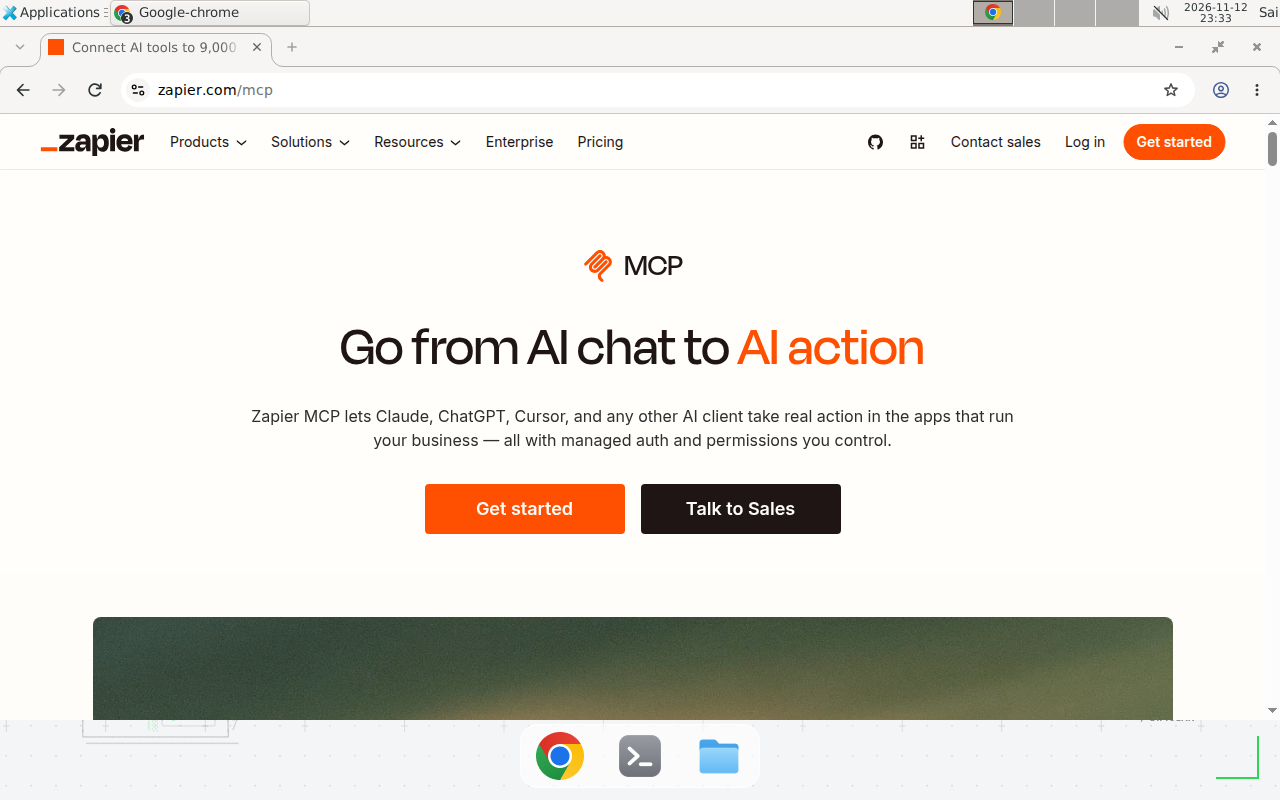
The Zapier MCP page at zapier.com/mcp, checked 2026-11-13: the hero states the pitch in one line, that Claude, ChatGPT, and Cursor can take real action in your apps with managed auth and permissions you control.
Copy-paste template: project MCP config plus agent rules
This template has two parts. The first is the project .mcp.json for Claude Code. The second is a short rules block to paste into your project’s CLAUDE.md or agent instructions file, so the AI knows its limits before it starts calling tools. Replace the app names with your own.
{
  "mcpServers": {
    "zapier": {
      "type": "http",
      "url": "https://mcp.zapier.com/api/v1/connect"
    }
  }
}
## Zapier MCP rules

- You may use Zapier MCP only for Slack and Google Sheets.
  Example, replace with your values: Slack workspace "Example
  Workspace", sheet "Example Leads".
- Read actions are always allowed. Write actions need my explicit
  words in this conversation, such as "send it" or "post it".
- Never send messages to a customer-facing channel, never delete
  rows or records, and never change a field you did not ask me
  about.
- Before any write action, tell me the app, the action, and the
  exact values you will send, then wait for my confirmation.
- If an action fails, stop and show me the error. Do not retry a
  write action more than once.
- After each session, I will check the History tab at
  mcp.zapier.com against what you report.
This block is the cheapest safety control in the whole setup. It costs nothing, it travels with the project, and it turns “the AI can do anything in my apps” into “the AI can do these things, in these apps, after telling me first.”
When not to use this / Limits
Do not use Zapier MCP for work that needs strict per-user attribution, such as financial postings or regulated records, because the actions run under one shared Zapier account, not under each human’s identity. Do not use it for high-volume batch jobs either. At 2 tasks per call, a 10,000-row sync costs 20,000 tasks, which is a Zapier bill, not a clever shortcut. A scheduled Zap, a small script with the vendor API, or a self-hosted workflow from the complete n8n guide is cheaper and more predictable there.
Zapier MCP also does not give the AI live web access, and it does not support SSE-only clients. Finally, the AI only sees the apps you connected. If a workflow needs an app Zapier does not support, no MCP setting will add it.
Cost math
The math is one rule, applied three ways. Every successful call costs 2 tasks. Failed calls and tool discovery cost nothing.
- Free plan: 100 tasks a month divided by 2 tasks per call gives 50 successful calls a month. That covers a daily check-in plus a few follow-ups, and nothing more.
- Professional plan: 750 tasks a month, as listed on Zapier’s pricing page in November 2026, divided by 2 gives 375 calls a month. At $19.99 a month on yearly billing, that is about $0.053 per call. Confirm the current price on the pricing page before you commit, because Zapier adjusts plans often.
Troubleshooting
| Symptom | Likely cause | Command to check | Fix |
|---|---|---|---|
claude mcp list shows Failed to connect | Old SSE endpoint in the config, or a missing type field | claude mcp get zapier | Remove it with claude mcp remove zapier, then re-add it with the --transport http command from Step 4 |
| Server shows Needs authentication | OAuth sign-in never finished, or the token expired | claude mcp list | Re-run the add command and complete the browser sign-in, then approve the server by running claude interactively |
| Claude says it cannot find an action | The app is not connected to Zapier, or the action is not enabled on the server | Check My Apps in Zapier, then the server page at mcp.zapier.com | Connect the app in Zapier first, then enable the action on the server, then refresh the tool list in the client |
| Calls stop mid-month with a quota error | Task allowance exhausted, because each call costs 2 tasks | Check usage in Zapier Settings, then Billing | Wait for the cycle to reset, buy extra tasks, or switch to managed mode and cut the actions the agent may call |
| Agent runs an action you did not expect | Agentic mode let the agent enable a new action mid-conversation | History tab at mcp.zapier.com | Switch to managed mode, remove the unwanted action, and add the write-confirmation rule from the template above |
Common mistakes
- Connecting the AI before connecting the apps. The AI then reports that it cannot find the action, and the real cause is an empty Zapier account. Connect apps first, then the client.
- Leaving agentic mode on for a shared workspace. One teammate’s casual request can enable a write action nobody reviewed. Use managed mode wherever more than one person can talk to the server.
- Testing with write actions. Every successful test post, row, or message costs 2 tasks and leaves real data behind. Test with reads, then write once, then check the History tab.
- Pasting a token into a config file. The OAuth flow exists so you never handle a token. If a guide tells you to paste a Zapier token into JSON, it is describing the old connection-token path for unlisted clients. Prefer OAuth, and treat any token you do create as a secret that is shown once.
Test before you rely on it
Run this checklist before you let the setup touch real data:
- Ask for a read action in each app you connected, and confirm the result matches the app itself.
- Send one write action to a test channel or test sheet, then confirm it landed where you expected.
- Ask the AI to do something it should refuse, such as posting to a channel you never enabled, and confirm it cannot.
- Check the History tab at mcp.zapier.com and confirm every test call appears with the right action and time.
- Turn off one action on the server, refresh the tool list in the client, and confirm the AI can no longer call it.
- Count the tasks your test used, multiply by your real daily volume, and confirm the plan covers a full month.
FAQ
How much does Zapier MCP cost?
There is no separate MCP product to buy. It is included in every Zapier plan, and each successful tool call uses 2 tasks from the plan quota. Failed calls cost nothing.
Do I need a separate MCP server for each AI client?
No. Several MCP clients can connect to the same Zapier MCP server. Sharing a server with other people still needs a Team or Enterprise plan.
What is the difference between agentic mode and managed mode?
In agentic mode, the default, your AI finds and enables the actions it needs during the conversation. In managed mode, you pick a fixed set of actions in advance, and the agent cannot add more.
Does Zapier MCP work with Claude Code?
Yes. Add it with claude mcp add --transport http zapier https://mcp.zapier.com/api/v1/connect, sign in through OAuth, and verify with claude mcp list.
Can the AI delete data or send messages without asking me?
It can run any action you enable, including writes. Treat the action list as a permission list, use managed mode for shared setups, and review the History tab at mcp.zapier.com.
Why does my old Zapier MCP config return errors?
Older guides point at an SSE endpoint such as actions.zapier.com/mcp. Zapier MCP now runs over Streamable HTTP only at https://mcp.zapier.com/api/v1/connect, and SSE is not supported. Update the URL and make sure the Claude Code entry has "type": "http".
Conclusion
Zapier MCP turns a chat assistant into an assistant with hands, and the setup takes about five minutes: connect your apps, create the server, sign in from your client, and run one small action.
If this setup fails at 3 a.m. while a customer waits on a reply, can your team see what the AI did and undo it? If not, switch the server to managed mode and add the write-confirmation rule from the template above first. Next, compare the hosted options in Zapier MCP vs n8n MCP: Which Should Power Your AI Assistant?, or start from first principles with the MCP Server Tutorial: Build Your First MCP Server from Scratch.
Frequently asked questions
How much does Zapier MCP cost?
There is no separate MCP product to buy. Zapier MCP is included in every Zapier plan, and each successful tool call uses 2 tasks from the plan quota your Zaps already share. Failed calls cost nothing. On the Free plan, 100 tasks a month buys 50 successful MCP calls.
Do I need a separate MCP server for each AI client?
No, not anymore. Several MCP clients can connect to the same Zapier MCP server, so you can set up Claude and Cursor once and share the configuration. Note that sharing a server with other people still needs a Team or Enterprise plan.
What is the difference between agentic mode and managed mode?
In agentic mode, the default for new servers, your AI finds and enables the actions it needs during the conversation. In managed mode, you pick a fixed set of actions in advance, and the agent cannot add more. Managed mode also lets you lock specific field values per action.
Does Zapier MCP work with Claude Code?
Yes. Add it as a remote HTTP server with claude mcp add --transport http zapier https://mcp.zapier.com/api/v1/connect, then sign in through the OAuth flow in your browser. Verify the connection with claude mcp list, which should show Connected next to zapier.
Can the AI delete data or send messages without asking me?
It can run any action you enable, including writes, so treat the action list as a permission list. Use managed mode for shared or production setups, enable only the actions the task needs, and review the History tab at mcp.zapier.com after your first runs.
Why does my old Zapier MCP config return errors?
Older guides point at an SSE endpoint such as actions.zapier.com/mcp. Zapier MCP now runs over Streamable HTTP only at https://mcp.zapier.com/api/v1/connect, and SSE is not supported. Update the URL and, in Claude Code, make sure the entry has "type": "http".