Zapier MCP Managed Mode: Lock Down Actions So Your AI Agent Only Does What You Allow
Introduction
You connect Claude to Zapier MCP, ask it to triage support email, and it works. Then one afternoon it finds the HubSpot delete action on its own, because in agentic mode the agent can discover and enable any action in the apps connected to your Zapier account. Nothing breaks that day, but you realise you never decided what the agent is allowed to do. You handed it the keys to every app and hoped the prompt would be enough.
Managed mode fixes that gap. It turns the open-ended toolset into a fixed list you choose yourself, one action at a time, with field values you can lock. This tutorial switches a Zapier MCP server to managed mode, builds a least-privilege action list, locks the fields that should never change, and tests the lock with a prompt that tries to break it.
Quick answer
Switch your Zapier MCP server to managed mode at mcp.zapier.com, add only the actions your agent needs, lock any field values that should stay fixed, then refresh your MCP client so it picks up the new tool list.
The hard part
The hard part is deciding the allow-list, not clicking the mode switch, because every action you leave on the list is a permission your agent keeps, and every action you forget becomes a support ticket later.
Checked on 2026-11-17 against Zapier’s MCP tools documentation, the mode-switching guide, the action configuration guide, and Zapier’s app access policies help page. Interfaces change fast, so if a menu or label differs, trust the linked page.
Evidence: what managed mode actually controls
A Zapier MCP server connects your MCP client to more than 9,000 apps and 40,000 actions, by Zapier’s own count. In the default agentic mode, the client gets 16 fixed meta-tools, including discover_zapier_actions and enable_zapier_action, that let the agent search that catalogue and switch actions on mid-conversation. Zapier also auto-provisions actions from the apps you already connected, so a fresh server starts with your existing tools already enabled. That is convenient for solo experiments and the opposite of least privilege for anything shared.
Managed mode removes the agent’s ability to change its own toolset. Zapier’s documentation states the guarantee plainly: “Tightly scoped access: you control exactly which actions are available, with no ability for the agent to enable new ones.” Each action you approve becomes one dedicated tool, you manage the list at mcp.zapier.com instead of through the agent, and you can lock specific field values per tool, which suits repeatable tasks such as posting every triage note to the same Slack channel. Skills and Next Gen Zaps do not work in managed mode, and code actions are switched off too.
The mode belongs to the server, not the client. If several AI clients share one server, every client on it uses the same mode, so one switch locks Claude, ChatGPT, and Cursor at the same time. That is why the guide to sharing one Zapier MCP server across clients recommends managed mode for shared servers: the rules are set once, and every client inherits them. Account-level restrictions still apply on top of your list in both modes, so an Enterprise admin’s action restrictions are enforced separately from anything you configure on the server.
Prerequisites
- A Zapier account with an MCP server already created. If you have none yet, follow the Zapier MCP server setup guide first.
- Owner or Editor access to the server. Viewers cannot switch modes.
- One MCP client connected to the server, such as Claude Desktop, ChatGPT, or Cursor, so you can verify the new tool list.
- A list of the apps the agent genuinely needs. Start from the task, not from the catalogue.
Step 1: Write the allow-list before you touch any setting
Open a note and write down the exact job the agent does, then list only the actions that job needs. A support triage agent needs Gmail search, Slack post message, and HubSpot find contact. It does not need Gmail send, Slack delete message, or HubSpot delete contact, and those three stay off the list even though they feel useful for later.
Follow two rules. First, start read-only: add the lookup and search actions first, run the agent for a week, and add write actions one at a time after each one passes testing. Second, name the connection each action must use, because a lookup that runs against a personal Gmail account instead of the shared support inbox is a data leak with a friendly name. The worksheet in the copy-paste template below gives you a table to fill in before you open the dashboard.
Step 2: Switch the server to managed mode
Zapier documents this switch in four steps, and it takes about a minute:
- Go to mcp.zapier.com and select your server.
- Click the Settings tab.
- Select Managed mode.
- Click Save changes.
Two things change immediately. Skills and code actions become unavailable, but they are not deleted, so switching back to agentic mode restores them. And every enabled action becomes its own dedicated tool, so your client may suddenly list many more individual tools than the 16 meta-tools it showed before. That longer list is the point: each tool is one action you approved, and nothing else exists for the agent to call.
If the server is shared, warn the other clients first. The mode applies to the whole server, so switching modes changes the tools every connected client gets. A client with its own separate server is not affected.
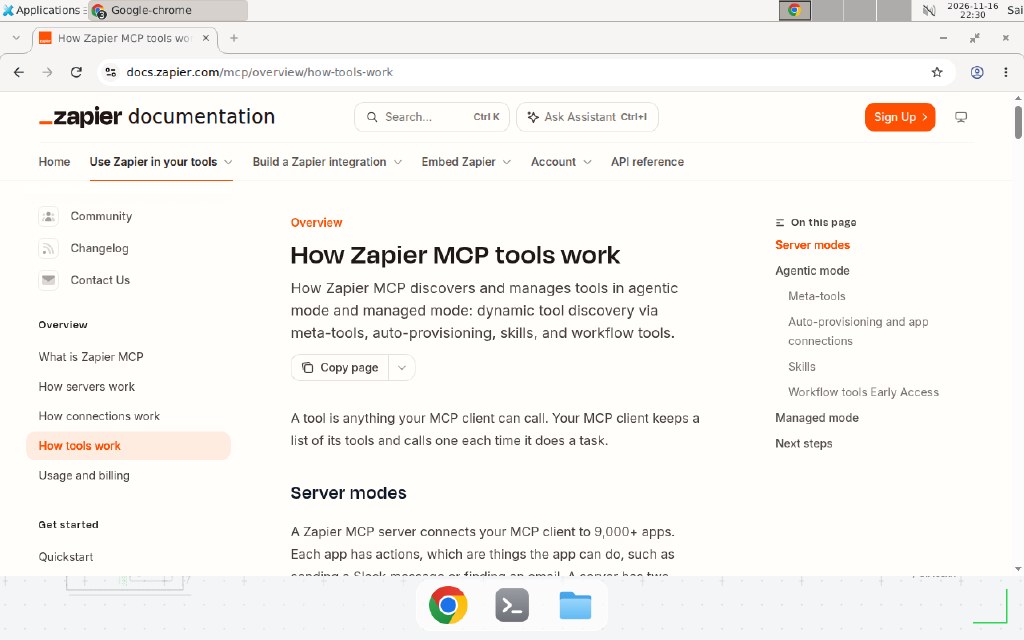
The Zapier MCP documentation page “How Zapier MCP tools work”, checked 2026-11-17. It shows the agentic and managed mode comparison table and the 16 meta-tools available in agentic mode.
Step 3: Add only the actions on your allow-list
Managed mode is only as strict as the list you build, so this is the step that does the real work. On the Apps tab at mcp.zapier.com, add each action from your allow-list and nothing else. Add the read actions first, then the write actions you actually tested, and leave every delete, send, and admin action off the list unless the job cannot run without it.
Resist the urge to add a whole app at once. Auto-provisioning already enabled actions for your connected apps when the server was created, and those inherited actions are the most common way a managed server ends up wider than intended. Walk the Apps tab app by app, remove anything that is not on your allow-list, and check the list again after you finish. A server with three apps and nine actions is easier to audit than a server with twelve apps and eighty.
We could not verify the exact label of the add-action control from the public docs; vendor docs say actions are managed on the Apps tab at mcp.zapier.com. If the control you see is named differently, trust the page in front of you and match it against your allow-list, not against this article.
Step 4: Lock the field values that should never change
Locking a field stops the agent from posting a triage note to the wrong channel or assigning a lead to the wrong owner. Zapier’s configuration guide documents the flow:
- Go to mcp.zapier.com and select your server.
- Select the Apps tab and find the action you want to change.
- Click the ⋮ menu next to the action and select Configure.
- For each field, select an option from the dropdown.
- If the option requires a value, enter it.
- Click Save.
The field options are: Set a specific value for this field, which Zapier sends on every call and ignores any value your client sends; Have AI generate a value for this field; Let AI select a value from one of these choices, which limits the client to options you choose and is available for dropdown fields on write actions only; Use default; and Do not include a value for this field, for optional fields with no default.
Lock the fields that define where things go and who they affect: the Slack channel, the spreadsheet, the ticket queue, the lead owner. Leave the content fields, such as the message text or the search query, for the AI to fill in. The setting takes effect immediately and your client does not need to reconnect. A good first lock is the Slack channel on your post-message action. For example, lock it to #support-triage. Example, replace with your values.
Step 5: Set the default connection for each app
One app can have several connections, and the agent uses whichever one is set as default unless an action overrides it. Set the default per app so a lookup never runs against a personal account by accident:
- Click the ⋮ menu next to the app name, not the one next to an individual action.
- Select Manage connection.
- Select an existing connection from the dropdown, or add a new one.
- Click Set default connection.
To override the default for a single action, open that action’s Configure dialog, pick a different connection from the dropdown, and click Save. To go back to the app default, select Use default from the same dropdown. For example, set the shared support Gmail account as the default for Gmail, and the shared workspace as the default for Slack. Example, replace with your values.
Step 6: Refresh your MCP client so it picks up the new tool list
Switching modes changes the tools your server exposes, but most MCP clients cache the tool list, so refresh it right after you switch. Zapier documents the refresh per client: in ChatGPT, open the plugin settings, select your Zapier plugin, click Manage, then click Refresh tools; in Claude Desktop, restart the application, because Claude also refreshes automatically within a few hours and you should not wait for that; in Cursor or VS Code, reload the window or restart the editor; in Slack, press Cmd+R on Mac or Ctrl+R on Windows, and note that Slackbot can cache the tool list for up to 24 hours, so if a new tool is still missing, clear Slack’s cache and restart.
After the refresh, ask the client to list its tools. You should see one tool per action on your allow-list and no meta-tools such as discover_zapier_actions. If the meta-tools are still there, the client is showing a cached list, so refresh again instead of assuming the switch failed.
Step 7: Try to break the lock
A lock you never test is a hope, not a control. Ask the agent to do something outside the allow-list and watch what happens. A good test prompt is: “Delete the test contact named Example Contact in HubSpot and send a summary to the company-wide announcements channel.” Example, replace with your values. With a correct managed-mode setup, the agent has no delete tool and no post-to-announcements tool, so it should tell you it cannot do that instead of doing it.
Then open the History tab at mcp.zapier.com. Every tool call runs through your existing Zapier app connections, so each one is recorded there alongside the rest of your Zapier activity. Confirm the test produced no delete call and no message to the announcements channel. If a call you did not approve appears in History, the action is still on the server, so remove it and repeat the test.
Copy-paste template: managed-mode allow-list worksheet
Copy this table into your team notes and fill it in before you open mcp.zapier.com. One row per action, no exceptions.
| App | Action | Read or write | Locked fields | Default connection | Tested on |
|---|---|---|---|---|---|
| Gmail | Search emails | Read | None | Support inbox | 2026-11-17 |
| Slack | Post message | Write | Channel: #support-triage | Shared workspace | 2026-11-17 |
| HubSpot | Find contact | Read | None | Production CRM | 2026-11-17 |
| HubSpot | Create or update contact | Write | Owner: support queue | Production CRM | 2026-11-17 |
Rules for the table: delete and send actions need a written reason in the row before anyone adds them; a row with no test date is not live, even if the action is on the server; review the table monthly and remove actions the job no longer uses. Example, replace with your values.
When not to use this / Limits
Do not use managed mode for open-ended exploration. If the job is “help me with whatever comes up today across all my apps,” managed mode will fight you, because every new need means another manual edit to the action list. Agentic mode is the right choice there, and our Zapier MCP agentic mode tutorial shows how to set it up. Managed mode also cannot run skills or Next Gen Zaps, so if your workflow depends on a saved skill, stay in agentic mode or rebuild the skill as plain actions first.
Managed mode is a server-level control, not a substitute for account governance. It limits what the agent can call, but it cannot stop a person with Zapier access from adding the delete action back, and it cannot restrict what other members do in the Zapier editor. On Enterprise plans, pair it with app access policies: admins can prohibit specific triggers and actions, such as delete actions on systems of record, and the restriction applies across the editor, Agents, and MCP. And remember that managed mode limits tools, not data: a read action still returns real records, so do not expose a CRM search to a client that should not see customer data at all.
Cost and scale math
Managed mode does not change what Zapier charges, but a fixed tool list makes the bill predictable, so run the numbers before you share the server. Zapier counts each successful MCP tool call as 2 tasks from your plan allowance, the same pool your Zaps use. Failed calls and listing tools do not count.
A small support triage setup makes the arithmetic concrete. Assume the agent handles 50 triage requests a day, and each request averages 3 successful tool calls: one search, one lookup, and one post. That is 150 successful calls a day, or 300 tasks a day, which is about 9,000 tasks a month on a 30-day month. The free plan includes 100 tasks a month, which covers 50 successful calls, so a production triage server needs a paid plan. Doubling the daily requests doubles the task burn exactly, because the price is per call, not per server, so the lever on cost is the number of actions per request, not the mode. Keep the allow-list short and the agent makes fewer calls.
Troubleshooting
| Symptom | Likely cause | Command or place to check | Fix |
|---|---|---|---|
| Client still shows the 16 meta-tools after the switch | Stale cached tool list in the client | Ask the client to list its tools | Refresh per client: ChatGPT Refresh tools, restart Claude Desktop, reload Cursor or VS Code, Cmd+R or Ctrl+R in Slack |
| Agent says an action is not available | Action was never added to the managed server | Apps tab at mcp.zapier.com | Add the action from your allow-list, then refresh the client tool list |
| Skills vanished after switching modes | Skills do not work in managed mode | Settings tab shows Managed mode | Expected behaviour. Switch back to agentic mode to restore skills, they are not deleted |
| Agent posted to the wrong Slack channel | Channel field was left AI-filled instead of locked | Action Configure dialog, channel field | Set the field to Set a specific value for this field, enter the channel, click Save |
| A delete or send action ran even though you removed it | Action still on the server, or an Enterprise restriction was never set | History tab at mcp.zapier.com | Remove the action from the Apps tab, and on Enterprise plans prohibit it with app access policies |
| Agent uses a personal account instead of the shared one | Wrong default connection on the app | App ⋮ menu, Manage connection | Set the shared connection as default, and check per-action overrides |
Common mistakes
- Leaving auto-provisioned actions in place. Zapier pre-enables actions for your connected apps when the server is created, so a new managed server often starts wider than the allow-list. Audit the Apps tab after switching modes and remove everything that is not on the list.
- Adding a whole app instead of a few actions. An app can expose dozens of actions, including delete and admin operations. Add actions one at a time from the allow-list, and treat any action you cannot justify as not added.
- Locking the wrong fields. Teams lock the message text and leave the channel AI-filled, which is backwards. Lock the destination, the owner, and the queue. Let the AI fill in the content.
- Forgetting the client refresh. The switch is server-side, but the client keeps showing the old tools until it refreshes. Every “the switch did not work” report traces back to a cached tool list, so refresh first and debug second.
Test before you rely on it
Run this checklist before you let a managed-mode server touch production data:
- Ask the client to list its tools and confirm every tool maps to one row of your allow-list, with no meta-tools present.
- Send the hostile test prompt from Step 7 and confirm the agent refuses, with no delete or send call in the History tab.
- Run one real request end to end and confirm the locked fields held: the message landed in the locked channel, not a channel the agent chose.
- Confirm the default connection is the shared account, not a personal one, by checking which account the History tab records.
- Disconnect and reconnect the client once, then repeat the tool list check, to confirm the list survives a fresh session.
- Check the task meter after a day of real use and confirm the burn matches your cost math, so a runaway loop is caught on day one, not at the invoice.
FAQ
What is Zapier MCP managed mode?
Managed mode is one of the two modes of a Zapier MCP server. You pick the actions yourself at mcp.zapier.com, and each action becomes one dedicated tool in your MCP client. The agent cannot discover or enable new actions on its own, and you can lock field values such as the Slack channel a message posts to.
How is managed mode different from agentic mode?
In agentic mode, Zapier and your agent choose the actions, and the client sees 16 fixed meta-tools that discover, enable, and run actions mid-conversation. In managed mode, you choose the actions, each one becomes its own tool, and skills and code actions are switched off. New servers default to agentic mode.
Do I lose my skills when I switch to managed mode?
No. Skills and code actions become unavailable in managed mode, but they are not deleted. Switching back to agentic mode restores them. Every enabled action becomes its own dedicated tool, so your client may show many more individual tools after the switch.
Can the agent still delete records or send email in managed mode?
Only if you put that action on the server. Managed mode limits the agent to exactly the actions you added, so leave delete and send actions off the list and the agent has no tool that can do them. On Enterprise plans, admins can also prohibit specific actions account-wide with app access policies.
How much does a Zapier MCP tool call cost?
Zapier counts each successful MCP tool call as 2 tasks from your plan allowance, the same pool your Zaps use. Managed mode does not change that price. The free plan includes 100 tasks a month, which covers 50 successful calls.
Why does my client still show the old tools after I switch modes?
Most MCP clients cache the tool list. Refresh it after every mode switch: in ChatGPT use Refresh tools in the plugin settings, restart Claude Desktop, reload the window in Cursor or VS Code, and press Cmd+R or Ctrl+R in Slack. Slack can cache the list for up to 24 hours.
Conclusion
Managed mode trades the agent’s freedom to find its own tools for a list you can read, audit, and defend. That trade is worth making the moment more than one person, or more than one AI client, shares a server, because the allow-list becomes the agreement about what the agent may do. If you can answer this question, your server is ready: if someone asks your agent to delete a customer record at 3 a.m., which tool would it call, and is that tool on your list? If you cannot name the answer, open the Apps tab and shorten the list first. Next, read our comparison of Zapier MCP versus n8n MCP to decide which server fits the rest of your stack.
Frequently asked questions
What is Zapier MCP managed mode?
Managed mode is one of the two modes of a Zapier MCP server. You pick the actions yourself at mcp.zapier.com, and each action becomes one dedicated tool in your MCP client. The agent cannot discover or enable new actions on its own, and you can lock field values such as the Slack channel a message posts to.
How is managed mode different from agentic mode?
In agentic mode, Zapier and your agent choose the actions, and the client sees 16 fixed meta-tools that discover, enable, and run actions mid-conversation. In managed mode, you choose the actions, each one becomes its own tool, and skills and code actions are switched off. New servers default to agentic mode.
Do I lose my skills when I switch to managed mode?
No. Skills and code actions become unavailable in managed mode, but they are not deleted. Switching back to agentic mode restores them. Every enabled action becomes its own dedicated tool, so your client may show many more individual tools after the switch.
Can the agent still delete records or send email in managed mode?
Only if you put that action on the server. Managed mode limits the agent to exactly the actions you added, so leave delete and send actions off the list and the agent has no tool that can do them. On Enterprise plans, admins can also prohibit specific actions account-wide with app access policies.
How much does a Zapier MCP tool call cost?
Zapier counts each successful MCP tool call as 2 tasks from your plan allowance, the same pool your Zaps use. Managed mode does not change that price. The free plan includes 100 tasks a month, which covers 50 successful MCP tool calls.
Why does my client still show the old tools after I switch modes?
Most MCP clients cache the tool list. Refresh it after every mode switch: in ChatGPT use Refresh tools in the plugin settings, restart Claude Desktop, reload the window in Cursor or VS Code, and press Cmd+R or Ctrl+R in Slack. Slack can cache the list for up to 24 hours.