Zapier MCP Agentic Mode Tutorial: Let Claude Code Find, Enable, and Run Actions Itself
You connect Claude Code to Zapier, ask it to find last week’s unread emails from your biggest client, and it replies that it has no email tool. You open the Zapier dashboard, tick the Gmail actions by hand, restart the client, and ask again. It works, but you just did the integration work the agent was supposed to do. Every new app means another round of manual ticking, and the tool list grows until the model spends more context reading tool definitions than doing your task.
Agentic mode is Zapier’s answer to that loop. Instead of one tool per action, your client gets a small fixed set of meta-tools that find, enable, and run actions on demand. This tutorial connects Claude Code to a Zapier MCP server in agentic mode, runs a real action end to end, and shows how to watch the task meter.
Quick answer
Run claude mcp add --transport http "Zapier-MCP" https://mcp.zapier.com/api/v1/connect, restart Claude Code, sign in and click Allow. Your client then gets 16 meta-tools that discover, enable, and run actions across 9,000+ apps, and each successful call costs 2 Zapier tasks.
The hard part is not the one-line install, it is the scope decision, because agentic mode lets the agent enable any action in your connected apps, including writes, so a careless connection is a standing permission to act in your inbox and chat.
Checked on 2026-11-16 against the Zapier MCP tools documentation, the Claude Code connection guide, and the Zapier blog on sharing one MCP server. Interfaces change fast, so if a menu or label differs, trust the linked page.
Evidence: what agentic mode actually is
Zapier describes the mode in one sentence: “In agentic mode, your MCP client manages its own toolset through dynamic tool discovery. Zapier auto-provisions actions from your existing app connections, and from there your agent searches for, enables, and runs actions as your requests come up. It does not need a pre-configured list of tools before it can help.”
The numbers behind that sentence are concrete. A Zapier MCP server connects to 9,000+ apps, according to Zapier’s own documentation, and in agentic mode it exposes 16 static meta-tools across six categories. Those 16 tools are always available, no matter which apps you have connected. A few servers also show a 17th tool, write_code_action, which Zapier is still rolling out. The full list, from the official tools page, is: five action-management tools (inspect_zapier_actions, discover_zapier_actions, enable_zapier_action, disable_zapier_action, auto_provision_mcp), two execution tools (execute_zapier_read_action, execute_zapier_write_action), two connection tools (list_zapier_connections, manage_zapier_connections), get_configuration_url, five skill tools, and send_feedback.
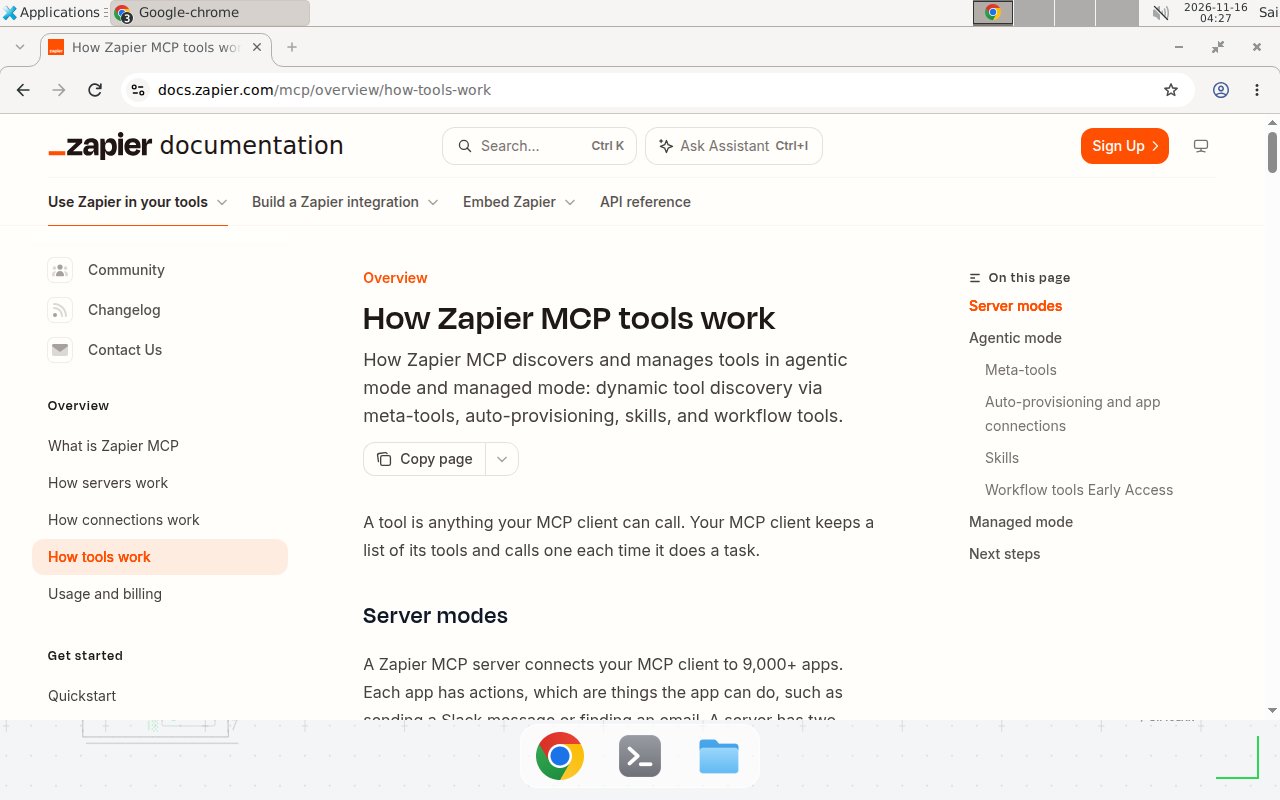
Zapier’s own tools page: agentic mode exposes 16 meta-tools, and new servers default to it. Screenshot taken 2026-11-16.
The mode is also new. New servers default to agentic mode, and Zapier’s October 20, 2026 blog post announced that one server can now serve several AI clients at once: Claude, ChatGPT, and Cursor can share the same apps, actions, and call history. The same server you connect to Claude Code today can later serve your other clients without a second setup round.
The billing rule is the part most guides bury. Zapier MCP has no separate bill, and each successful tool call uses 2 tasks from the same allowance your Zaps use. Failed calls and listing tools do not count. The free plan includes 100 tasks a month, from Zapier’s pricing page, so the free tier covers 50 successful MCP calls a month.
Your request
    |
    v
Claude Code --(16 meta-tools)--> Zapier MCP server
    |                                |
    | discover / enable / execute    | 2 tasks per successful call
    v                                v
Action runs in your app        History logged at mcp.zapier.com
(Gmail, Slack, Sheets...)
Prerequisites
- A Zapier account. Any plan works, including Free, and you can create one during the browser sign-in, so there is no need to sign up first.
- Claude Code installed, with a terminal you can restart it from.
- At least one app already connected in Zapier, such as Gmail or Slack. An empty account still works, but the first run lands better with a real connection in place.
- A browser that can open Zapier’s sign-in page for the OAuth step. On WSL, use a native Windows or macOS terminal instead, because the callback may not reach Claude Code.
Step 1: Add the server with one command
Run this in your terminal:
claude mcp add --transport http "Zapier-MCP" https://mcp.zapier.com/api/v1/connect
Claude Code confirms it added the HTTP MCP server and writes a short config with the URL and no secrets. The server name Zapier-MCP is yours to choose, but keep it, because the troubleshooting steps below refer to it.
If you want the server scoped to one project instead of every project on the machine, add --scope project before the name. That writes the config into the project folder’s .mcp.json instead of your global config, which is the safer choice on a shared machine or a client project. Zapier also publishes an official Claude Code plugin. If Anthropic’s official plugin marketplace is already added, run /plugin install zapier@claude-plugins-official instead of the command above.
Step 2: Restart Claude Code and sign in
Restart Claude Code, open the MCP panel with /mcp, pick Zapier-MCP, and choose Authenticate. A browser tab opens on Zapier. Review the access Claude Code is asking for and click Allow.
Two details catch people here. First, Zapier’s sign-in screen asks you to copy a prompt before the Continue button works. Copy it, then continue. The prompt tells Claude Code to run its onboarding skill, which shows you a few of your apps working together live, so do not skip it. Second, on a Claude Team or Enterprise plan, your organization may require Owner approval before you can add MCP servers at all. If the sign-in stalls on approval, that is an admin setting, not a broken install.
We could not verify the exact label order on the OAuth screen past the Allow step, because Zapier revises that screen, so if the buttons read differently, follow the screen and trust the Claude Code connection guide.
Step 3: Confirm the 16 meta-tools are live
In Claude Code, ask: “List your Zapier meta-tools.” You should see the 16 tools from the evidence section. If you see one tool per app action instead, your server is in managed mode. New servers default to agentic mode, but a server created by a programmatic client such as Vapi or the OpenAI API starts in managed mode. Switch it in the server’s Settings tab at mcp.zapier.com, then refresh the tool list, because many clients cache it.
Next, confirm auto-provisioning worked. Ask: “What Zapier actions are already enabled for me?” The agent calls inspect_zapier_actions and lists the actions Zapier pre-enabled from your connected apps. If the list is empty, your Zapier account has no app connections yet. The agent will prompt you to connect an app the first time it needs one, which is normal, not an error.
Step 4: Run a real action, end to end
Ask for something with a visible result in an app you already use. A good first run is a read followed by a write:
“Find my unread Gmail messages from the last 7 days, and post a summary of the three most recent ones to the #general Slack channel.”
Watch what the agent does, because the sequence is the whole point of agentic mode. It calls discover_zapier_actions to find the Gmail search action, enables it with enable_zapier_action, runs it with execute_zapier_read_action, then repeats the steps for the Slack post action and runs it with execute_zapier_write_action. Nothing was pre-configured. The agent found the tools it needed, enabled them, and ran them inside one conversation.
Check the result in Slack, not just in the chat transcript. Then open the History tab at mcp.zapier.com and confirm the calls are logged there with their task cost. Every tool call your agent makes runs through your existing Zapier app connections, so each one is recorded alongside the rest of your Zapier activity.
Step 5: Teach it a repeatable job with a skill
Skills are reusable, Markdown-based instructions your agent loads on demand, and they only work in agentic mode. Save a repeated multi-step job as a skill instead of re-explaining it every time.
Ask Claude Code: “Create a Zapier skill called weekly-inbox-digest that finds unread Gmail from the last 7 days and posts the three most recent to #general in Slack.” The agent uses create_zapier_skill to save it. From then on, “run my weekly-inbox-digest skill” loads the same instructions. The channel name and the 7-day window in that example are demo values. Example, replace with your values: use your own channel, your own sender filter, and your own day range.
Copy-paste template: first-run prompt pack
Paste this into Claude Code after connecting, replacing the bracketed values with your own. It runs the onboarding, a read action, and a write action, and tells the agent to report the task cost before it acts.
Install Zapier MCP for me globally.
Run this command:
  claude mcp add --transport http "Zapier-MCP" https://mcp.zapier.com/api/v1/connect
Then give me step-by-step instructions for how to restart Claude Code.
After restarting, use the list-skills tool to find the onboarding skill
and follow it: tell me what Zapier MCP can do, then show me by putting
a few of my apps to work together, live.

First real job (Example — replace with your values):
Find unread Gmail messages from [sender@example.com] in the last [7] days.
Post a one-line summary of each to Slack channel [#general].
Before you run the write action, tell me how many tasks it will cost.
After it runs, confirm the message is visible in Slack.
Keep the cost question in the prompt. It makes the agent state the price before it spends it, the cheapest governance this setup has.
When not to use this / Limits
Do not use agentic mode when the action set must stay fixed. If an agent should only ever send one kind of message to one channel, managed mode is the right tool, because you pick the actions, lock the field values, and the agent cannot add more. Do not use it for unattended scheduled runs either: the agent can enable new actions while you are away, and a misread prompt can turn a read into a write. Do not use it on a shared Zapier account unless you are comfortable with every connected app being in scope. The mode also has hard edges: only Streamable HTTP transport is supported, so a client that speaks only the older SSE transport cannot connect, and a few programmatic clients start in managed mode by default. Skills and Next Gen Zaps only work in agentic mode.
Cost math: what agentic mode actually spends
The arithmetic is short, and it decides whether the free plan survives your usage.
| Usage pattern | Successful calls | Tasks used | Free plan (100 tasks) |
|---|---|---|---|
| One read plus one write a day | 2 a day, 60 a month | 120 a month | Over by 20 tasks |
| Five calls a day | 5 a day, 150 a month | 300 a month | Over by 200 tasks |
| One weekly digest | 4 a month | 8 a month | Fits, with 92 tasks spare |
| Ten calls a day | 10 a day, 300 a month | 600 a month | Needs a paid plan |
Assumptions: every call succeeds, so each one costs 2 tasks. Failed calls and listing tools cost nothing, so discovery and inspection are free. The onboarding run also costs tasks, including the ones it runs while showing you your apps, so your first session is not free. If your month needs more than 50 successful calls, the free plan runs out, and the next step is a paid Zapier plan, not a second free account, because the allowance is per account.
Troubleshooting
| Symptom | Likely cause | Command to check | Fix |
|---|---|---|---|
| Claude Code shows no Zapier tools after the command | The client cached the old tool list or was not restarted | /mcp in Claude Code | Restart Claude Code and check /mcp |
| The client shows one tool per action, not 16 meta-tools | The server is in managed mode | Check the server’s Settings tab at mcp.zapier.com | Switch to agentic mode, then refresh the tool list |
| Tools worked yesterday and now return 404 | The connection token saved in the client is no longer valid | Open the server’s Settings tab at mcp.zapier.com | Rotate the token there, then reconnect |
| Sign-in opens a browser but never completes | You are running Claude Code on WSL | Check whether the callback reaches the terminal | Use a native Windows or macOS terminal |
| The agent says it has no email tool | Your Zapier account has no app connections yet | Ask the agent to list enabled actions | Connect Gmail in Zapier, or let the agent discover the action and prompt you to connect |
| Task counter drops faster than expected | Onboarding and discovery calls add up, and each success costs 2 tasks | Open Plan Tasks and MCP Tasks at mcp.zapier.com | Cut daily calls, or move repeatable jobs into a skill |
Common mistakes
- Leaving every app connected. Agentic mode scopes to your whole Zapier account. Disconnect apps the agent will never need, or it can enable actions in them mid-conversation.
- Treating a read as free and a write as the only cost. Every successful call costs 2 tasks, reads included. A chatty agent that inspects, discovers, and re-reads before acting can spend 10 tasks on one job.
- Switching modes without refreshing the client. The mode lives on the server, but the tool list lives in the client cache. Change the mode, then restart the client or refresh its tool list, or you will keep seeing the old tools.
- Skipping the History check. The transcript says the action ran, but the app is the truth. Check the app and the History tab after your first write action, and keep checking until the pattern is boring.
Test before you rely on it
- Run one read and one write action, then confirm both in the real apps, not just in the chat.
- Ask the agent to list its enabled actions, and confirm no app you did not intend is in the list.
- Check the History tab at mcp.zapier.com and confirm the task cost matches 2 tasks per successful call.
- Ask for an app you have not connected, and confirm the agent asks to connect it instead of guessing.
- Restart Claude Code and confirm the server reconnects without a fresh sign-in.
- If you share the server with ChatGPT or Cursor, confirm all three see the same actions. A mode change affects every client on the server.
Conclusion
Agentic mode removes the setup tax that made Zapier MCP feel like another integration to maintain. One command connects Claude Code, 16 meta-tools replace a hand-ticked action list, and the agent finds what it needs when it needs it. The price is scope and attention: 2 tasks per successful call, and an agent that can enable any action in your connected apps.
Before you hand it a standing job, answer one question: if the agent misreads a request at 3 a.m., can you see what it did in the History tab and undo it in the app? If not, tighten the scope first, then automate. Next, read how to set up the Zapier MCP server from scratch, compare the modes in Zapier MCP vs n8n MCP, and work through the complete n8n guide for the same pattern in n8n.
Frequently asked questions
What is Zapier MCP agentic mode?
Agentic mode is the default mode for new Zapier MCP servers. Instead of exposing one tool per action, it gives your AI client 16 fixed meta-tools that search Zapier's catalogue, enable the action a request needs, and run it, all mid-conversation. Zapier auto-provisions actions from the apps you already connected, so the agent starts with your existing tools.
How is agentic mode different from managed mode?
In agentic mode, Zapier and your agent choose the actions, and the client sees 16 meta-tools. In managed mode, you pick the actions yourself at mcp.zapier.com, each one becomes its own tool, and the agent cannot add more. Managed mode also lets you lock field values and suits fixed, repeatable tasks. Skills and Next Gen Zaps only work in agentic mode.
How much does a Zapier MCP tool call cost?
There is no separate MCP bill. Each successful tool call uses 2 tasks from your plan's allowance, the same pool your Zaps use. Failed calls and listing tools do not count. The free plan includes 100 tasks a month, which covers 50 successful MCP tool calls.
How do I connect Zapier MCP to Claude Code?
Run claude mcp add --transport http "Zapier-MCP" https://mcp.zapier.com/api/v1/connect, restart Claude Code, then sign in to Zapier in the browser and click Allow. On a Claude Team or Enterprise plan, an Owner may need to approve the connector first. On WSL, use a native Windows or macOS terminal, because the browser OAuth callback may not reach Claude Code.
Can the agent enable actions I did not approve?
Yes, and that is the point of agentic mode. The agent can discover and enable any action in the apps connected to your Zapier account, including write actions that send messages or create records. If that scope is too wide, switch the server to managed mode and pick the actions yourself, or connect only the apps the agent needs.
Can Claude, ChatGPT, and Cursor share one Zapier MCP server?
Yes. Since October 2026, several AI clients can connect to the same Zapier MCP server and share its apps, actions, skills, and call history. The mode belongs to the server, so every client on it uses the same mode. Skills only work in agentic mode, so a managed-mode server shares apps and actions but not skills.