How to Fix an AI by Zapier Step Paused at the 75-Task Limit
Your Zap was running fine, then it stopped mid-run. Zap history shows the AI step paused, with no error and no failed app connection. Zapier stopped the run on purpose.
Quick answer: An AI by Zapier step pauses when one run reaches 75 tasks. Approve the paused run in Zap history, then raise the step’s per-run task limit (up to 500) and cut the tool calls that tripped the brake.
The hard part is not resuming the run, it is stopping the loop that will trip the brake again on the next run.
Checked on 2026-11-21 against Zapier’s AI by Zapier guide and Zapier’s guide to what counts as a task. If a menu or label differs, trust the linked page.
What broke, and why
An AI by Zapier step does not run once and stop. It loops: read the prompt, call a tool, read the result, decide whether to call another. Zapier’s own guide states the rule plainly: “If a step hits 75 tasks, your Zap will pause.”
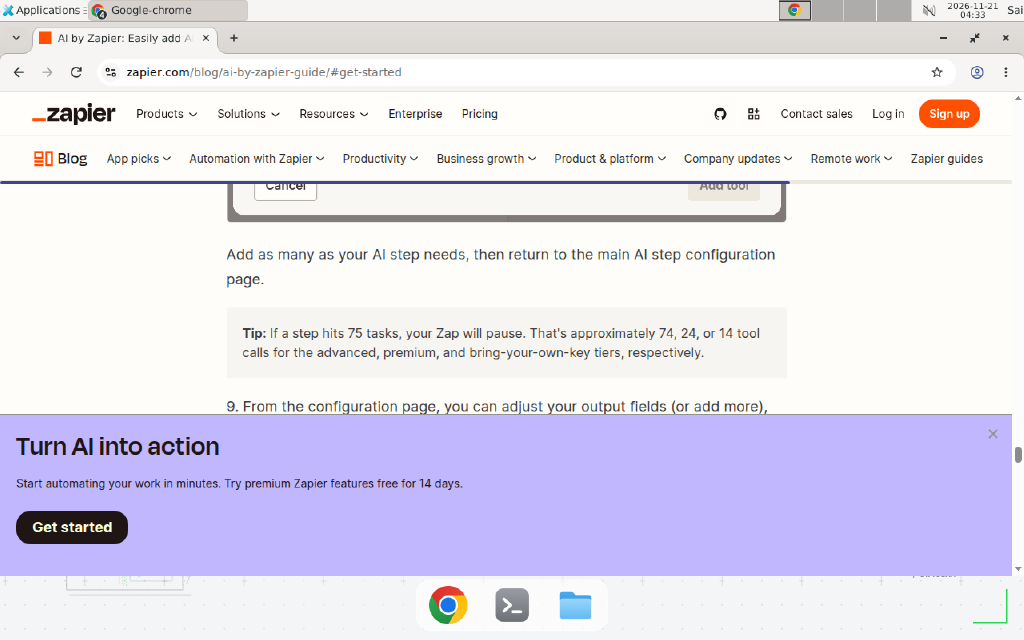
Zapier’s AI by Zapier guide, checked 2026-11-21.
The math shows why 75 arrives fast. Zapier bills AI steps by model tier: Standard costs 1 task per run, Advanced costs 3, and Premium costs 5, with each tool call charged again at the same rate. New AI steps on paid plans default to Premium, so one run costs (1 + tool calls) x tier rate. A Premium step that calls two tools costs 15 tasks, so 750 Professional tasks ($19.99 a month) cover only 50 such runs. The same step hits the brake after about 14 tool calls, an Advanced step after about 24, and a bring-your-own-key step after about 74. The usual trigger is an open prompt and a wide tool list, which give the AI many tools to try and no stopping point.
The fix
Work in order: resume first, fix the cause, and raise the limit only if the run still needs headroom.
- Confirm it is the brake, not an error. Open Zap history and find the paused run: a brake pause shows the AI step stopped at 75 tasks with no failed step. An HTTP error means a different problem.
- Resume the paused run. In Zap history, approve the paused run and let it finish. Zapier holds the trigger data while a run is paused, so nothing is lost. A replay counts tasks again, so fix the prompt first.
- Tighten the prompt and the tool list. Name the exact outcome and stopping condition, and remove every tool the step does not need. See our guides to adding an AI step to a Zapier workflow and to AI step guardrails for prompt, tool, and approval setup.
- Drop the model tier if the task allows it. A Premium step burns 5 tasks per tool call, an Advanced step burns 3. For classification or a short draft, test the same prompt on Advanced with ten samples. If quality holds, you doubled the tool calls you get before the brake.
- Raise the per-run limit only for runs that genuinely need it. Open the AI by Zapier step and raise the task limit from 75 toward 500. Treat this as headroom, not as a fix for a loop. Also turn on per-tool approval for tools that write data, so a runaway run asks first.
Example prompt rewrite (Example, replace with your values):
Read the incoming support email below.
Draft one reply of under 120 words.
Use only the Gmail search tool, once, to check for an existing thread.
Do not call any other tool. Stop after the draft.
Email: <paste the trigger email here>
Pitfalls that make the fix look broken
| Symptom | Likely cause | Fix |
|---|---|---|
| The run pauses at 75 tasks again after you resume it | Same loop ran again, prompt and tools unchanged | Tighten the prompt, remove tools, then replay |
| Raising the limit to 500 made task usage spike | The loop now runs longer | Restore 75, fix the prompt, re-test, then raise it |
| Runs are held with “Task limit reached” | Your plan’s monthly task allowance is used up | Not the brake. Upgrade, wait for the cycle reset, or cut usage, then replay |
We could not verify the exact label of the task-limit field; vendor docs say it defaults to 75 and rises to 500.
How to verify the fix worked
Send one test trigger: a fixed run completes well under 75 tasks, with tool calls in single digits. Then run ten more. If the average run uses under 20 tasks and none pauses, the loop is fixed.
When this article does not apply
Runs held because the account hit its monthly task limit are not this brake. Zapier’s guide to troubleshooting held Zap runs covers that case: upgrade, wait for the reset, or cut usage, then replay. If the Zap switched itself off after repeated errors, fix the failing step first. On the Free plan you cannot publish a Zap with an AI step at all, so the pause you see is a plan limit, not the 75-task brake.
Conclusion
The 75-task pause is Zapier protecting your task budget, not a bug in your Zap. Resume the run, close the loop with a tighter prompt and fewer tools, then raise the limit. Before raising it to 500, ask: if this run loops again tonight, can you see what it did and undo it? If not, add per-tool approval first.
Frequently asked questions
Why did my Zapier AI step pause at exactly 75 tasks?
75 tasks is the default per-run limit for an AI by Zapier step, a runaway brake. When one run reaches it, Zapier pauses the run and waits for your approval instead of letting the AI keep calling tools. You can raise the limit to 500 in the step settings, but raising it without fixing the loop just burns more tasks.
Is the 75-task pause the same as hitting my monthly task limit?
No. The 75-task brake is per run and per AI step, while the monthly limit is your whole plan allowance (750 tasks a month on Professional at $19.99). A monthly limit problem shows runs as held with 'Task limit reached' and needs a plan change or a wait for the billing cycle to reset.