How to Use Yogurt: Local AI Meeting Notes with a Read-Only MCP Server
Introduction
You finish a call, open your notes app, and find nothing but the three bullet points you typed while half listening. The meeting bot that was supposed to take notes never got admitted, the cloud transcript service wants a subscription, and the free tier stores your calls on someone else’s server. Yogurt is built for exactly that frustration: a free, open-source meeting notes app that records from your own microphone and speakers, transcribes and summarizes on your own machine, and never sends a bot into the meeting. This tutorial installs it, records a real meeting, and connects its read-only MCP server to Claude Code so you can ask an assistant about your meetings without uploading them anywhere.
Quick answer
Install Yogurt, let it download its local models, record a call from your microphone and system audio, then turn on the read-only MCP server in Settings, AI apps, and connect it to Claude Code to search your notes.
The hard part is not the install, it is the privacy setup: the MCP server is off by default for a reason, and any app you connect can forward what it reads to its own online model.
Checked on 2026-11-19 against the Yogurt README on GitHub and yogurt.so. Interfaces change fast, so if a menu or label differs, trust the linked page.
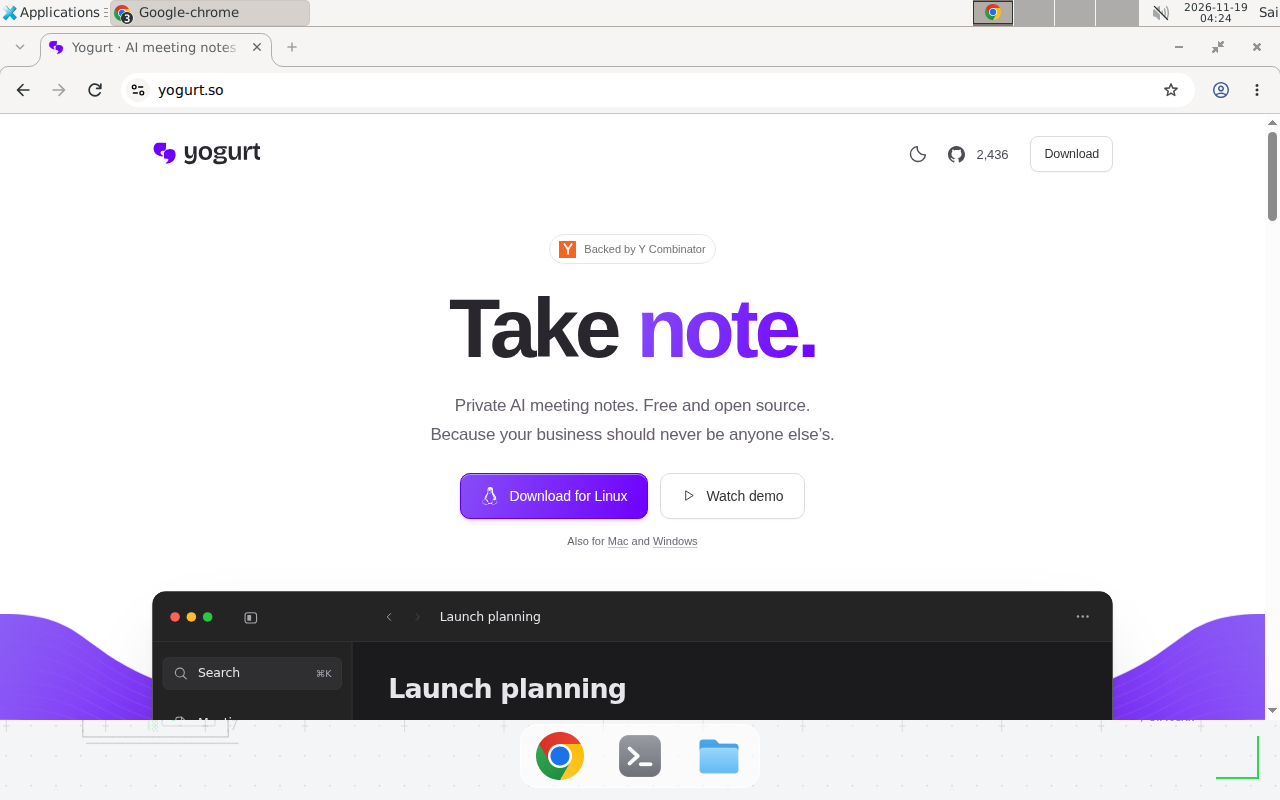
Yogurt’s homepage on 2026-11-19: free and open source, with 2,436 GitHub stars nine days after the repository was created.
Evidence
Yogurt is nine days old and moving fast. The repository was created on 2026-11-10, and by 2026-11-19 it had 2,436 GitHub stars, with version 0.3.48 released the same day. Three releases, v0.3.46 through v0.3.48, shipped in about two days, so re-check the README before trusting a screenshot older than a week.
Under the hood, transcription runs through whisper.cpp, using Whisper large-v3-turbo or a smaller model depending on your computer. Summaries and answers use a local open-weight model from the Gemma 4, gpt-oss, or Qwen3 families, run through llama.cpp. The README states the privacy claim plainly: “Your audio, transcripts and AI processing stay on your computer.” On the question everyone asks first, the FAQ is equally direct: “No. Yogurt records your microphone and the sound playing on your computer. No bot joins the call, so let the other people on the call know you’re recording.” A bot is a visible signal to other participants, and Yogurt has none, so the disclosure is on you.
Prerequisites
- A Mac with Apple silicon and macOS 14.4 or newer, a 64-bit Windows 10 (version 2004) or newer PC, or a 64-bit Linux machine with Ubuntu 22.04 or newer, with at least 8 GB of memory.
- A microphone and speakers or headphones, plus a call in Zoom, Teams, or Meet if you want automatic call detection. Any app works for recording, since Yogurt captures microphone and system audio.
- Claude Code installed, if you want the MCP step. Any assistant app that accepts a local MCP server works, but the steps below use Claude Code.
- Unmetered internet for the first setup. The app downloads transcription and notes models matched to your hardware; the README gives no exact size, so budget several gigabytes. We could not verify the exact download size from the public docs.
Step-by-step guide
Step 1: Download and install Yogurt
Open yogurt.so and download the installer for your platform: a Mac .dmg for Apple silicon, a Windows .exe, or a Linux AppImage. The download links point at the latest release on the Yogurt GitHub repository. Install it, launch it, and note that no account is needed at any point.
Step 2: Let the first-run setup download the models
On first launch, Yogurt checks your hardware and starts setup. Transcription comes first, then the notes models selected for your computer. Recording works once setup finishes, and notes and questions work offline once the notes model is in. If setup reports your computer is too slow, that is the 8 GB floor or an underpowered CPU talking, and there is no setting that fixes it: run Yogurt on a machine that meets the minimums.
Step 3: Record your first meeting
Join a call, or start one yourself. When a supported call starts in Zoom, Teams, or Meet, Yogurt offers to record, and recording starts only when you choose it. If no offer appears, start recording manually from Yogurt: detection watches which apps use your microphone and, for browser calls, the tab title or a nearby calendar event, so a call in an unusual app may not trigger the offer. Add your own notes during the call if you like, and let Yogurt stop automatically when it detects the call has ended.
After the call, open the meeting in Yogurt to check the live transcript and the summary. On Mac, speaker names come from the call app once you grant Accessibility permission. In Settings, Language, Spoken language, pick Multi-language if your meetings switch languages mid-call; the mode transcribes 99 languages. English only is the default and the fastest, most accurate choice for English meetings.
Step 4: Connect your calendar (optional, but worth it)
On Mac, allow Calendar access in Settings and Yogurt reads the calendars already on your computer, letting you choose which ones to show. You do not sign into a calendar account inside Yogurt. On Windows and Linux, connect your calendar with a private calendar link instead. Calendar details matter for the MCP step, because the server exposes each meeting’s event, including attendees’ names and emails.
Step 5: Turn on the local MCP server
In Yogurt, open Settings, then AI apps. Access is off by default: turn it on, then copy the helper command Yogurt shows you. That command is how your assistant app reaches Yogurt’s local MCP server. The server is read-only. An app can read your meetings, notes, transcripts, and calendar details, but it cannot change them. Two limits are worth reading twice before you enable it. First, the app may send what it reads to its own online model, so a cloud-connected assistant can still move your meeting content off your machine. Second, there is no per-app token, so any app running under your account can read while access is on. On Mac and Linux the server uses a socket with 0600 permissions in your profile folder; on Windows it uses a named pipe with a new random name each launch. We could not verify the exact helper command text here, since it is generated per install; copy the one your own copy of Yogurt displays.
Step 6: Connect Claude Code to Yogurt
Add the helper command you copied as a local MCP server in Claude Code, following the same claude mcp add flow in our Claude Code MCP setup guide. Claude Desktop users can follow the same idea with a JSON config file; see our guide to connecting an MCP server to Claude Desktop. Start a new Claude Code session after adding the server, then run /mcp and check that the Yogurt server is listed. If it is missing, the usual cause is that access is still off in Yogurt’s Settings, AI apps, or that you added the helper command to a config Claude Code does not read. Turn access off in Yogurt to stop further reads at any time.
Step 7: Ask Claude Code about a meeting
With the server connected, ask about a meeting the way you would ask a colleague who took notes: “What did we decide about the launch date in yesterday’s planning meeting, and who owns each next step?” Claude Code reads the meeting through the MCP server and answers from the transcript and summary, with the source meeting named. Try a second query that crosses meetings: “What open action items do I have across this week’s meetings?” Check the answers against the transcript in Yogurt before you trust them in a message to someone else.
Copy-paste template: the Yogurt meeting query pack
Save this as yogurt-queries.md and reuse it when you ask an assistant about meetings through the MCP server. Every prompt asks for retrieval, not edits, and every answer should name its source meeting. Example values below are marked “Example — replace with your values”.
# Yogurt meeting query pack (read-only MCP)

## 1. Decisions from one meeting
What decisions were made in "[Example — replace with your values: Launch planning, 2026-11-18]"?
List each decision with the person who stated it and the source meeting.

## 2. Action items across the week
What open action items do I have across my meetings from [Example — replace with your values: 2026-11-16 to 2026-11-20]?
Group them by owner and flag any item with no owner.

## 3. Commitments I made
What did I personally commit to in my meetings this week?
Quote the exact wording from the transcript for each commitment.

## 4. Contradictions between meetings
Did anything decided in "[Example — replace with your values: Launch planning]" contradict
an earlier meeting? Name both meetings and quote both statements.

## 5. Prep for the next meeting
Summarize the open threads from the last meeting with [Example — replace with your values: Priya]
so I can open the next call with a status update, not a rehash.

## Rules for every answer
- Name the source meeting and date for every claim.
- If the transcript is unclear, say so instead of guessing.
- Never invent a decision, date, or owner that is not in the notes.
When not to use this / Limits
Do not use Yogurt when someone else must see a bot in the meeting as proof of recording, or when your company requires a centrally managed, auditable recording service: a local app on your laptop is invisible to compliance. Do not turn on the MCP server on a shared machine or a shared user account, since any app under that account can read your meetings while access is on. Do not use it for calls you are not allowed to record, and remember that no bot joins means nobody is told for you. Yogurt is also young, v0.3.48 at the time of writing with releases landing daily, so treat any single menu label as temporary. If you need managed retention policies or a recording your IT department can audit, use your company’s approved recorder instead and keep Yogurt for personal notes.
Cost and scale math
Yogurt costs $0: free, MIT licensed, no account, no subscription, no per-minute charge. The real cost is a one-time download and disk space. Setup downloads Whisper plus a notes model matched to your hardware, and the README gives no exact size, so budget several gigabytes on unmetered Wi-Fi. The ongoing math is small: five one-hour meetings a week means five local transcripts a week, all stored on your own disk under the paths in the FAQ, searchable without another upload. Compare that with a cloud note-taker that charges per seat per month and stores every call on its servers: you pay in disk space and one setup download, not in money or in handing your meetings to a vendor. For bigger automation around meetings, the complete n8n guide shows how to wire tools together once the notes exist.
Troubleshooting
| Symptom | Likely cause | Command to check | Fix |
|---|---|---|---|
| Yogurt never offers to record when a call starts | Call app or browser tab is not covered by call detection | Check whether the call is in Zoom, Teams, or Meet | Start recording manually from Yogurt; detection covers Zoom, Teams, and Meet, and browser calls need a detectable tab title or calendar event |
| No speaker names on a Mac call | Accessibility permission not granted | System Settings, Privacy and Security, Accessibility | Grant Yogurt Accessibility permission, then rejoin the call |
| Claude Code does not list the Yogurt MCP server | Access is off in Yogurt, or the helper command went to the wrong config | Yogurt Settings, AI apps: is access on? | Turn access on, copy the helper command again, add it in Claude Code, then start a new session and run /mcp |
| Summaries or Ask return nothing | Notes model is still downloading | Check whether first-run setup has finished | Wait for setup to finish; recording works once setup finishes, notes and questions work offline once the notes model is in |
| Setup says the computer is too slow | Machine is below the 8 GB floor or an old CPU | Check installed memory | Move to a machine that meets the minimums; no setting works around the hardware floor |
Common mistakes
- Assuming the MCP server is on by default. It is off until you enable it in Settings, AI apps. If Claude Code sees nothing, check Yogurt first, not Claude Code.
- Assuming read-only means private. Read-only stops edits, not forwarding. An assistant with its own online model can send what it reads to that model, so only connect apps you trust with meeting content.
- Forgetting to tell people you are recording. There is no bot to announce it. Say it at the start of the call, every time.
- Leaving MCP access on forever. Turn access off in Yogurt when you are done asking about meetings. While it is on, any app under your account can read, and Settings only shows apps by their self-reported names.
Test before you rely on it
- Record a two-minute test call and confirm the transcript and summary appear, with the right meeting title.
- Ask one question through Claude Code and check the answer against the transcript in Yogurt before forwarding it to anyone.
- Confirm automatic stop works: end the test call and check that Yogurt stopped recording on its own.
- Check where the files landed: confirm the meeting is under your platform’s Yogurt data folder.
- Turn MCP access off, confirm Claude Code can no longer read meetings, then turn it back on only when you need it.
- Record a call with two speakers and confirm the transcript attributes lines to the right people before you rely on speaker names in a summary.
FAQ
The FAQ in the front matter covers the bot question, pricing, read-only access, offline use, hardware, and storage paths.
Conclusion
Yogurt trades the convenience of a cloud note-taker for something simpler: your meetings stay on your computer, and a local MCP server lets your own assistant read them without an upload. The setup takes one download and one settings toggle; the privacy decision is the real work. Turn the server on for apps you trust, turn it off when you are done. If your assistant can answer “what did we decide, and who owns it?” from your last meeting without you pasting a transcript, the setup is working. Next, read our Claude Code MCP setup guide to connect more local tools the same way.
Frequently asked questions
Does Yogurt join my meetings as a bot?
No. Yogurt records your microphone and the sound playing on your computer, so no participant bot ever appears in the meeting. Because nobody sees a bot join, tell the other people on the call that you are recording.
Is Yogurt really free?
Yes. Yogurt is free and open source under the MIT license, and no account is needed. It goes online only for model downloads and update checks; transcription and summaries run on your computer after a one-time model download.
Can Claude Code change or delete my notes through the MCP server?
No. The MCP server is read-only: an assistant app can read meetings, notes, transcripts, and calendar details, but it cannot change them. It can, however, send what it reads to its own online model, so only connect apps you trust with that content.
Does Yogurt work offline?
Yes, after the one-time model download. Recording works once setup finishes, and notes and questions work offline once the notes model is in. Yogurt sets up transcription first, then downloads the notes models selected for your computer.
What computer do I need to run Yogurt?
A Mac with Apple silicon and macOS 14.4 or newer, a 64-bit PC with Windows 10 (version 2004) or newer, or a 64-bit Linux computer with Ubuntu 22.04 or newer. Each needs at least 8 GB of memory, and Yogurt tells you during setup if your computer is too slow.
Where does Yogurt store my meetings?
On your own disk: Mac uses ~/Library/Application Support/Yogurt, Windows uses %APPDATA%\Yogurt, and Linux uses ~/.config/Yogurt (or $XDG_CONFIG_HOME/Yogurt if set). Audio is saved by default, and you can turn that off for future meetings in Settings.