How to Use the Sound.me MCP Server: Plan, Launch, and Track TikTok Creator Campaigns from ChatGPT or Claude
Introduction
You have a song blowing up on TikTok, and you want a hundred creators to post videos with it this week. The usual path is a campaign dashboard in another browser tab, a spreadsheet of creators, and a budget form you fill in by hand. Sound.me released a different path on October 9, 2026: an MCP server that lets ChatGPT, Claude, or Cursor plan, launch, and track a creator campaign for you, in plain words. This tutorial connects the server, runs an estimate, launches a campaign, and shows you how to keep the spending under control.
Quick answer
Connect Sound.me to ChatGPT, Claude, or Cursor with the remote MCP server at https://mcp.soundme.com/mcp, sign in once, set spending limits, then ask in plain words what a budget buys, launch the campaign, and check creators, videos, and views.
The hard part is not the connection, it is the money controls: the server can place a real purchase you cannot cancel, so the spending limits and the yes-before-buying step are the whole safety story.
Checked on 2026-11-21 against the Sound.me MCP page and the October 9, 2026 Sound.me press release. Interfaces change fast, so if a menu or label differs, trust the linked page.
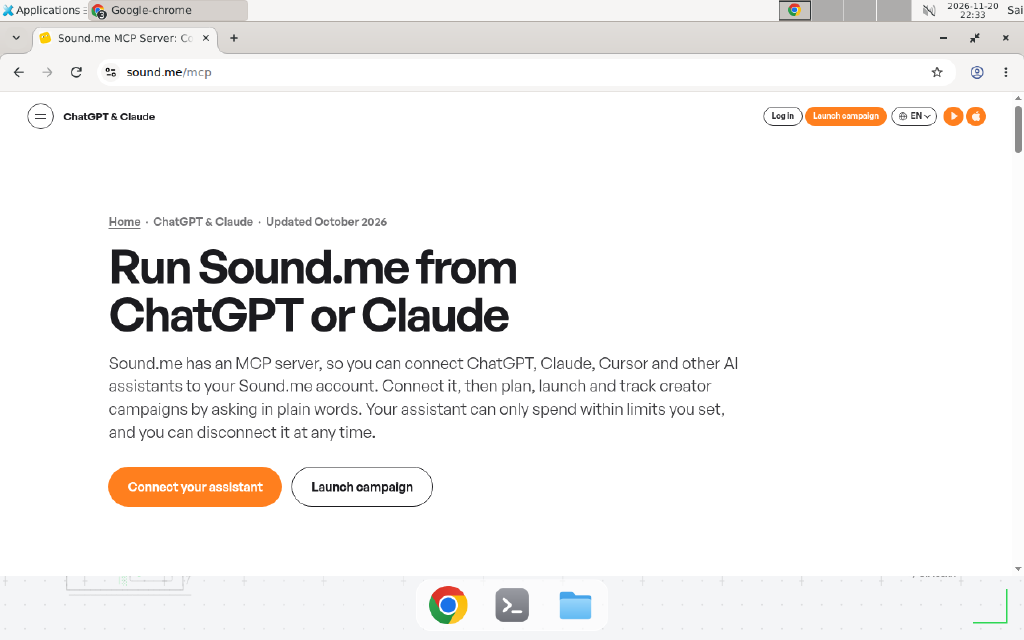
Screenshot: the Sound.me MCP page, checked 2026-11-21.
Evidence: what the server is, and how big the marketplace behind it is
Sound.me is a two-sided creator marketplace where artists, record labels, and brands pay creators to make short videos with their sound or product on TikTok, Instagram Reels, and YouTube Shorts. Creators apply to daily paid campaigns in the Sound.me app and cash out through PayPal. The launch release puts that marketplace at 3M+ registered creators in 61 countries, who have made 90M+ videos with 181B+ organic views for 20K+ advertisers, as of October 2026.
The MCP server is a remote server over Streamable HTTP, and sign-in is OAuth 2.1 with dynamic client registration and PKCE, so a client needs no key or secret from Sound.me. You sign in on Sound.me itself, your assistant never sees your password or your full card number, and each connection acts on exactly one advertiser account, the one that signed in. For background, see our introduction to MCP servers and the Model Context Protocol introduction page.
The server exposes six tools: resolve_sound looks up a TikTok, Instagram, or YouTube link and returns the sound a campaign can use; estimate_campaign projects what a budget would deliver; create_campaign buys a campaign; list_campaigns lists the account campaigns, newest first; get_campaign reads one campaign with its status, budget, and running totals for creators, videos, views, likes, comments, and shares; get_account shows payment method, balances, the card on file, and the minimum budget per platform. The scopes are campaigns:read and campaigns:purchase.
The spending guardrails are the headline feature, not a footnote. Limits start at $500 per campaign, $1,000 a day, and $3,000 a month, and you set them on the approval screen when you connect. The assistant is instructed to show the exact amount and wait for your yes before any purchase. Sound.me co-founder Alex Akimov put it this way in the launch release: “Our customers already ask their assistant those questions. Now the assistant can answer with real numbers from their own account, and launch the campaign when they say yes.”
Prerequisites
- A Sound.me advertiser account. You can create one during the connection flow if you do not have one yet.
- A card saved in your Sound.me dashboard, added before you buy anything. Your assistant cannot take card details.
- One of ChatGPT, Claude, or Cursor. Claude works on the free plan, which allows one custom connector.
- A public TikTok, Instagram, or YouTube link to the sound you want to promote.
- A budget of at least $500 for the first campaign, the default per-campaign spending limit.
Step 1: Create your advertiser account and save a card
Open the Sound.me MCP page and use the “Launch campaign” link to reach the advertiser dashboard. Create an advertiser account if you do not have one, then save a card in your dashboard before you connect any assistant. Purchases are paid the same way as a campaign bought on the website: from your credit line if you have one, otherwise from your wallet balance and then your saved card. Do this first, because an assistant that cannot see a card on file cannot complete a purchase.
Step 2: Connect ChatGPT
The ChatGPT path takes about two minutes, according to Sound.me. Copy the Sound.me link from the MCP page, open Plugins in ChatGPT, press the plus button, and choose Add custom MCP server. Name it Sound.me, paste the link under Connection, and choose OAuth as the sign-in. ChatGPT shows a warning for servers it has not reviewed, so confirm it, then choose Create as a plugin. Install it, sign in with your Sound.me account, and approve the connection, setting the spending limits on the approval screen. In a new chat, type @ and pick Sound.me. Whether you can add a custom server depends on your workspace settings, so if your screen looks different, email promote@sound.me and the team will walk you through it.
Step 3: Connect Claude
Claude is the shortest path. Open Claude with Sound.me already filled in using the “Add to Claude” button on the MCP page, press Add, then Connect, and sign in with your Sound.me account to approve the connection. If you have connected other servers to Claude before, the same connect a server to Claude walkthrough applies, with the Sound.me address pasted in place of a local server command. Claude’s free plan allows one custom connector, so if you already use that slot for another server, remove it first or upgrade. On a Team or Enterprise plan, a workspace owner adds the connector first.
Step 4: Connect Cursor
Open Cursor using the “Add to Cursor” button on the MCP page. Cursor asks to install Sound.me, you press Install, then sign in with your Sound.me account and approve the connection. You need Cursor installed on the computer you are using. You can also add the server by hand as a remote server in the mcp.json file Cursor uses:
{
  "mcpServers": {
    "sound.me": {
      "url": "https://mcp.soundme.com/mcp"
    }
  }
}
We could not verify the exact mcp.json key Cursor expects for a remote server in the current version; vendor docs say to add it by hand as a remote server in the mcp.json file, and the one-click install above is the verified path. If you edit the file by hand, restart Cursor and confirm the server shows as connected before you ask it to do anything with money.
Step 5: Ask what your budget would buy
This is the step that replaces the campaign builder form. Paste a link to your sound and ask what a budget would deliver. The assistant calls resolve_sound to identify the sound, then estimate_campaign to project the result. Start with the questions Sound.me itself suggests:
What would $500 get me for this TikTok sound? Example — replace with your values
https://www.tiktok.com/@example-artist/video/1234567890123456789
Estimate a $500 TikTok campaign in the United States for 7 days for this sound.
Example — replace with your values
The projection should name the platform, the countries, the run time, and the expected creators, videos, and views. Compare it with the campaign builder on the website if you want a second opinion: a mismatch means the targeting or the run time differs somewhere. We could not verify the exact view counts a $500 budget buys, because the projection is generated per sound, platform, and targeting; vendor docs say the estimate matches the campaign builder, so treat the chat number as a quote for your sound, not a rate card.
Step 6: Launch the campaign
When the estimate looks right, tell the assistant to launch it, with the budget, platform, countries, and run time spelled out. For TikTok, also name three creators whose style you like. For example:
Launch that campaign in the United States for 7 days, $500, TikTok.
Use creators in the style of @creator-one, @creator-two, and @creator-three.
Example — replace with your values
The assistant is told to show you the exact amount and wait for your yes, so read the amount before you confirm. create_campaign is a real purchase that cannot be cancelled, and it only runs within the limits the account owner set. Undelivered budget is returned to your account under its terms. If the assistant reports that the purchase is blocked, check the spending limits first: the caps are per connection, and each connection has its own limits.
Step 7: Track creators, videos, and views
After launch, the campaign is a question, not a dashboard visit. Ask “How are my campaigns doing so far?” or “Which of my campaigns got the most views?” The assistant calls list_campaigns or get_campaign and reports the running totals: creators, videos, views, likes, comments, and shares. Sound.me’s team continues to watch every video and makes sure creators follow your directions. Check daily for the first two days: that is when a targeting mistake shows up in the numbers, while there is still run time left to learn from it.
Copy-paste template: campaign brief and pre-launch checklist
Send this as one message to your assistant when you are ready to launch. Replace every Example value with your own.
Campaign brief for Sound.me. Example — replace with your values

Sound: https://www.tiktok.com/@example-artist/video/1234567890123456789
Platform: TikTok
Countries: United States
Run time: 7 days
Budget: $500 (do not exceed this amount)
Creator style: @creator-one, @creator-two, @creator-three
Goal: 40 videos from creators in my genre, tracked by views and shares.

Before you buy anything:
1. Show me the estimate first: creators, videos, and views for this budget.
2. Show me the exact amount and wait for my yes.
3. After launch, report the campaign totals once a day.
Pre-launch checklist, run it in the chat before you say yes:
- The estimate names my sound, platform, countries, and run time.
- The exact amount is $500 or less, and it fits my daily and monthly limits.
- The card on file is the one I want charged (brand and last four digits).
- I understand the purchase cannot be cancelled once placed.
When not to use this / Limits
Do not use the MCP server for a campaign you are not ready to pay for. The assistant path is a buying path, not a sandbox: create_campaign spends real money, it cannot be cancelled, and the estimate is a projection, not a guarantee of views. Skip it if your budget is under $500, if you need a refund path, or if you need to contact creators directly. Use the website campaign builder instead when you want to browse creators yourself before committing. If you run campaigns for several brands, keep one connection per advertiser account.
Cost and scale math
The money math is small, and that is the point: the defaults cap the damage from a mistake. With the default limits, one connection can spend at most $500 per campaign, $1,000 a day, and $3,000 a month. A $500 campaign over 7 days averages about $71 a day. The monthly cap of $3,000 allows six $500 campaigns a month. The daily cap binds first if you launch two $500 campaigns in one day: that is $1,000 for the day, and a third campaign waits until tomorrow. A campaign that does not deliver its full budget returns the undelivered part to your account, so the charged amount is the delivered amount, not the headline budget. Assume the estimate is a projection, not a promise, and size your first campaign at the $500 minimum until you see real numbers for your sound.
Troubleshooting
| Symptom | Likely cause | Command to check | Fix |
|---|---|---|---|
| ChatGPT has no “Add custom MCP server” option | Your workspace settings block custom servers | Check workspace settings, or try a personal workspace | Ask your workspace admin to allow custom MCP servers, or use Claude or Cursor |
| Claude shows no Sound.me connector after adding it | The free plan allows one custom connector and the slot is taken | List your connected servers in Claude settings | Remove the other connector, or upgrade to a plan with more slots |
| The assistant cannot find your sound | The link is private, deleted, or from an unsupported page | Open the link in a private browser window | Paste a public TikTok, Instagram, or YouTube link to the sound |
| The estimate differs from the website campaign builder | Platform, countries, or run time differ between the two | Ask the assistant to restate the platform, countries, and run time | Repeat the estimate with the exact targeting you used on the website |
| The assistant refuses to launch the campaign | A spending limit is reached, or no card is on file | Ask the assistant for the account balances and card on file | Raise the limit, or add a card in the dashboard |
| Sign-in loops back to the approval screen | The connection was revoked, or the wrong account signed in | Check Settings, Connected apps in your dashboard | Revoke it, sign in with the advertiser account, and reconnect |
Common mistakes
- Treating the estimate as a guarantee. Views depend on creators accepting the campaign and their audiences responding. Launch at the $500 minimum first, then scale what worked.
- Saying yes without reading the exact amount. The assistant shows the amount and waits for your yes. Skim past that line and you approve a purchase you cannot cancel. Read the amount, the platform, and the run time every time.
- Connecting with the wrong account. Each connection acts on one advertiser account. Sign in with a creator account by mistake and the assistant will report no campaigns and no card. Disconnect and reconnect with the advertiser account.
- Assuming one connection covers all your brands. Limits are per connection and the account is fixed at sign-in. A second brand needs its own connection, with its own limits.
Test before you rely on it
Run this checklist before you trust the connection with a real campaign:
- Ask for an estimate and confirm it names your sound, platform, and run time.
- Ask for the account balances and confirm the card on file is the right one.
- Confirm the spending limits on the approval screen are the ones you set.
- Launch a $500 campaign, then ask for its totals and confirm the numbers move within a day.
- Revoke the connection in Settings, Connected apps, confirm access stops, then reconnect it.
- Confirm the assistant refuses to cancel a campaign or change payment details, so you know where its authority ends.
FAQ
The FAQ in the front matter covers the account requirement, spending controls, the minimum budget, supported assistants, what the assistant cannot do, and how to disconnect.
Conclusion
The Sound.me MCP server turns a creator campaign into a conversation: paste a sound link, ask what $500 buys, say yes to the exact amount, and ask for the numbers each morning. The connection takes minutes; the discipline is in the limits you set when you approve it. If your first campaign’s numbers come back and you cannot say which creators drove the views, tighten the creator brief before you scale the budget.
Next, compare this hosted approach with another creator workflow: our OmniSocials MCP server tutorial connects a different creator platform to the same assistants.
Frequently asked questions
Do I need a Sound.me account to use the MCP server?
Yes, an advertiser account. You can create one while you connect. You only need a card when you buy a campaign, and you save the card in your Sound.me dashboard first, because your assistant cannot take card details.
Can my assistant spend my money without asking me?
No. The assistant is told to show you the exact amount and wait for your yes before any purchase. Spending limits are set when you approve the connection, starting at $500 per campaign, $1,000 a day, and $3,000 a month, and a connection can never spend more than those limits.
What is the minimum budget for a campaign?
The default per-campaign spending limit is $500, which is also the practical minimum for a campaign bought through the assistant. The minimum budget can differ by platform, and the get_account tool reports the minimum for each platform, so ask your assistant before you plan around a smaller number.
Which assistants work with the Sound.me MCP server?
ChatGPT, Claude, and Cursor are the ones Sound.me has tested. Any other assistant that accepts a remote MCP server with sign-in should work with the same server address, https://mcp.soundme.com/mcp.
Can the assistant cancel a campaign, issue a refund, or change my payment details?
No. It cannot cancel a campaign, issue a refund, contact creators, or change account or payment details. A purchase cannot be cancelled once it is placed, the same as at checkout, and budget that Sound.me does not deliver is returned to your account under its terms.
How do I disconnect an assistant from my Sound.me account?
Open Settings, then Connected apps, in your Sound.me dashboard and revoke the connection. Access stops right away.