Share One Zapier MCP Server Across Claude, ChatGPT, and Cursor
Introduction
Your support team works in Claude. A few people swear by ChatGPT. Your engineers live in Cursor. Until last month, each of those tools needed its own Zapier MCP server, with its own apps and skills to set up, its own action list to audit, and its own history to search when something went wrong.
Zapier fixed that on October 20, 2026. One Zapier MCP server can now serve Claude, ChatGPT, Cursor, and other AI tools at the same time, sharing the apps, actions, skills, and settings you configure once. This guide shows you how to pick the server to keep, add each client to it, and avoid the two traps that catch everyone: the one-server-per-client rule and the managed-mode skills gap.
Quick answer
Open your server at mcp.zapier.com, go to the Clients tab, select Connect client, pick the AI tool, and follow its setup steps. Repeat for each client. One client connects to only one server at a time.
The hard part is not connecting the clients, it is choosing the server and its mode first, because every client inherits that mode and moving a client later drops it from its old server.
Checked on 2026-11-16 against Zapier’s multi-client announcement and the Zapier MCP developer docs. Interfaces change fast, so if a menu or label differs, trust the linked page.
Evidence
This is not a small feature. Zapier’s own MCP page reports more than 500,000 MCP servers created, more than 25,000,000 tool calls completed, and more than 150,000 people who have run agent-led actions through Zapier, as of November 2026. The same page puts the catalog at 9,000+ apps and 66,000 triggers and actions. Every one of those servers used to serve a single client. The October 20, 2026 announcement changed the model, and Zapier states the change plainly: “Now you can connect all of them to one Zapier MCP server, and they share everything on it.”
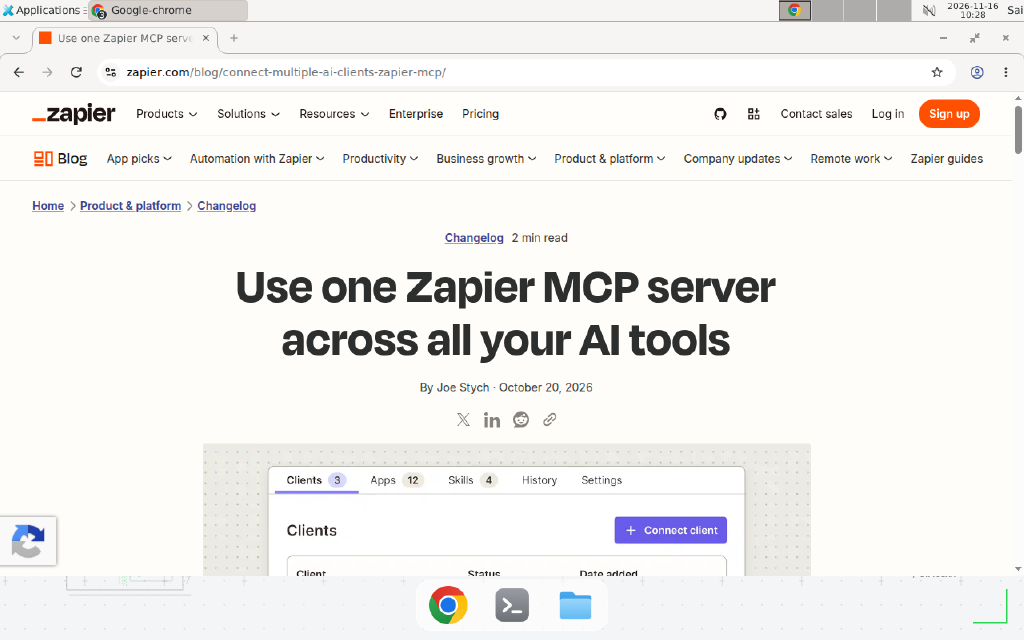
Zapier’s October 20, 2026 announcement: one MCP server, three clients, one shared history. Screenshot of the Zapier blog, checked 2026-11-16.
Prerequisites
- A Zapier account on any plan, including Free. Multi-client servers are included in every Zapier plan.
- Owner or Editor access to the server you want to share. Without that role, the Clients tab will not let you add clients.
- At least one existing Zapier MCP server, or a fresh one you create for this purpose. If you have never set one up, follow our guide to set up a Zapier MCP server from scratch first, then come back here.
- The AI clients you want to connect: Claude (web or desktop), Claude Code, ChatGPT, Cursor, or any MCP-compatible client. For ChatGPT, full MCP support including write actions is in beta for Business, Enterprise, and Edu workspaces on the web.
- A browser for the OAuth sign-in, which happens in the browser even when the client is a terminal tool such as Claude Code.
flowchart LR
    A[One Zapier MCP server<br/>apps, actions, skills, mode] --> B[Claude]
    A --> C[ChatGPT]
    A --> D[Cursor]
    B --> E[Shared history<br/>one audit trail]
    C --> E
    D --> E
Step 1: Pick the server to keep and consolidate it
If you already run one server per client, you have three half-finished setups and need to pick one survivor. Open each server at mcp.zapier.com and compare three things: which apps are connected, which actions are enabled, and which mode it runs in. Keep the server with the most complete app list and the mode you actually want, because the mode belongs to the server and every client on it uses the same one.
Add the missing apps to the survivor before you connect anyone. Add Zendesk and its actions once, and both Claude and Cursor can use them right away, and the same goes for skills: add the ticket-reply skill once and every client on the server sees it.
Decide the mode now, not later. In agentic mode, the default for new servers, your AI finds and enables the actions it needs during the conversation, and skills work. In managed mode, you pick a fixed set of actions in advance, the agent cannot add more, and skills do not work. If your team relies on skills, the survivor must be in agentic mode. Read the full trade-off in our guide to agentic mode versus managed mode for Zapier MCP.
Step 2: Check your role before you touch the Clients tab
Open the survivor server at mcp.zapier.com and look at the tabs. You need Owner or Editor access to add clients to a server. If you only have Viewer access, the Connect client button will not be available to you. Ask the server owner to raise your role, or have the owner do the client setup while you watch.
While you are here, note the server’s current client list. If a client is already connected here, leave it alone. If you plan to move a client from another server, remember that adding it here takes it off its old server, so check what that old server was doing first.
Step 3: Add Claude to the shared server
Start with Claude, because its connector flow is the quickest to verify. On the server page, go to the Clients tab and select Connect client, then pick Claude from the list. Follow the setup steps Zapier shows for Claude, which route you through signing in with your Zapier account and approving the connection. The exact screens differ between Claude on the web, Claude Desktop, and Claude Code, but the flow is the same in each.
Once Claude is connected, test it before you add anyone else. Ask Claude to run one small read action, such as listing open Zendesk tickets. (Example, replace with your values: “List the 5 most recent open Zendesk tickets.”) Then open the History tab at mcp.zapier.com and confirm the call appears there.
Step 4: Add Cursor the same way
Go back to the Clients tab on the same server, select Connect client again, and pick Cursor. Follow the Cursor setup steps, which add the Zapier MCP connection as a remote server and complete the same OAuth sign-in. If your Cursor install is out of date, update it first, because some older Cursor versions have an OAuth issue that blocks the sign-in entirely.
Test Cursor with the same small read action you used for Claude, then check the History tab again. You should now see calls from both clients in one place, which is the whole point of sharing the server. If Cursor shows a different set of tools than Claude, stop and compare: both clients read from the same server, so a mismatch means one of them is still attached to a different server.
Step 5: Add ChatGPT and respect its limits
ChatGPT is the fussy one. In the Clients tab, select Connect client, pick ChatGPT, and follow the steps. Full MCP support, including write and modify actions, is in beta for Business, Enterprise, and Edu workspaces, on the web only. Pro users can connect MCP apps with read and fetch permissions through developer mode, but writes stay out of reach. Check your workspace plan before you promise your team that ChatGPT can file tickets.
We could not verify the exact ChatGPT setup screens for every workspace type; vendor docs say the flow is the same Connect client path, with developer mode required for Pro workspaces. If ChatGPT shows the server but no tools, check the plan and the developer mode setting first. A managed-mode server will show apps and actions but no skills, which looks like a broken connection until you know the rule.
Step 6: Move your old servers over with Swap client
If Claude, Cursor, or ChatGPT is already connected to a different Zapier MCP server, do not delete the old server first. In the survivor server’s Clients tab, select Connect client, pick the tool, and choose Swap client when Zapier offers it. The swap moves the client to this server and takes it off the old one in a single step. Adding a client here takes it off its old server and switches it to this server’s mode, so do the swap when nobody is mid-task, and warn the people using that client first.
After each swap, run the same small read action in that client and check the shared History tab. Then, and only then, delete the old server. Deleting the old server before the swap strands the client with no server at all, and you will be rebuilding its connection from scratch instead of moving it. Zapier’s setup guide for adding multiple clients covers both the Connect client flow and clients that use a connection token.
Copy-paste template: shared server record
Keep one record per shared server. It takes two minutes to fill in and saves an hour of guessing when a client stops working. Copy it into your team wiki and update it every time you add or swap a client.
# Shared Zapier MCP server record
Server name: Team Support MCP (Example — replace with your values)
Server URL: https://mcp.zapier.com/api/v1/connect (Example — replace with your values)
Mode: agentic (skills ON) / managed (skills OFF)
Owner: name@example.com (Example — replace with your values)
Apps connected: Zendesk, Slack, Google Sheets
Skills: ticket-reply, refund-lookup

## Clients on this server
| Client | Added on | Added by | Verified read action |
| --- | --- | --- | --- |
| Claude (web) | 2026-11-16 | Owner | Listed 5 open tickets |
| Cursor | 2026-11-16 | Owner | Listed 5 open tickets |
| ChatGPT | 2026-11-16 | Owner | Read only, developer mode |

## Retired servers (do not reuse)
| Old server | Clients moved | Deleted on |
| --- | --- | --- |
| Cursor-only server | Cursor | 2026-11-16 |

## Notes
- Tool calls run one at a time on this server.
- Each successful call costs 2 Zapier tasks.
- ChatGPT write actions need Business, Enterprise, or Edu.
When not to use this / Limits
Do not share one server across clients that need different permissions. A shared server gives every client the same apps, the same actions, and the same mode, so a contractor’s Cursor gets the same Zendesk write access as your support lead’s Claude. If clients need different tool sets, keep separate servers. Our comparison of Zapier MCP versus n8n MCP covers the same isolation question from the other side.
Do not share one server across agents that must work in parallel. A single Zapier MCP server runs tool calls one at a time, so three agents firing at once queue up behind each other. Zapier’s own multi-agent guide recommends one server per agent for parallel work. Share a server across human tools used at different times, not across background agents that run all day.
Do not use a shared server as your audit boundary between teams. Every client’s calls land in the same history, which is convenient for one team and a privacy problem for two. And adding a client to a new server silently removes it from the old one, so a careless click can cut off a teammate’s working setup. Treat the Clients tab as a production change, not a casual setting.
Cost / scale math
Sharing a server does not change the per-call price, it concentrates it. Each successful tool call uses 2 tasks from your plan quota, no matter which client made the call, and failed calls cost nothing. Work out the shared total before you consolidate, because three clients’ usage adds up on one bill.
| Setup (20 calls per client per day) | Tasks per day | Tasks per month |
|---|---|---|
| Claude alone | 40 | 1,200 |
| Claude + Cursor | 80 | 2,400 |
| Claude + Cursor + ChatGPT | 120 | 3,600 |
| Same three, 50 calls each | 300 | 9,000 |
Assumptions: a month is 30 days. On the Free plan, 100 tasks a month buys 50 successful MCP calls, so a shared server with three active clients outgrows Free in about a day.
Troubleshooting
| Symptom | Likely cause | Command to check | Fix |
|---|---|---|---|
| Connect client button is missing | Your role is Viewer, not Owner or Editor | Open the server and check your role in the Members list | Ask the server owner to raise your role to Editor, or have the owner add the client |
| Client shows no tools after connecting | It is still attached to its old server | In the client, list connected MCP servers and compare URLs | Use Swap client in the survivor’s Clients tab to move it, then re-test |
| Skills work in Claude but not in Cursor | Server is in managed mode | Check the mode on the server page at mcp.zapier.com | Switch the server to agentic mode, or accept that managed mode shares apps and actions but not skills |
| ChatGPT connects but cannot write | Workspace plan or developer mode | Check the ChatGPT workspace plan and the developer mode setting | Move writes to a Business, Enterprise, or Edu workspace, or keep ChatGPT read-only |
| Calls from one client are slow | Tool calls run one at a time on a shared server | Check the History tab for overlapping calls from several clients | Split parallel agents onto separate servers and keep the shared server for human tools |
| History shows calls you do not recognise | Every client shares one history by design | Filter the History tab by time and compare with each client’s activity | This is expected. If the calls are not yours, rotate the server URL and re-check who has access |
Common mistakes
- Adding clients before picking the mode. The mode belongs to the server, so every client inherits it. Pick agentic or managed first, then connect clients, or you will move everyone twice.
- Deleting the old server before the swap. The client loses its only connection and has to be set up from scratch. Swap first, verify on the new server, then delete the old one.
- Assuming ChatGPT can write. Full write access is in beta for Business, Enterprise, and Edu workspaces. Testing a read and declaring the setup done hides this until someone needs a real write.
Test before you rely on it
Run this checklist before you tell your team the shared server is ready:
- Each client lists the same tools. Ask Claude, Cursor, and ChatGPT to list their tools and compare the three lists.
- One read action works in each client. Run the same small read in all three and confirm all three appear in the shared History tab.
- A write action works where it should, and is refused where it should not. Test one low-risk write in Claude and confirm ChatGPT’s read-only limit behaves as expected.
- A skill fires in agentic mode. Trigger the ticket-reply skill from two different clients and confirm both can use it.
- A swap behaves as expected. Move one test client to another server and back, and confirm it drops from the old server each time.
- The task math holds. Check the History tab after a day of real use and compare the task count against the table above.
FAQ
Three more questions come up often enough to answer here. These cover the details people hit the day after setup.
Does sharing a server change what each client can do?
No. Sharing changes where the configuration lives, not what it contains. Every client on the server sees the same apps, actions, skills, and mode. If you need different permissions per client, use separate servers.
What happens to the old server after I swap its clients away?
Nothing happens to it automatically. It stays live with its apps and settings until you delete it. Delete it only after every client has been verified on the new server, because an un-deleted old server is also a safe rollback: you can swap a client back to it if the new setup misbehaves.
Do I need to reconnect a client after changing the server’s apps?
No. Clients read the server’s current configuration, so adding an app or enabling an action shows up for every connected client without a reconnect. The same applies in reverse: removing an action removes it from all clients at once, so check who is using it first.
Conclusion
One Zapier MCP server can now serve Claude, ChatGPT, and Cursor at the same time, with the same apps, the same skills, and one shared history to audit. The setup itself takes minutes: pick the survivor server, set its mode, add each client from the Clients tab, and swap the stragglers over. The judgment is in what you share and what you keep apart: share across human tools used at different times, keep separate servers for agents that must run in parallel and for clients that need different permissions.
If this setup fails at 3 a.m., can your team see which client made the call and undo it from one History tab? If the answer is yes, the shared server is doing its job. If not, check the Clients tab first, because a client silently attached to the wrong server is the most common cause.
Frequently asked questions
Can Claude, ChatGPT, and Cursor really share one Zapier MCP server?
Yes. Since Zapier's October 20, 2026 update, several MCP clients can connect to the same Zapier MCP server. They share its apps, actions, skills, and settings, and every tool call from every client lands in the same server history.
Can one AI client connect to two Zapier MCP servers at once?
No. A client can only connect to one server at a time. Adding it to a new server takes it off its old server, and it switches to the new server's mode. Use Swap client in the Clients tab when the client is already connected elsewhere.
Do Skills work when several clients share a server?
Only in agentic mode. Skills work in agentic mode, so a server in managed mode shares its apps and actions but not its skills. The mode belongs to the server, so every client on it uses the same one.
Who can add a client to a shared server?
You need Owner or Editor access to the server. Viewers and other roles cannot add clients. Multi-client servers are included in every Zapier plan, so there is no extra product to buy.
Do shared clients run tool calls at the same time?
No. A single Zapier MCP server runs tool calls one at a time, so if Claude and Cursor both fire at once, one waits in line. If your agents must work in parallel, give each one its own server instead.
How much does a shared server cost in Zapier tasks?
Each successful tool call uses 2 tasks from your plan quota, no matter which client made the call. Failed calls cost nothing. Three clients making 20 calls a day each use 120 tasks a day, or about 3,600 a month.