How to Use Pipedream MCP with Claude and ChatGPT: One URL, 10,000+ Tools
Introduction
You ask Claude to check yesterday’s Stripe revenue and post a summary to Slack, and it answers with instructions for doing it yourself. The chatbot knows a lot, and it can touch nothing. Pipedream MCP closes that gap: one hosted server URL connects ChatGPT, Claude, Cursor, or VS Code to the tools you already use, with no server to run and no code to write.
Quick answer
Paste https://mcp.pipedream.net/v2 as a custom connector in Claude or ChatGPT, sign in to Pipedream, pick the apps you want to enable, and start chatting. Your chatbot can then use Pipedream’s 10,000+ tools across 3,000+ apps.
The hard part
The hard part is choosing which apps and tools the chatbot may touch, not pasting the URL, because one careless enable hands it the power to send email, delete records, or move money.
Checked on
Checked on 2026-11-17 against Pipedream’s MCP docs and pricing, OpenAI’s developer-mode docs, and Anthropic’s custom connectors help page. Interfaces change fast; if a menu or label differs, trust the linked page.
Evidence
Pipedream’s own description is blunt: “Pipedream MCP lets you connect ChatGPT, Claude, Cursor, or any other chatbot to all the tools you already use.” The end-user MCP docs list 10,000+ tools from 3,000+ APIs behind one server URL, and the Pipedream pricing page confirms the Free plan costs $0 with no credit card and includes every feature in development. MCP is an open standard created by Anthropic, so the same server works with other MCP clients.
The scale cuts both ways. The MCP specification recommends a 128-character limit for tool names, and every tool name includes the server name you choose. Pipedream’s docs warn that a long server name adds 34 characters to every tool name, while “PD” adds only 2. Keep the name short, or tools start disappearing.
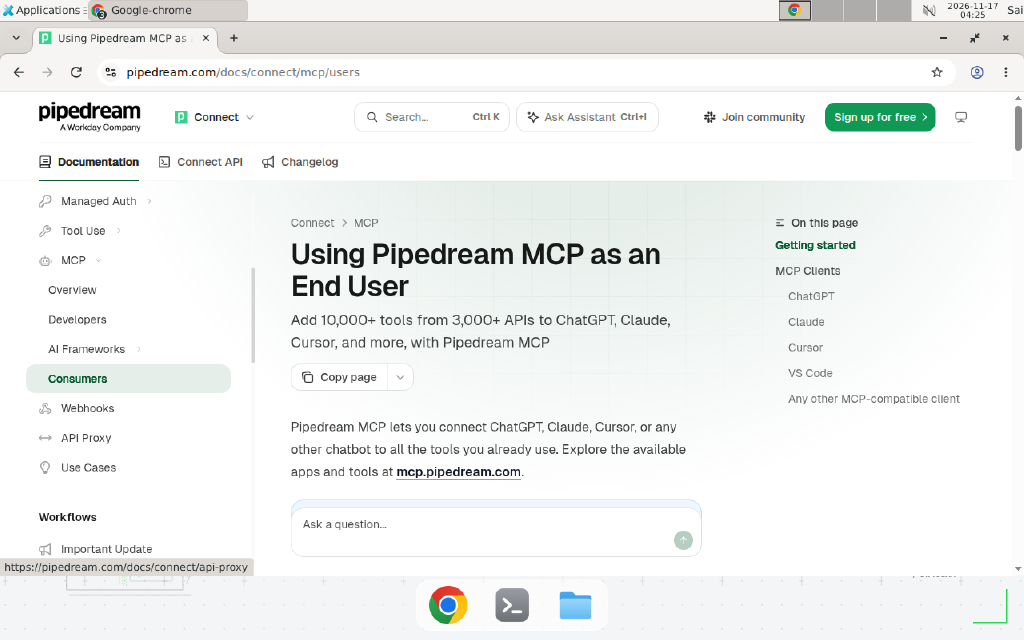
Pipedream’s end-user MCP docs page, captured 2026-11-17.
Prerequisites
- A Claude account on a plan that supports custom connectors (Pro and Max add them directly; Team and Enterprise need an owner to configure one first), or a ChatGPT account on a plan that supports them. Pipedream’s docs say custom connectors are available for certain plans, so confirm yours first.
- A free Pipedream account, separate from a pipedream.com workflows account.
- A short list of apps to enable first, starting with read-only ones such as Google Calendar, Linear, or GitHub, plus ten minutes and a browser for the Pipedream sign-in.
Step-by-step guide
Step 1: Copy the MCP server URL
Open the Pipedream MCP docs and copy the server URL:
https://mcp.pipedream.net/v2
That is the only address you need; it works for ChatGPT, Claude, Cursor, VS Code, and any other MCP client. Before you paste it, browse mcp.pipedream.com and note which apps you want connected, so you decide your allow-list first.
Step 2: Connect ChatGPT
In ChatGPT Settings, select Advanced Settings and enable Developer Mode. On the connectors page, click Create, then Add custom MCP server. Name it “Pipedream”, paste https://mcp.pipedream.net/v2 under Connection, and click Create. Authorize access when prompted. OpenAI calls the result a plugin: accept the risk warning and install it. In a chat, click +, select More, then Developer Mode, enable Pipedream, and type @ to pick it. OpenAI’s developer-mode docs describe the same flow.
ChatGPT supports read and write tools, and writes require confirmation by default. Review the tool input before you approve a write. OpenAI’s warning stands: only connect to MCP servers you trust, since an untrusted server can trick ChatGPT into using tools in unintended ways.
Step 3: Connect Claude
In Claude, open Customize, then Connectors, and select Add Custom Connector. Name it “PD” to keep tool names under the 128-character limit. Paste https://mcp.pipedream.net/v2, click Add, and authorize access by signing in to Pipedream. In the chat window, open settings and enable Pipedream, or enable it for one conversation through the + button, then Connectors. Anthropic’s custom connectors help page confirms these steps.
On Team or Enterprise plans, the Add Custom Connector button may be missing: an Owner or Primary Owner must configure the connector for the organization first. Claude reaches the server from Anthropic’s cloud over HTTPS port 443, and Pipedream’s hosted server already meets that, so there is nothing to self-host.
Step 4: Connect Cursor, VS Code, or any other client
The same URL works in editors too. Cursor offers 1-click installation from the Pipedream docs (requires Cursor v1 or later), and VS Code offers the same (requires VS Code with the MCP extension). Authorize access when prompted. Any other MCP-compatible client takes this JSON in its MCP configuration file:
{
  "mcpServers": {
    "pipedream": {
      "url": "https://mcp.pipedream.net/v2"
    }
  }
}
Our MCP server tutorial explains how clients load entries. The Zapier MCP setup guide covers the equivalent flow for Zapier’s server, so you can compare the two before committing your apps to one of them.
Step 5: Pick your apps and authorize access
When the client first connects, Pipedream asks you to sign in or sign up, then shows the app picker. Slow down here: this is your real permission boundary. Enable only the apps for the task you have in mind; three is a good first set, for example Google Calendar, Linear, and Slack. Pipedream manages the OAuth connection for each app, so you never paste API keys into the chatbot. Your Pipedream MCP account is separate from a pipedream.com workflows account, so if the app list looks empty, you probably signed in with the wrong account.
Step 6: Run your first real task, read-only first
Start with a read that cannot change anything, then check the answer against the source app before you trust a write. Pipedream’s docs suggest these first prompts:
- “Help me draft a product update based on my team’s recently completed Linear tickets.” (Example, replace with your tracker.)
- “Help me prep for external meetings tomorrow by telling me about who I’m meeting with.” (Example, replace with your calendar.)
- “Get yesterday’s revenue from Stripe and send me a Slack message with the summary.” (Example, replace with your Stripe account and Slack channel.)
Ask the chatbot to show its work, then confirm one fact in the source app. If the answer is right, enable one write tool and repeat the check with a low-stakes write, such as posting to a private test channel.
Copy-paste template
Copy the JSON into any MCP client, then work through the prompts.
{
  "mcpServers": {
    "pipedream": {
      "url": "https://mcp.pipedream.net/v2"
    }
  }
}
First-session prompts (Example, replace with your values):
- Read check: “List my 5 most recent Linear tickets in project Example-Project with title, status, and assignee.”
- Calendar read: “Who am I meeting tomorrow? List each meeting from Google Calendar with attendees and the meeting link.”
- Verified write: “Post this exact text to Slack channel #example-test-channel: ‘Pipedream MCP test, please ignore.’”
- Guardrail test: “Do not delete or modify anything. Tell me which tools you would use to draft a weekly update, and stop before calling a write tool.”
App allow-list worksheet (Example, replace with your values):
| App | Tools enabled | Read or write | Why it is on the list |
|---|---|---|---|
| Google Calendar | List events, get event | Read | Meeting prep |
| Linear | List issues, get issue | Read | Product updates |
| Slack | Post to #example-test-channel only | Write | Verified test channel |
Fill in the worksheet before you connect.
When not to use this / Limits
Do not use Pipedream MCP as a scheduled workflow engine. It is a chat-driven way to call tools, not a replacement for a workflow that must run at 3 a.m., retry, and log every run. If you need that, use Pipedream workflows or move it to n8n; our Pipedream to n8n migration guide covers that move. Do not use it for apps where a wrong write is hard to undo, such as production databases, until you have tested the exact write on a safe record. Known limits: custom connectors are plan-gated in both clients, tool names hit a 128-character recommendation that punishes long server names, the chatbot can pick the wrong tool when two apps expose similar actions, and the free tier covers development only.
Cost / scale math
Pipedream’s pricing is simple to model. The Free plan is $0 with no credit card and covers building and testing with full MCP access. Startup includes 10,000 usage credits a month, then $0.012 per credit. Pipedream counts 1 credit per 30 seconds of compute per MCP tool call; listing apps and management calls use no credits.
Assume each call runs under 30 seconds of compute, so each costs 1 credit. A solo user making 100 calls a day uses about 3,000 credits a month, inside the Free plan’s development access and far inside Startup’s 10,000 included credits. A team making 500 calls a day uses about 15,000 credits a month, 5,000 over the Startup allowance, or 5,000 x $0.012 = $60 a month extra. A 90-second call costs 3 credits, so measure your heaviest calls first. We could not verify whether heavy personal daily use counts as production; the pricing page draws the line at serving real external users, so treat the Free plan as your test bench and budget Startup for anything your team depends on.
Troubleshooting
| Symptom | Likely cause | Command to check | Fix |
|---|---|---|---|
| Add Custom Connector is missing in Claude | Plan or org restriction | Check your plan in Anthropic’s help page | On Pro or Max, add it yourself. On Team or Enterprise, ask an Owner to configure it first |
| ChatGPT shows no Developer Mode or connector option | Plan does not include custom connectors | Check OpenAI’s developer-mode docs | Upgrade to a plan with custom connectors, or use Claude or Cursor instead |
| Tools are missing or the client reports a tool name error | Server name is too long | Count the server name and longest tool name | Rename the server to “PD” and reconnect |
| The chatbot cannot see any tools | Connector is added but not enabled in this conversation | Claude: + then Connectors. ChatGPT: + then More then Developer Mode | Enable Pipedream for the conversation and refresh the tool list |
| App list is empty after sign-in | Signed in to the wrong account | Check which account you signed in with | Sign in with the MCP account, which is separate from pipedream.com |
| A tool call fails with a credit or usage error | Usage beyond the free development allowance | Check your plan’s credits on the pricing page | Move to Startup, or cut the enabled apps and calls |
Common mistakes
- Enabling every app at once. A 3,000-app directory tempts you to switch everything on, and then the chatbot holds a delete tool for every system you own. Enable three apps, prove the reads, then add writes one at a time.
- Naming the server with a long, descriptive label. “My Pipedream Automation MCP Server” adds 34 characters to every tool name and can push tools over the limit. Name it “PD” and keep the description in your own notes.
- Copying a server URL from an old blog post. Older posts show other hosts. The current end-user URL is
https://mcp.pipedream.net/v2; if a tutorial shows a different host, check the official docs first. - Trusting the first write without checking it. The confirmation dialog shows the exact tool input, your last chance to catch a wrong channel, record, or amount. Read it every time, and never let a tool remember approval for an unverified write.
Test before you rely on it
Run this checklist before you let Pipedream MCP touch anything that matters:
- A read-only prompt returns facts that match the source app.
- A write goes to a private test channel first, and only there.
- A delete or modify prompt is refused or asks for confirmation, and you see the exact input before approving.
- Revoking one app in Pipedream removes its tools on the next refresh.
- The same prompt works after you reopen the conversation.
- You know what happens when the credit allowance runs out.
FAQ
Is Pipedream MCP free to use?
Yes, for building and testing. The Free plan costs $0 with no credit card and includes full MCP access in development. Serving real external users needs Startup: 10,000 usage credits a month, then $0.012 per credit.
Do I need a Pipedream workflows account to use Pipedream MCP?
No. Pipedream MCP accounts are separate from pipedream.com accounts. When you connect a chatbot you sign in or sign up for a free MCP account.
Which is better, Pipedream MCP or Zapier MCP?
It depends on your stack. Pipedream MCP exposes 10,000+ tools across 3,000+ APIs and suits developers who want broad coverage from one URL. Zapier MCP fits teams that already live in Zapier and want its managed mode allow-list.
Can I use Pipedream MCP on the free plans of ChatGPT and Claude?
We could not verify the exact plan list; Pipedream’s docs say custom connectors are available for certain plans. Anthropic confirms Pro and Max users can add them directly, while Team and Enterprise members need an owner to configure one first.
Is it safe to let a chatbot send email or delete records through Pipedream MCP?
Only as safe as the apps and tools you enable. Start with read-only apps, enable writes one at a time, and review every confirmation. ChatGPT requires confirmation for writes by default, and you can revoke access at any time.
My client is not Claude, ChatGPT, Cursor, or VS Code. Can I still use Pipedream MCP?
Yes. Any MCP-compatible client works with the same URL: add a server entry named pipedream with that URL to your client’s MCP configuration, then authorize access.
Conclusion
Pipedream MCP turns a chatbot that describes work into one that does it, and the setup is one URL plus a short allow-list. The real work is deciding which apps the chatbot may touch, proving the reads, and testing one write before you trust the rest. If the chatbot posts to the wrong Slack channel at 3 a.m., do you know which app to revoke? If not, finish the test checklist first.
Next, compare the other hosted option: our Zapier MCP setup guide covers Zapier’s server, and the n8n complete guide shows what changes when you move to scheduled, logged workflows.
Frequently asked questions
Is Pipedream MCP free to use?
Yes, for building and testing. Pipedream's Free plan costs $0 with no credit card and includes full MCP access in development, with 10,000+ tools from 3,000+ APIs. Serving real external users in production needs the Startup plan, which includes 10,000 usage credits a month and then charges $0.012 per credit.
Do I need a Pipedream workflows account to use Pipedream MCP?
No. Pipedream MCP accounts are currently separate from pipedream.com accounts. When you connect a chatbot you sign in or sign up for a free MCP account, and that account is what holds your connected apps and tool permissions.
Which is better, Pipedream MCP or Zapier MCP?
It depends on your stack. Pipedream MCP exposes 10,000+ tools across 3,000+ APIs and is aimed at developers and power users who want broad API coverage from one URL. Zapier MCP is the better pick when your team already lives in Zapier and wants its managed mode allow-list; see our Zapier MCP setup guide for that route.
Can I use Pipedream MCP on the free plans of ChatGPT and Claude?
We could not verify the exact plan list; Pipedream's docs say custom connectors are available for certain plans. Anthropic's help page confirms individual Pro and Max users can add custom connectors directly, while Team and Enterprise members need an owner to configure the connector first. Check the linked vendor docs for the current plan rules before you start.
Is it safe to let a chatbot send email or delete records through Pipedream MCP?
Only as safe as the apps and tools you enable. Start with read-only apps, enable write tools one at a time, and review every write confirmation the client shows you. ChatGPT requires confirmation for write actions by default, and you can revoke access at any time from Pipedream or from the chat client's connector settings.
My client is not Claude, ChatGPT, Cursor, or VS Code. Can I still use Pipedream MCP?
Yes. Any MCP-compatible client works with the same URL. Add a server entry named pipedream with the URL https://mcp.pipedream.net/v2 to your client's MCP configuration, then authorize access when prompted.