How to Let AI Agents Use Your Phone with Pinky (MCP, Approvals, and Real-Device Setup)
Introduction
You are cooking, your phone buzzes across the room, and the message needs an answer. Or you are testing an app and want an agent to tap through it, file the bug, and show you the screenshots. Until now, letting an AI agent touch your phone meant handing it the keys: screen mirroring over adb, or agents running shell commands straight at the device. Pinky, a four-day-old project from DIYgod, the author of RSSHub, takes a different position. It lets Claude Code, Codex, Cursor, or any MCP-capable agent operate a real iPhone or Android phone, while risky taps wait for your click.
Quick answer
Install Pinky, connect your iPhone or Android phone by USB, add Pinky to Claude Code or Cursor as an MCP server, and ask the agent to do something on the phone. Risky taps wait for your click.
The hard part is not the install, it is the approval rules
The hard part is not installing Pinky, it is deciding what the agent may do unsupervised. The install takes minutes, but the approval rules are the part that keeps your phone yours.
Checked on 2026-11-10 against the Pinky README and release v2026.1110.3. Pinky is pre-alpha and changes fast: if a menu or label differs, trust the linked pages.
What we verified, and what we did not
We verified the install chain, the MCP config, and the approval flow from the Pinky README, the MCP reference, and the release notes. We could not verify any step on a real phone: our lab has no iPhone or Android handset, and Pinky is pre-alpha. Where the docs say something is “not yet tried on a phone”, this article says so too.
Evidence
Pinky is new, and the numbers show it. The repository was created on 2026-11-06, and by 2026-11-10 it had 1,467 GitHub stars, 159 forks, and 804 commits, with 433 stars per day at our check. The README states its promise in one line: “Let any AI agent use your iPhone or Android phone, from macOS, Windows or Linux, with you in the loop.” The safety claim is just as direct: “Approvals are enforced by Pinky’s gateway, not by instructions to the agent.”
The app itself is small: the download is 16 to 22 MB, and it idles at about 70 MB of memory and 0% CPU on a Mac, according to the README. The same page publishes measured trade-offs for using a phone over Wi-Fi instead of a cable, taken on an iPad Pro 11-inch (3rd generation, iPadOS 27.0.1): a swipe shows on screen after 80 to 210 ms over Wi-Fi, against 60 to 90 ms on the cable, and a screenshot takes 5 s instead of 1 s. Those numbers set the expectation honestly: Wi-Fi works, the cable is faster.
Pinky is free and open source under the Apache-2.0 license, with no account to create. The project lists its status as pre-alpha. Claude Code has used real phones through it end to end, an Android phone over USB and an iPhone on iOS 27, over stdio or HTTP. Some features are built but still wait for a person to try them; the repo points to its acceptance checklist for what works today.
Prerequisites
- A computer: macOS 13 or later (Apple silicon or Intel), Windows 10 or 11 64-bit, or a 64-bit Linux PC (Ubuntu 20.04, Debian 11, or newer, with glibc 2.29 or later and GTK 3).
- A phone: Android 10 to 17 or an iPhone or iPad on iOS 17.4 or later, with a USB cable for setup. An iOS Simulator on a Mac with Xcode, or an Android emulator from Android Studio, works instead.
- An agent that can use MCP servers, such as Claude Code, Claude Desktop, Codex, or Cursor. Pinky brings no model of its own: your agent does the thinking.
- For iPhone setup on iOS 17.4 to 26: Xcode on a Mac, or a copy of Apple’s developer disk image; on Windows, Apple Devices (or iTunes) first; on Linux, the
usbmuxdpackage.
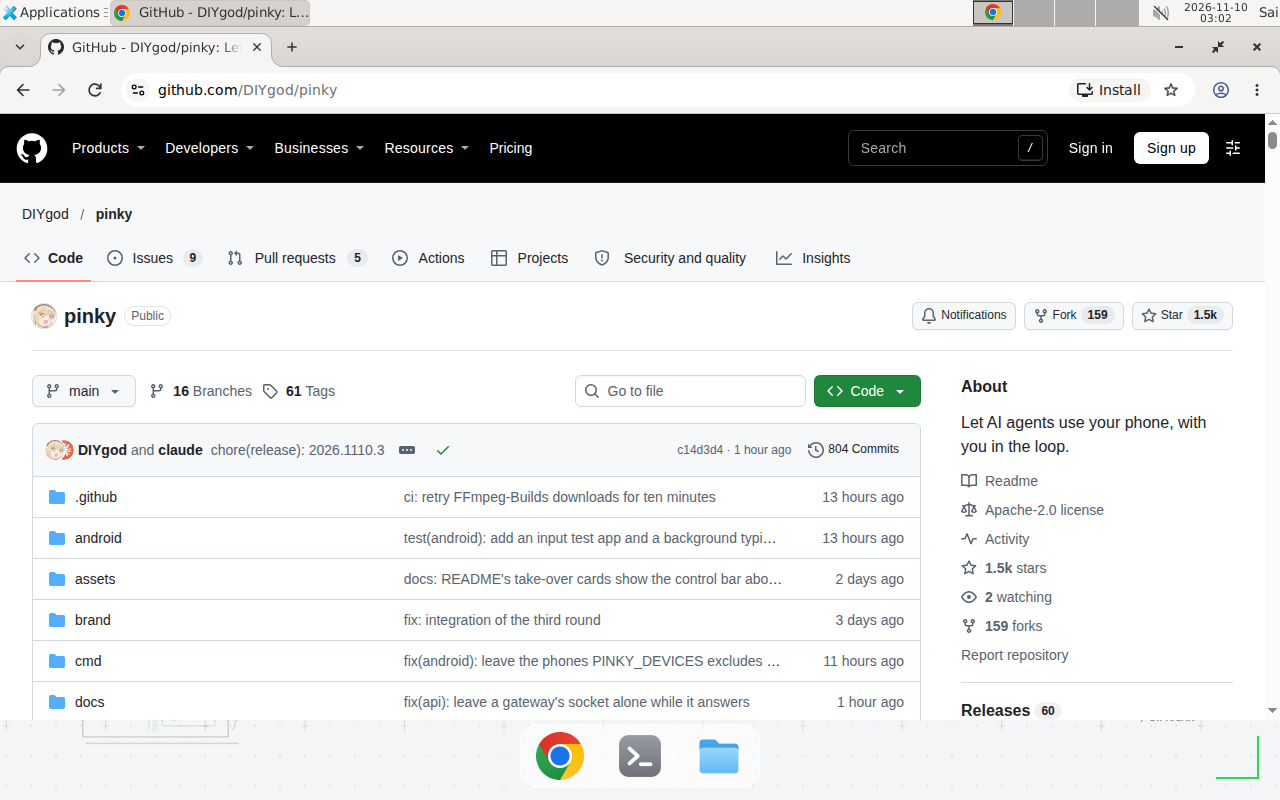
The Pinky GitHub repository, checked 2026-11-10. The README is the install guide, the FAQ, and the safety model in one place.
Step-by-step guide
1. Download and install Pinky
Get Pinky from the latest release. The version scheme is date-based: the release current at our check is v2026.1110.3, published 2026-11-10.
- Mac: download
pinky-<version>-arm64.dmgfor Apple silicon (M1 or later) orpinky-<version>-amd64.dmgfor an Intel Mac. Drag Pinky to Applications. With Homebrew,brew install --cask diygod/tap/pinkydoes the same. - Windows: download
pinky-setup-<version>-amd64.exeand run it. It installs Pinky for your account, without administrator rights. The installer is not signed yet, so SmartScreen may say that Windows protected your PC: choose More info, then Run anyway. Or unzippinky-<version>-windows-amd64.zipand openPinky.exe. - Linux: on Debian and Ubuntu, download
pinky_<version>_amd64.deband install it withsudo apt install ./pinky_<version>_amd64.deb. On other systems, unpackpinky-<version>-linux-amd64.tar.gzinto a folder of its own and runpinkyin it.
Pinky checks for updates itself and, with automatic updates on (the default), installs them once no agent is working and nobody has used Pinky for ten minutes.
2. Connect your phone
Open Pinky and choose Add phone. A ready phone shows up in Pinky’s window; when something is missing, the phone’s page says what.
Android. Add phone › Android shows brand-specific steps (Xiaomi, OPPO, vivo, HONOR, HUAWEI, Samsung, Pixel) with each brand’s own menu names.
- On the phone, turn on USB debugging: in Settings › About phone, tap Build number 7 times, then turn on USB debugging in Settings › System › Developer options. Brands name these menus a little differently.
- Plug the phone into the computer and tap Allow when it asks about USB debugging. On Android 11 and later you can pair over Wi-Fi instead, from Add phone.
- Pinky offers to install Pinky Companion, its app for the phone, which reads the screen much faster and types in any language. The phone may ask you to allow the install once.
Each phone has a Checkup (··· menu under its mirror) listing what works and how to fix what does not. On Windows, some phones need a USB driver, and Pinky says which one. On Linux, install the udev rules (sudo apt install android-sdk-platform-tools-common on Debian and Ubuntu, android-udev on Arch, android-tools on Fedora) and join the plugdev group if needed.
iPhone. Add phone › iPhone walks you through it.
- Plug the iPhone into the computer, unlock it, tap Trust, and enter its passcode.
- On the iPhone, turn on Developer Mode in Settings › Privacy & Security; Pinky makes the switch appear there. The iPhone restarts; unlock it, tap Turn On, and enter the passcode.
- Pinky mounts Apple’s developer disk image and lists the phone as ready. On iOS 27 the image survives restarts; below iOS 27 Pinky mounts it again after each restart, once you unlock the phone.
The developer disk image comes with Xcode, and Pinky does not ship it. On a Mac, install Xcode once and open it: Pinky uses the image it installs, and Xcode never has to run again. On Windows and Linux, copy the image folder from a Mac, or let Add phone download it from a third-party mirror (github.com/doronz88/DeveloperDiskImage, kept by the author of pymobiledevice3, not by Apple) when you click Download. Pinky checks every file against the checksum it expects.
On iOS 17.4 to 26, an iPhone also needs the WebDriverAgent helper, built once from Xcode with your Apple ID. A free Apple ID signature lasts 7 days, and Pinky reminds you two days before it runs out. On iOS 27 and later, no app gets installed. We could not verify the iPhone flow on a real device; the README notes the downloaded image, the Developer Mode switch, and iPhones below iOS 27 are not yet tried on a phone.
3. Add Pinky to your agent
In Pinky, open Settings › Agents and click Connect next to your agent. Pinky finds Claude Code, Claude Desktop, Codex, Cursor, VS Code, Copilot CLI, Windsurf, and Gemini CLI on your computer and adds itself to the agent’s MCP servers, by the app’s own path: with the agent’s own command where it has one, such as claude mcp add, or in its settings file, which Pinky copies first and changes only in Pinky’s entry. It also installs Pinky’s agent guide where the agent reads skills. Until an agent is connected, a card in Pinky’s sidebar offers to do it. If you have not connected an MCP server to Claude Code before, our Claude Code MCP setup guide walks through the same pattern, and the same one-click flow works for connecting a remote MCP server to Claude Code.
To add it by hand, Settings › Agents › Add an agent by hand shows the command for your copy of Pinky. In a JSON config, with the Homebrew cask or a Linux package:
{
  "mcpServers": {
    "pinky": {
      "command": "pinkyctl",
      "args": ["mcp"]
    }
  }
}
Claude Code in a terminal:
claude mcp add --scope user pinky -- pinkyctl mcp
The command is pinkyctl, not pinky: many computers already have another program named pinky. Agents read the guide from ~/.agents/skills/pinky/SKILL.md, Claude Code from ~/.claude/skills/pinky/SKILL.md. An agent on another computer or in a container can connect over HTTP instead. The MCP reference says what Connect changes for each agent.
4. Try it
Ask the agent to do something on your phone, for example: “Open Messages on my phone and tell Sam I’m running late.” The first time an agent connects, Pinky asks whether to allow it and what it may do. Payments wait for your click; Settings › Safety can hold sends and deletions too.
No phone at hand? Start an iOS Simulator or an Android emulator in Add phone › Virtual phone, or quit Pinky and start it with two scripted demo phones (a payment to approve, a blocked banking app, a password field): /Applications/Pinky.app/Contents/MacOS/Pinky --fake on a Mac, pinkyctl --fake on Linux, or & "$env:LOCALAPPDATA\Programs\Pinky\Pinky.exe" --fake in PowerShell on Windows. The demo mode is the fastest way to see the approval flow before you trust it with a real phone.
Copy-paste template: MCP config and pre-flight checklist
Copy this into your agent’s MCP config if one-click Connect is not available, then run the checklist before the first real task.
{
"mcpServers": {
"pinky": {
"command": "pinkyctl",
"args": ["mcp"]
}
}
}
Pre-flight checklist, in order:
- Pinky is installed and the phone shows as ready in Pinky’s window, not as needing setup.
- The phone’s Checkup passes, or you have read what it flags.
- The agent is connected:
claude mcp listshows pinky, or the agent’s settings file has the entry above. - Settings › Safety lists the apps you want blocked, and banking apps are on it.
- You have tried the
--fakedemo once, so you have seen an approval hold before a real payment does. - The first real task is read-only, such as reading the home screen or opening an app, not a payment or a send.
When not to use this / Limits
Do not use Pinky as a hands-off phone operator. It is pre-alpha, and several paths are still unproven on real hardware: the downloaded disk image, the Developer Mode switch, and iPhones below iOS 27 are all listed as not yet tried on a phone, and unlocking on some Android lock screens is covered only by tests, not by real trials. For unattended production automation, use a scheduled script or a device farm instead. If your agent runs shell commands as you, Pinky’s rules do not bind it: an agent that can reach the phone through adb can skip the gateway, so sandbox such agents, or plug the phone into another computer and let the agent connect over HTTP. Banking apps are blocked by default for a reason, and some apps refuse to run while USB debugging is on, which Pinky needs on every Android phone.
What it costs
Pinky costs nothing: free and open source under the Apache-2.0 license, with no account and no subscription. The bill is your agent’s model usage, which is the same bill you already pay for Claude Code, Codex, or Cursor. A short phone task costs a few thousand tokens of agent context; a long one costs more, because each screen read after every tap is fresh context. There is no per-phone, per-task, or per-seat charge to add.
Troubleshooting
| Symptom | Likely cause | Command to check | Fix |
|---|---|---|---|
| Pinky does not list the Android phone | USB debugging is off, or the driver is missing | Open the phone’s Checkup in Pinky | Turn on USB debugging; on Windows install the driver Pinky names; on Linux install the udev rules and re-plug the phone |
| Pair over Wi-Fi never finishes | The phone and computer are on networks that keep devices apart | Try Pair with a code instead | Enter the IP address, port, and six-digit code from the phone; on a guest network, use the cable |
| iPhone shows as needing setup a week later | The WebDriverAgent signature expired (7 days on a free Apple ID) | The phone’s page and Checkup remind you two days before | Install the helper again from Xcode; a paid developer account signature lasts a year |
| The agent cannot find the Pinky server | The config uses the wrong command | Check the MCP config entry | The command is pinkyctl, not pinky |
| Windows SmartScreen blocks the installer | The installer is not signed yet | None, the warning is expected | Choose More info, then Run anyway, as the README says |
| iPhone is lost on Wi-Fi after unplugging | macOS usbmuxd stopped listing it | Pinky shows Lost on Wi-Fi | Use Restart device service… on the phone’s page, or run sudo killall usbmuxd in Terminal |
| Agent task stalls with no error | An approval is waiting and the 60-second window passed | Look at Pinky’s window for the pending approval | Answer approvals promptly, or turn on Ask before every action only when you are watching |
If the server does not appear in your agent at all, debug it with the MCP Inspector before reinstalling anything.
Common mistakes
- Typing
pinky mcpinstead ofpinkyctl mcp. Many computers already have a program namedpinky. The MCP server command ispinkyctl. - Giving the agent shell access and expecting Pinky’s rules to hold. An agent that can run adb commands reaches the phone without Pinky. Sandbox those agents or put the phone on another computer.
- Turning on every approval and walking away. No answer within 60 seconds means no, so an unattended agent stalls on the first risky step. Approve only what you will actually watch.
- Pairing over a guest or office Wi-Fi. Networks with client isolation keep the phone and computer apart. Use your home network or the cable.
- Expecting banking apps to work during a task. Banking, wallet, and password-manager apps are invisible to agents by default, and some refuse to run while USB debugging is on. Take over first if you need one.
Test before you rely on it
- Run Pinky with
--fakeand watch one approval hold, one blocked banking app, and one password field, without a real phone. - Ask the agent for a read-only task first, such as reading the home screen, and confirm the Activity record matches.
- Trigger one real approval, a send or a payment, and confirm nothing happens on the phone until you click Allow.
- Click Take over in Pinky mid-task and confirm the agent pauses until you hand back.
- Check that a banking app stays hidden, and that a one-time code reaches the agent masked, as “Your code is ••••••”.
- Export one finished task and confirm the report, screenshots, and recording are on your computer and show only what the agent could see.
FAQ
Which agents work with Pinky? Any agent that can use MCP servers. Settings › Agents connects Claude Code, Claude Desktop, Codex, Cursor, and more in one click. Claude Code is the one that has used real phones end to end so far.
Can an agent approve its own risky step? No. The rules run in Pinky’s gateway, between the agent and the phone. A step that needs you comes back as approval_pending, and nothing happens until you click Allow. Pinky also checks that the button is still where it was before acting.
Does my phone’s screen go to the cloud? Not through Pinky. Screenshots, recordings, and history stay on your computer for 30 days. What the agent reads goes to the agent you chose, as with any tool you give it. Anonymous usage statistics never include screens, typed text, or app names, and DO_NOT_TRACK=1 turns them off.
What does Pinky install on my phone? On Android, Pinky Companion, when you click Install. On an iPhone with iOS 27 or later, nothing: Pinky mounts Apple’s developer disk image. On iOS 17.4 to 26, the WebDriverAgent helper, installed once from Xcode.
Is Pinky free? Yes. Apache-2.0, no account, no subscription. You pay only your agent’s model usage.
What phones does Pinky support? Android 10 to 17, and iPhones on iOS 17.4 or later. iOS 17.3 and earlier are not supported.
Conclusion
Pinky is the first tool we have seen that covers iPhone and Android, macOS, Windows, and Linux, any agent, and a person in the loop, all at once, as a 16 MB download with no account. It is pre-alpha, and some of it still waits for a person with a real phone to try it, so treat the first week as an experiment with the demo phones, not a finished automation.
If this setup fails at 2 a.m. while the agent is mid-task on your phone, can you see what it did, take over, and undo it? If you cannot answer that yet, run the --fake demo once before you connect a real phone.
Frequently asked questions
Which AI agents work with Pinky?
Any agent that can use MCP servers: over stdio by running pinkyctl mcp, or over HTTP with an agent token. Settings › Agents connects Claude Code, Claude Desktop, Codex, Cursor, VS Code, Copilot CLI, Windsurf, and Gemini CLI in one click. Claude Code is the agent that has used real phones end to end so far.
Can an agent approve its own risky step?
No. The rules run in Pinky's gateway, between the agent and the phone. A step that needs you comes back to the agent as approval_pending, and nothing happens on the phone until you click Allow in Pinky. No answer within 60 seconds means no.
Does Pinky send my phone screen to the cloud?
No. Screenshots, recordings, and history stay on your computer for 30 days unless you change it in Settings › Privacy. What the agent reads, and the screenshots and reports it saves, go to the agent you chose, as with any tool you give it.
What does Pinky install on my phone?
On Android, Pinky Companion, when you click Install; Pinky turns its accessibility service on only while an agent works. On an iPhone with iOS 27 or later, nothing is installed: Pinky mounts Apple's developer disk image, as Xcode does. On iOS 17.4 to 26, the WebDriverAgent helper, installed once from Xcode.
Is Pinky free?
Yes. Pinky is free and open source under the Apache-2.0 license, with no account to create. The only cost is your agent's own model usage; Pinky itself charges nothing.
What phones does Pinky support?
Android phones on Android 10 to 17, and iPhones on iOS 17.4 or later. iOS 17.3 and earlier are not supported. On a Mac you can also use an iOS Simulator, and an Android emulator from Android Studio.