pdfRest vs n8n Extract from File: Which PDF Route Fits Your Workflow?
Introduction
You drop a PDF into an n8n workflow and expect text to come out the other side. Half the time it does. The other half, the workflow runs green, every downstream node processes an empty string with great enthusiasm, and you find out hours later that nothing was ever extracted. The PDF was a scan, or a signed form, or a report with no text layer at all, and the node you trusted never told you.
That failure is the whole decision in miniature. n8n ships a free built-in node, Extract from File, that reads the text layer of a PDF and costs nothing. pdfRest ships a dedicated node with more than 40 PDF operations, including OCR, splitting, merging, and redaction, and it meters every call. This article runs the same PDF task down both routes, compares what each one actually does, and gives you a worksheet to pick the right one for your volume.
Quick answer
Use n8n Extract from File when your PDFs have a real text layer and you only need the text. Use pdfRest when you need OCR, splitting, merging, redaction, or conversion, and accept a per-call price for those operations.
The hard part
The hard part is not wiring either node, it is knowing whether your PDF has a text layer before you choose, because the free node fails silently on scans.
Checked on
Checked on 2026-11-15 against the n8n Extract from File documentation and the pdfRest documentation and pricing page. Interfaces change fast, so if a menu or label differs, trust the linked page.
Evidence: two tools, two different jobs
The numbers frame the choice. Extract from File is a core n8n node, so it ships with every n8n instance, needs no account, and costs nothing per run. Its PDF operation is one of 11 operations in the node, alongside CSV, HTML, JSON, ICS, ODS, RTF, text, XLS, and XLSX extraction, plus a move-to-base64 operation, according to the official n8n documentation. It takes a binary file field, defaults to the field name data, and returns the document text with page count and metadata.
pdfRest plays a different game. Its official n8n node, @pdfrest/n8n-nodes-pdfrest, exposes more than 40 PDF operations across seven groups, Create and modify, Convert, Extract and analyze, Forms, Optimize, Secure, and Files, powered by the Adobe PDF Library, the same engine behind Adobe Acrobat, according to the launch announcement. The node was released on October 9, 2026, and is published under the MIT license.
The pricing gap is the real decision. pdfRest meters API usage: the free tier includes 100 API calls per month with watermarked output, and paid Cloud plans start at $8.99 per month billed annually with 600 included calls, as of October 2026. The self-hosted Container plans are steeper, with Standard at $124.99 per month for 2,000 calls and Professional at $299.99 per month for 6,000 calls, according to the official pricing page checked on 2026-11-15. Extract from File, by contrast, has no meter at all.
Eric Shore, Chief Innovation Officer at Datalogics, the company behind pdfRest, framed the gap this node closes: “What they have not had until now is a first-class PDF node that matches the quality of those other integrations.” Teams already connected storage, language models, and ERP systems on the n8n canvas, but PDF processing was the detour that needed custom HTTP code. That quote is about the full node, not about text extraction, and the distinction matters, because for plain text extraction the built-in node already matches it.
Prerequisites
- n8n 2.x or 3.x, self-hosted or n8n Cloud. The older standalone Read PDF node is gone in current n8n, and its job now lives inside Extract from File as the PDF operation.
- A pdfRest account with an API key if you want to test Route B. The free tier is enough for the comparison below.
- One test PDF with a real text layer, and one scanned PDF with no text layer. A two-page invoice works well for both.
- Basic familiarity with the n8n canvas: adding nodes, connecting them, and running executions.
Step-by-step: run the same PDF down both routes
Step 1: Get the file into the workflow as binary data
Both routes start the same way. Before anything can read a PDF, the file has to arrive as binary data attached to an item, under a named property. Use an HTTP Request node with the response format set to File, a Webhook node with raw body enabled, or a Read/Write Files from Disk node on a self-hosted instance. Confirm the binary property name, usually data, and check the file size is non-trivial. A zero-byte file produces the same empty result as a scan, and you will chase the wrong problem.
Step 2: Route A, extract text with Extract from File
Add the Extract from File node, set the operation to Extract From PDF, and point Input Binary Field at your binary property. Run it. The output JSON carries the document text plus metadata such as page count. That is the whole happy path, and for a digital PDF it takes seconds and costs nothing.
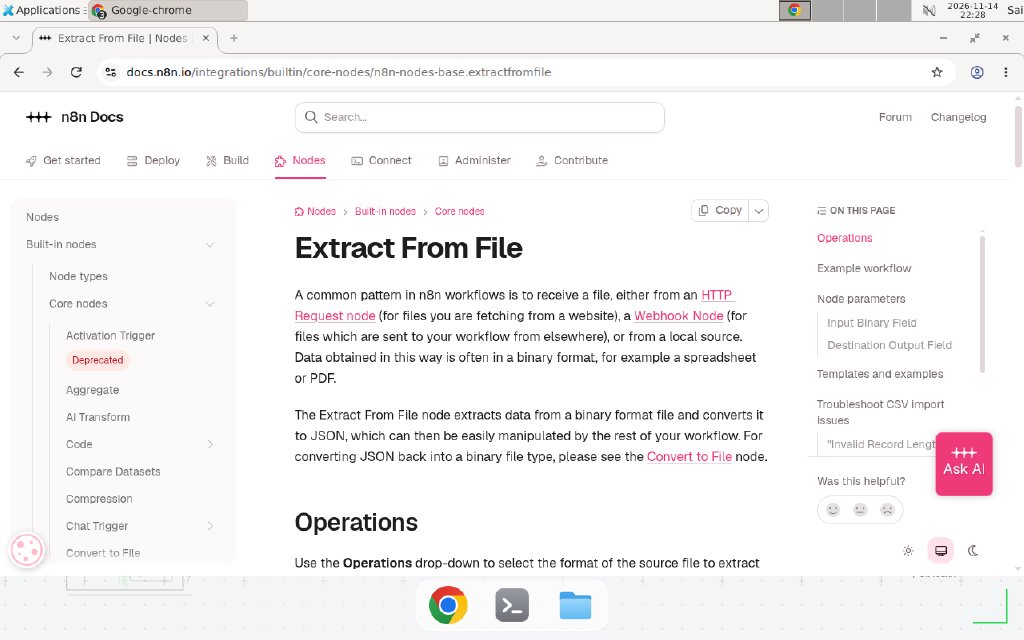
The official n8n Extract from File documentation, checked on 2026-11-15. The Operations list shows Extract From PDF alongside CSV, HTML, JSON, and spreadsheet formats.
Now run the same node against your scanned PDF. It returns an empty or near-empty text field and no error. Nothing downstream complains, because there is nothing to complain about, the node did its job and the job was empty. This silent empty result is the single most common PDF failure in n8n, and it is why Step 4 exists.
Step 3: Route B, extract text with pdfRest
Install the community node first if you have not already. Open Settings > Community Nodes on a self-hosted instance and enter the package name @pdfrest/n8n-nodes-pdfrest, or find pdfRest API Toolkit directly in the Nodes panel on n8n Cloud. Create a pdfRest API credential with your API key and the base URL for your region, https://api.pdfrest.com for the US or https://eu-api.pdfrest.com for the EU GDPR-compliant endpoint.
Add the pdfRest API Toolkit node, pick an Extract and analyze operation, and feed it the same binary file. The node returns structured JSON, and you can enable Download Output Files to get the processed file back as binary data. For the full install, credential table, and the OCR and redaction pipelines, see our pdfRest n8n node tutorial.
Step 4: Decide with a text-layer test, not a guess
Never choose a route by file extension. Add a tiny gate after Extract from File: if the returned text is shorter than, say, 50 characters for a multi-page document, treat the file as a scan and route it to pdfRest OCR. The threshold is yours to tune, but the pattern is what matters, because it turns a silent failure into a branch. A scanned invoice, a photographed receipt, and a signed contract all fail the same quiet way, and this one check catches all three.
Step 5: Compare the outputs side by side
Run both routes on the same digital PDF and compare three things: the extracted text, the page count, and what happens to tables and layout. For clean digital PDFs the text is usually identical, which tells you the free route is enough. For anything else, note exactly what pdfRest adds: searchable text from OCR, a split file per page, a redacted copy, or a converted format. If the extra output is not on that list, you are paying for nothing.
Head-to-head comparison
| Capability | Extract from File | pdfRest node |
|---|---|---|
| Text extraction from digital PDFs | Yes, free | Yes, metered |
| Scanned PDFs (OCR) | No, returns empty text | Yes, dedicated OCR operation |
| Split, merge, rotate pages | No | Yes |
| Redaction | No | Yes, preview then apply |
| Convert PDF to other formats | No | Yes |
| Forms and e-invoicing (ZUGFeRD) | No | Yes, with templates |
| Password-protected PDFs | Yes, password option | Yes |
| Cost | $0, no account | Free tier 100 calls/month, then paid |
| Data leaves your instance | No | Yes, unless self-hosted container |
Copy-paste template: the PDF route decision worksheet
Copy this checklist into your workflow notes and answer it before you add a node. It is the deliverable of this article, and it replaces guessing.
PDF ROUTE DECISION WORKSHEET
Example — replace with your values.

1. Source of PDFs: __________ (Example: vendor invoices by email)
2. Monthly volume: __________ files (Example: 800)
3. Share that are scans or photos: __________ % (Example: 35%)
4. Text-layer test result: __________ (Example: 520 of 800 return <50 chars)
5. Operations needed beyond text extraction:
   [ ] OCR  [ ] Split  [ ] Merge  [ ] Redaction  [ ] Convert  [ ] None
6. Data residency rule: __________ (Example: EU documents stay in EU)
7. Monthly pdfRest calls if only scans go to pdfRest: __________ (Example: 280)
8. Cheapest plan covering line 7: __________ (Example: Cloud $8.99, 600 calls)
9. Decision: __________ (Example: Extract from File first pass, pdfRest OCR branch)
10. Re-check date: __________ (Example: 2026-12-15, volumes change)
If line 5 is “None” and line 3 is near zero, stop here. The free node is your whole solution, and adding pdfRest only adds a bill and a credential to rotate.
When not to use this / Limits
Do not use pdfRest when every PDF you process is a clean digital export and you only need the text. You would pay per call for an outcome the built-in node already gives you for free, and you would send documents to a third-party API for no benefit. Do not use Extract from File when your input is scans, photos, or signed forms, because it cannot see them at all, and no amount of prompt engineering downstream fixes an empty string. Do not use either node as a document understanding layer: neither one knows what an invoice total means, and that job belongs to a language model or a structured parser after extraction. Finally, do not use pdfRest Cloud for documents under strict data residency rules unless you pick the EU endpoint or a self-hosted container, because Cloud processing sends the file to pdfRest servers.
Cost / scale math
The arithmetic is simple, and the assumptions are stated so you can redo it with your own numbers. Assumptions: one pdfRest API call per PDF processed, Cloud pricing as of October 2026, Container pricing as checked on 2026-11-15.
- 800 PDFs a month, all digital: Extract from File costs $0. pdfRest would cost $8.99 on the Cloud starter plan, 600 included calls, plus overage for the other 200. The free node wins by $8.99 and by zero setup.
- 800 PDFs a month, 35% scans: Route the 520 digital files through Extract from File for $0, and send only the 280 scans to pdfRest OCR. That fits inside the 600 included Cloud calls at $8.99 a month, about $0.032 per scanned file. Sending all 800 to pdfRest would need a larger plan for the same outcome.
- 5,000 PDFs a month, all needing OCR: The Cloud starter plan no longer fits. On Container pricing, Standard at $124.99 covers 2,000 calls, about $0.062 per call at full use, and Professional at $299.99 covers 6,000 calls, about $0.050 per call at full use. At this volume, compare the self-hosted container against the Cloud plans on the current pricing page, because the cheaper tier flips with volume.
We could not verify the per-call overage rate for Cloud plans; vendor docs say paid Cloud plans start at $8.99 per month billed annually with 600 included calls. Treat any overage estimate as provisional until you read the current pricing page.
Troubleshooting
| Symptom | Likely cause | Command to check | Fix |
|---|---|---|---|
| Extract from File returns empty text, no error | PDF is a scan with no text layer | Open the PDF and try selecting text; if you cannot select it, there is no layer | Route the file to pdfRest OCR or a vision model |
| Extract from File returns text but page count looks wrong | File is a PDF portfolio or has embedded attachments | Check the numpages and info fields in the node output | Extract the embedded file first, then run the node on the inner PDF |
| pdfRest node returns a request ID instead of a file | Operation is async and returned before finishing | Read the JSON output for the request ID field | Chain a Poll for an Async Request Result node, then download the output |
| pdfRest node sees no input file | Binary field name mismatch | Check the upstream node output for the actual binary property name | Set Input File Data Field Name to match, the default is data |
| pdfRest call fails with an auth error | Wrong base URL or expired key | Confirm the credential base URL matches your region | Recreate the credential with the right region URL and a fresh key |
| CSV extraction merges rows or stops early | Unbalanced quote mark in the source file | Open the file and count quote characters around the failing row | Fix quoting at the export source, or clean the file in a Code node first |
Common mistakes
- Trusting a green execution as proof of extraction. A workflow can succeed while extracting nothing. Always check the length of the returned text before downstream nodes use it.
- Sending every PDF to pdfRest by default. The meter runs on every call, including files the free node would have handled. Put Extract from File first and let only the failures branch to pdfRest.
- Forgetting the binary field name. Both nodes default to
data, but an upstream node that stores the file under another name leaves the next node staring at an empty field. Match the name explicitly. - Pasting API keys into workflow fields. Keys belong in n8n credentials only. Workflow JSON gets exported, shared, and committed, and a key in a node field travels with it.
Test before you rely on it
Run this checklist against real files from your own inbox before you trust either route in production.
- A clean digital PDF returns full text and the correct page count through Extract from File.
- A scanned PDF returns empty text through Extract from File, and your branch catches it instead of passing an empty string onward.
- The same scanned PDF returns searchable text through pdfRest OCR.
- A password-protected PDF opens with the password stored as a credential, not typed into the node.
- A 50-page PDF finishes inside your workflow timeout, or the async polling branch handles it.
- The pdfRest call count for a test batch matches your worksheet estimate, so the monthly bill holds no surprise.
FAQ
Can n8n Extract from File read a scanned PDF? No. It reads the text layer only, so a scanned PDF returns empty text and no error. Send scans to pdfRest OCR first, or route them to a vision model, before the text reaches your workflow.
Is pdfRest free to try inside n8n? Yes, for small volumes. The pdfRest free tier includes 100 API calls per month with watermarked output, and paid Cloud plans start at $8.99 per month billed annually with 600 included calls, as of October 2026. Check the official pricing page before you commit, because plan prices change.
Do I need the pdfRest node if I only extract text from digital PDFs? No. Extract from File already does that for free, with no account and no API key. Add pdfRest only when you need OCR, splitting, merging, redaction, or conversion.
Does Extract from File handle password-protected PDFs? Yes, it accepts a password in its node options. Store the password as a credential or an environment variable rather than typing it into the node, because workflow JSON is frequently exported and shared.
Which route keeps document data inside my own infrastructure? Extract from File processes the file inside your n8n instance, so nothing leaves it. pdfRest Cloud sends the document to pdfRest servers, although a self-hosted pdfRest container deployment keeps processing on your own infrastructure.
Can I mix both routes in one workflow? Yes, and that is the usual production pattern. Use Extract from File as the fast first pass, then send only the files it cannot handle, such as scans or files needing redaction, to pdfRest.
Conclusion
For most n8n users the answer is both, in that order: Extract from File first, pdfRest only for the files the free node cannot see. The free node is fast, private, and free, and its only real weakness is silence, it never tells you a scan has no text. The worksheet above turns that silence into a branch, and the branch is what keeps the bill small.
If this flow fails at 3 a.m., can your team tell whether the PDF was a scan, a password problem, or a billing limit, from the execution log alone? If not, add the text-length check from Step 4 first. For the full pdfRest setup, read our pdfRest n8n node tutorial, and if you are upgrading an older instance, check the n8n 3.0 upgrade guide before you touch the canvas. The complete n8n guide covers the wider automation patterns these PDF routes plug into.
Frequently asked questions
Can n8n Extract from File read a scanned PDF?
No. It reads the text layer only, so a scanned PDF returns empty text and no error. Send scans to pdfRest OCR first, or route them to a vision model, before the text reaches your workflow.
Is pdfRest free to try inside n8n?
Yes, for small volumes. The pdfRest free tier includes 100 API calls per month with watermarked output, and paid Cloud plans start at $8.99 per month billed annually with 600 included calls, as of October 2026. Check the official pricing page before you commit, because plan prices change.
Do I need the pdfRest node if I only extract text from digital PDFs?
No. Extract from File already does that for free, with no account and no API key. Add pdfRest only when you need OCR, splitting, merging, redaction, or file conversion.
Does Extract from File handle password-protected PDFs?
Yes, it accepts a password in its node options. Store the password as a credential or an environment variable rather than typing it into the node, because workflow JSON is often exported and shared.
Which route keeps document data inside my own infrastructure?
Extract from File processes the file inside your n8n instance, so nothing leaves it. pdfRest Cloud sends the document to pdfRest servers, although a self-hosted pdfRest container deployment keeps processing on your own infrastructure.
Can I mix both routes in one workflow?
Yes, and that is the usual production pattern. Use Extract from File as the fast first pass, then send only the files it cannot handle, such as scans or files needing redaction, to pdfRest.