How to Use the Make Plugin for Cursor to Build and Run Scenarios
You are mid-feature in Cursor when the ops request lands: every new GitHub issue should reach Slack and land in a triage sheet, starting today. The old way means leaving the editor and wiring the webhook, the router, the Slack module, and the Sheets module by hand. The new way is one paragraph in agent chat, and the scenario exists before you switch back to your code.
Quick answer: Install the Make plugin for Cursor from the Cursor Marketplace, connect your Make account, and describe the workflow in agent chat. Make builds the scenario, connects the apps, and schedules it, while the scenario itself keeps running in Make.
The hard part is not installing the plugin, it is writing a prompt specific enough that the agent builds the right scenario on the first try.
Checked on 2026-11-24 against the Make help center release notes and the Cursor plugins reference. Interfaces change fast, so if a menu or label differs, trust the linked page.
Evidence: what the plugin actually does
Make announced the plugin in its help center release notes for the week of 2026-11-06, alongside GPT-6.1 Terra model support and the OpenClaw plugin. The scope is specific: the plugin lets you build, run, search, and manage scenarios from Cursor agent chat and background agent sessions, and the scenario keeps running in Make after your Cursor session ends. That last clause is the whole point. Cursor is the place you describe the work, Make is the place the work runs.
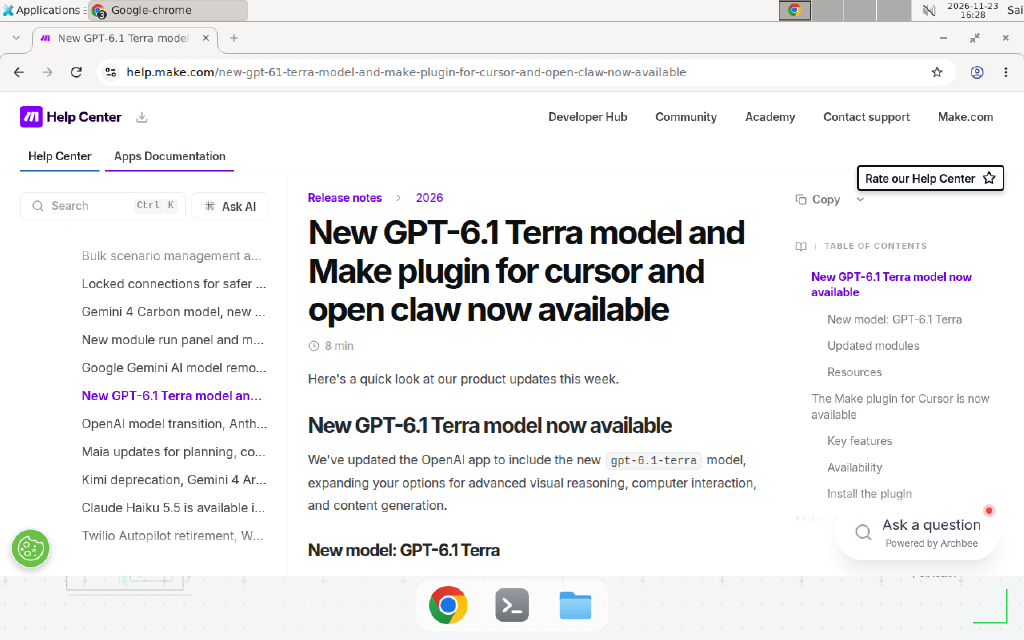
Make’s help center release notes for the week of 2026-11-06, captured 2026-11-24. The Cursor plugin announcement sits in the table of contents on the right.
The feature list from the same release notes covers four verbs. Build scenarios by describing a webhook, a data sync, a deploy notification, or another workflow in natural language. Run and inspect workflows through structured, interactive results in Cursor. Find existing scenarios by searching and filtering by name, folder, or status. Keep scenarios in Make, where your existing account, permissions, connections, and stored data stay put. A separate community spotlight from Make adds that the plugin packages Make’s expert Skills with the official Make MCP server configuration, so there is no manual setup, and that you can build AI agents in the session, for example an agent that triages incoming issues or CI failures and drafts the fix or response.
Two numbers decide whether the free tier is enough. Make’s Free plan gives 1,000 credits a month, two active scenarios, and a 15-minute minimum interval between scheduled runs, according to third-party reads of the pricing page in November 2026. Core starts at $9 a month on annual billing and removes the scenario cap. We could not verify the Core price on make.com directly, since the pricing page blocked our check, and November 2026 reads disagree on whether Core includes 5,000 or 10,000 credits, so confirm the live pricing page before you commit. The plugin itself is available on all Make plans, including Free, according to the Make help center.
Make’s own explanation of the design is worth quoting: “An agent can improvise a task each time, but work that repeats is better handled by automation. Once your agent has an automation for it, the work runs the same way every time, with retries and error handling when something goes wrong, so the agent doesn’t have to get it right from scratch on every run.” Cursor keeps the reasoning, Make handles the part that has to be dependable. The Cursor plugins reference backs the mechanics: plugins bundle MCP servers, skills, subagents, rules, and hooks into one installable package.
Prerequisites
- A Make account on any plan, including Free. The plugin uses your existing account and permissions, so scenarios and connections stay in your Make organization.
- A Cursor account, with the editor installed. The plugin installs from the Cursor Marketplace.
- The apps your scenario needs, already connected in Make or ready to connect when the agent asks. For the example below, that is GitHub, Slack, and Google Sheets.
- A test repository, a test Slack channel, and a test sheet, so the first run touches nothing real.
Step 1: Install the plugin from the Cursor Marketplace
Open the Make listing in the Cursor Marketplace and install it. Make’s help center points to the Marketplace listing as the install route, and the community spotlight describes the same three-step flow: install the plugin, sign in with the Make account you already have, and describe what you want. The plugin bundles the Make Skills and the official Make MCP server configuration, so there is no mcp.json to edit by hand. If you already connected the Make MCP server manually, read the FAQ answer about duplicate tools before you install, since the plugin would give Cursor a second copy of the same connection. Our earlier guide to adding an MCP server to Cursor covers the manual route.
Step 2: Connect your Make account
The first time Cursor uses the plugin, it asks you to sign in to your Make account in your browser. Complete the sign-in yourself. Do not paste your Make password or an API token into agent chat, and do not ask the agent to log in for you. After sign-in, your automations, app connections, and permissions stay in your Make organization. If the agent later cannot see a scenario you know exists, check first that you signed in to the right organization. Multi-organization accounts are the usual cause.
Step 3: Describe the webhook sync scenario
Open agent chat and describe the workflow the way you would brief a teammate, with the trigger, the apps, the fields, and the failure behavior. Vague prompts produce vague scenarios, so name the exact pieces. Here is the prompt shape that works, with the demo values labelled:
Build a Make scenario named "GitHub issue triage sync".
Trigger: GitHub webhook, when a new issue opens in the
acme-web repo (Example — replace with your values).
Then post to Slack channel #triage (Example — replace with
your values) with the issue title, number, author, and URL.
Then append one row to the Google Sheet "Issue triage"
(Example — replace with your values) with the same fields
plus the opened timestamp.
If the Slack post fails, retry once and log the error.
Run immediately on the webhook event, not on a schedule.
The agent creates the scenario in Make, connects GitHub, Slack, and Google Sheets, maps the fields, and schedules it. A webhook-triggered scenario runs when the event arrives, so the 15-minute minimum interval on the Free plan does not apply here. When the agent reports the scenario is ready, open it in Make and read the module list the way you would review a pull request.
flowchart LR
    A[GitHub webhook<br/>new issue opens] --> B[Router]
    B --> C[Slack #triage<br/>title, number, author, URL]
    B --> D[Google Sheets<br/>append triage row]
    C --> E[Execution history<br/>in Make and Cursor]
    D --> E
Step 4: Run it and inspect the output in Cursor
Ask the agent to run the scenario and show the result. Make’s release notes promise structured, interactive results in Cursor, so you should see the run’s output bundles, not just a one-line “done”. Open a test issue, then ask Cursor to show the latest run. Check three things: the Slack message arrived in the right channel with the right fields, the sheet row has the same values, and the run consumed the credits you expected. For the demo scenario, one issue costs one credit per module that executes, so a clean run through the webhook, Slack, and Sheets modules is three credits. If a run costs far more, a module is looping or a search module is returning more bundles than you expected. For deeper inspection, open the scenario in Make and use the run panel. Our guide to Make’s module run panel shows how to compare a module’s inputs and outputs side by side and find the one bad bundle without another full run.
Step 5: Check execution history and fix what is wrong
Ask Cursor to show the execution history, or open History in Make. Read the module that failed, not just the run status. The most common first-run failure in a webhook sync is a field mapping that points at a nested value that does not exist for some issues, for example a body field that is empty when the issue was opened from a template. Ask the agent to map that field with a fallback, or set the fallback yourself in the Scenario Builder. Re-run with a second test issue and confirm the history shows a clean run.
Step 6: Search before you build the next one
Before you describe a second automation, ask Cursor to search your existing scenarios by name, folder, or status. A quick “list my active scenarios in the triage folder” prevents the classic duplicate: two scenarios watching the same webhook and posting the same message twice.
Copy-paste template: the agent prompt pack
The one deliverable worth keeping is a prompt pack you reuse for every scenario, so the agent builds the same shape each time. Paste this into agent chat and fill in the brackets.
Build a Make scenario named "[scenario name]".
Trigger: [webhook / schedule every 15 minutes / new row].
Source app: [app] — watch [object] in [workspace or repo].
Example — replace with your values: acme-web repo,
#triage channel, "Issue triage" sheet.
Actions, in order:
1. [first action with the exact fields to map]
2. [second action with the exact fields to map]
On failure: [retry once / stop and log / send an alert].
Do not duplicate a scenario with this name. Show me the
module list and the credit cost of one run first.
The last two lines are the ones most people skip: the duplicate check saves you from double-posting, and the credit estimate tells you whether the Free plan’s 1,000 credits will last the month.
When not to use this / Limits
Do not build through Cursor when the scenario needs precise data shaping, complex routers, or error handlers with multiple branches. The agent is good at the first draft, but the Scenario Builder is still the right tool for filters, iterators, and data stores. Do not use the plugin for anything that needs credentials the agent should never see, such as a private API key or a service account, since those belong in Make’s connection settings, not in chat. The plugin also does not change Make’s plan limits: the Free plan still caps you at two active scenarios, and a workflow that needs near-instant scheduled polling still hits the 15-minute interval floor. For the underlying connection options, see our Make MCP server tutorial.
Cost math
Most module actions cost one credit. The demo scenario runs three modules per issue, so one issue costs three credits. At 100 issues a month, that is 300 credits, well inside the Free plan’s 1,000. At 300 issues a month, it is 900 credits, nearly the whole allowance, and a second scenario would not fit. A four-module scenario at 250 runs a month is 1,000 credits exactly, the entire Free plan. Core at $9 a month on annual billing buys far more headroom, but confirm the current credit count on the live pricing page, since November 2026 reads disagree between 5,000 and 10,000. Webhook triggers cost nothing while idle, so a quiet repo is nearly free, and the cost driver is volume, not uptime.
Troubleshooting
| Symptom | Likely cause | Command to check | Fix |
|---|---|---|---|
| Agent says the plugin is not installed | Wrong install scope, or Cursor not restarted | Check the install state on the Marketplace listing | Install from the listing, restart Cursor, try again |
| Agent cannot see an existing scenario | Signed in to the wrong Make organization | List scenarios in Cursor and compare with Make | Sign in to the correct organization in the browser |
| Scenario runs but no Slack message | Slack connection expired, or the channel renamed | Read the Slack module error in the run history | Reconnect Slack in Make, update the channel, re-run |
| Webhook fires twice for one issue | A duplicate scenario watches the same webhook | Search scenarios by name in Cursor before building | Switch off or delete the duplicate |
| Run costs far more credits than expected | A search module returns many bundles, or a module loops | Count operations per module in the run panel | Add a filter or a limit to the search module, re-run |
| Agent built it but it never runs | Scenario left switched off, or the webhook never registered in GitHub | Check the scenario status and the GitHub webhook list | Switch the scenario on and add the webhook URL in GitHub |
Common mistakes
- Describing the outcome instead of the trigger. “Keep GitHub and Slack in sync” tells the agent nothing. Name the event, the app, and the fields, or the agent will guess and guess wrong.
- Trusting the agent’s summary instead of the builder. The scenario is not done when Cursor says it is done. Open it in Make, read the module list, and run it once yourself.
- Building a duplicate. Always search existing scenarios first. Two scenarios on the same webhook double-post, and the second one is invisible until someone complains.
- Forgetting the Free plan’s two-scenario cap. The plugin installs on Free, but the third scenario you build cannot be switched on until you upgrade or switch one off. Count active scenarios before you describe the next one.
Test before you rely on it
- Open a test issue and confirm the Slack message and the sheet row both arrive with matching values.
- Open a test issue with an empty body and confirm the scenario does not fail on the missing field.
- Turn the scenario off, open a test issue, turn it back on, and confirm it does not replay the missed event.
- Check one full run in the execution history and confirm the credit cost matches your math.
- Ask Cursor to list your scenarios and confirm no duplicate watches the same webhook.
- Confirm the scenario still runs after you close Cursor, since the work lives in Make.
FAQ
Do I need a paid Make plan to use the Cursor plugin? No. Make lists the plugin as available on all plans, including Free, though Free caps you at 1,000 credits a month and two active scenarios. You need a Cursor account to install it.
Where do my scenarios actually live after Cursor builds them? In your Make organization. The plugin creates the scenario there, and it keeps running in Make’s cloud after your Cursor session ends.
What is the difference between the Cursor plugin and the Make MCP server? The plugin bundles Make’s expert Skills with the official Make MCP server configuration, so there is no manual setup. The standalone MCP server is the same connection without the Skills, so pick one route to avoid duplicate tools.
Is there a version for OpenClaw? Yes, released the same week. Run openclaw plugins install clawhub:@make/openclaw-make, connect your Make account, and the same build, run, and inspect flow works from an OpenClaw conversation. It can also call your existing automations as agent tools.
Conclusion
The Make plugin for Cursor turns a paragraph of intent into a running scenario, and the scenario keeps working after you close the editor. The win is not the typing you save, it is the handoff: Cursor reasons about what to build, Make runs it the same way every time, with retries and history you can actually read. If this flow fails at 3 a.m., can your team see what happened in the execution history and fix it in the builder? If not, open the scenario in Make, add the fallback and the error path, and run the test checklist first. For the deeper connection underneath the plugin, read our Make MCP server tutorial.
Frequently asked questions
Do I need a paid Make plan to use the Cursor plugin?
No. Make lists the plugin as available on all plans, including Free. You need a Cursor account to install it from the Cursor Marketplace. The Free plan caps you at 1,000 credits a month and two active scenarios, so a busy sync scenario can still push you toward Core.
Where do my scenarios actually live after Cursor builds them?
In your Make organization. The plugin creates the scenario, connects the apps, and schedules it in Make, and the scenario keeps running in Make's cloud after your Cursor session ends. You can open it in the Scenario Builder to edit it by hand.
Can the plugin see my existing scenarios?
Yes. You can ask Cursor to search and filter scenarios by name, folder, or status, run one, and inspect its output and execution history without leaving agent chat.
What is the difference between the Cursor plugin and the Make MCP server?
The plugin bundles Make's expert Skills with the official Make MCP server configuration, so there is no manual setup. The standalone Make MCP server is the same connection without the Skills and the Marketplace install. If you already wired the MCP server by hand, the plugin would give Cursor a second copy of the same tools, so pick one route.
Does the plugin work in Cursor background agent sessions?
Yes. Make documents two places to use it: agent chat and background agent sessions. A background session can keep building and running automations while you stay focused on code.
Is there a version for OpenClaw?
Yes, released the same week. Run openclaw plugins install clawhub:@make/openclaw-make, connect your Make account, and the same build, run, and inspect flow works from an OpenClaw conversation. The OpenClaw plugin can also call your existing automations as agent tools.