How to Automate Motion Tasks with Make: Auto-Create, Schedule, and Sync
Requests arrive all morning: a client email, a Slack follow-up, a form submission. None of them reach your calendar. By lunch you have retyped the same three tasks by hand and already missed the one that mattered. This article builds the machine that stops that: a Make scenario that turns email, forms, and chat messages into Motion tasks, so Motion’s planner can time-block them before you open the app.
Quick answer
Connect Motion to Make with a Motion API key, then build a scenario that watches your inbox or form and creates a Motion task for each item, with a name, project, due date, duration, and priority mapped from the source.
The hard part is not wiring the modules, it is deciding what counts as a task and which fields the source can actually fill, because a task with no duration or no due date is invisible to Motion’s planner.
Checked on 2026-11-12 against the Motion app page on Make and Motion’s API documentation. Interfaces change fast, so if a menu or label differs, trust the linked page.
Evidence: what the Motion app on Make actually does
Motion is an AI scheduler that turns tasks, projects, and deadlines into a time-blocked calendar, re-planning the day as priorities change. Make’s integration page describes the pairing in one sentence: “Synchronize your team’s calendar events and task priorities by connecting Motion to Make.” The app is listed as verified, and the module list is short and honest about its scope.
Two triggers, Watch New Tasks and Watch New Comments; eleven actions, including Create a Task, Create a Project, Create a Recurring Task, Update a Task, Get a Task, Unassign a Task, and Make an API Call; and three searches, including Search Tasks and List Projects. The coverage is wider than it first looks: the app can create, read, update, and delete tasks, and Make an API Call reaches any Motion endpoint the named modules do not cover. Make moves the work, Motion schedules it.
The scale explains why this is worth building. Motion says projects in its app get done 32 percent faster by eliminating idle time between tasks, and its AI project generation is over 90 percent accurate out of the box. Its pricing page claims users finish 137 percent more work and reclaim 10 or more hours a week from busywork. Treat those as vendor numbers, not independent measurements. The planning is automatic, the data entry is not, and the entry is exactly what Make removes.
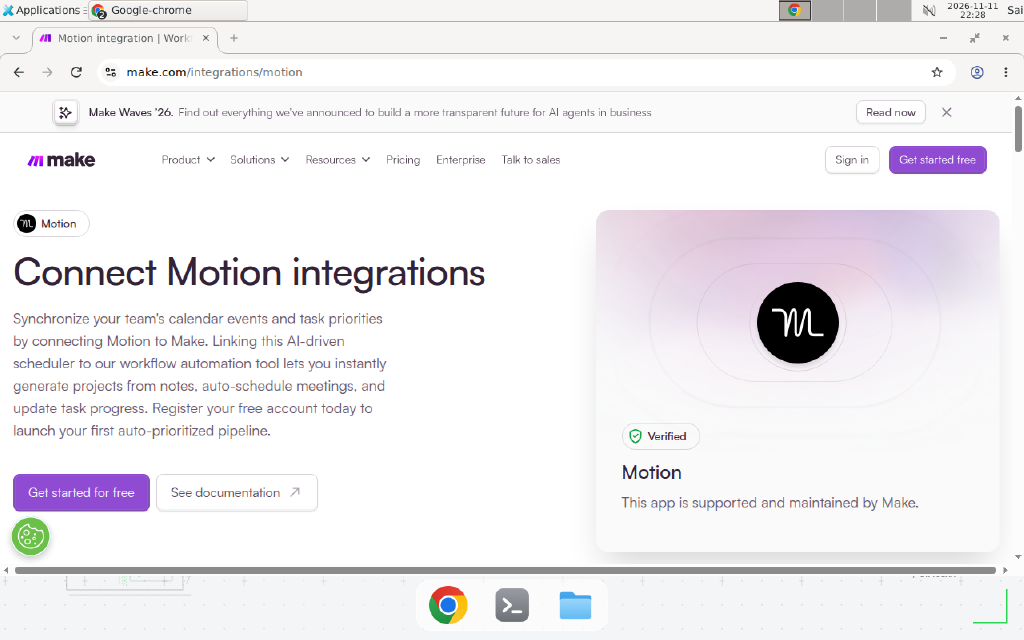
The Motion integration page on Make, checked November 12, 2026. Motion is listed as a verified app, supported and maintained by Make.
Prerequisites
- A Make account. The Free plan works for testing: 1,000 credits a month, a 15-minute minimum schedule interval, and two active scenarios.
- A Motion account on a paid plan, or an active free trial. API access is what the Make connection needs, and Motion’s Pro AI plan starts at $19 per seat per month.
- One source of work to automate first. Email, a Google Form, a Slack channel, or a Google Sheet all work. Pick the one where requests already arrive.
- A Motion workspace and at least one project, so tasks land somewhere real.
- Know who owns the Motion account: the API key acts as that user.
Step 1: Get a Motion API key
Open Motion and generate an API key for your account. Motion’s API authenticates with an X-API-Key header, so the key is the whole credential: anyone holding it can create, read, and delete tasks as you. Copy it once and store it in a password manager, not in a chat message or a shared doc.
We could not verify the exact menu label inside Motion’s settings where the key is generated; Motion’s API docs confirm the X-API-Key header the key travels in.
Step 2: Connect Motion in Make
Create a new scenario in Make and add any Motion module, for example Create a Task. Make asks you to add a connection. Give it a name you will recognize later, such as “Motion production”, paste the API key from Step 1, and save it. Run the module once with the test button to confirm the connection works before you build anything around it. A failed test here means the key is wrong or the plan has no API access, and both are cheaper to find now than after you have mapped ten fields.
Step 3: Build the intake scenario, email to Motion task
The trigger is a new email in a Gmail mailbox, or a new row in a sheet if requests arrive as form submissions. The action is Create a Task in Motion, with fields mapped from the trigger output.
Map the fields this way:
| Motion field | Map it from | Notes |
|---|---|---|
| Name | Email subject, or form answer | Strip prefixes like “Re:” so the task reads cleanly |
| Description | Email body, or form details | Keep the source link on the first line |
| Project | A fixed project, or a lookup by keyword | A task with no project lands in the unfiled list |
| Due date | Email date plus your service level, or the form’s date field | Motion plans from the due date, so a missing date means no urgency |
| Duration | A fixed default such as 30 minutes, or a number from the form | Without a duration Motion cannot time-block the task |
| Priority | A fixed value, or a rule on the subject line | Use High only for items with a real deadline |
| Assignee | A fixed teammate, or a lookup by sender | Leave it empty to assign it to yourself |
Use a filter between the trigger and the Create a Task module. Only pass items that are real work: skip automated notifications, newsletters, and out-of-office replies. One filter at the start saves more credits than any optimization later, because every item that reaches the action module costs a credit.
A concrete example: a support inbox receives a client email with the subject “Please update the onboarding doc” (Example, replace with your values). The scenario creates a Motion task with that name, in the “Client work” project (Example, replace with your values), due in two days, 45 minutes long, Medium priority, assigned to you. Motion then finds a 45-minute gap and blocks it.
Step 4: Build the outbound scenario, Motion task to team log
The second scenario runs the other direction. Its trigger is Watch New Tasks in Motion, and its action writes each new task to a Google Sheet or posts it to Slack. The point is visibility: the team sees what entered the plan without opening Motion.
Set the trigger to 15 minutes on the Free plan, and choose “from now on” as the start, so it does not replay every task you ever created. Map the task name, project, due date, and assignee into the sheet or message. Add a second module only if the destination needs it, because each extra module is an extra credit on every run.
This scenario is also the cheapest smoke test: create a task in Motion by hand, wait one interval, and check whether the row or message appears.
Step 5: Handle comments and recurring work
Two modules cover the cases people forget. Create a Comment lets a scenario add context to a task that already exists, for example posting a client reply onto its task. Create a Recurring Task handles the work that repeats: a weekly report, a monthly invoice check, a daily standup note. Give the recurring task a name that says when it repeats, such as “Weekly client report, Fridays” (Example, replace with your values), so the calendar shows the rhythm at a glance.
Delete a Task and Delete a Recurring Task exist for cleanup scenarios, such as removing tasks when a deal closes in the CRM. Use them sparingly, because a wrong filter deletes real work with no undo. Update a Task is the edit module: change the due date, priority, or status of a task another scenario created, and use Get a Task first to read the current values before you overwrite them. Get a Project is the guard module: read the project first, and only create tasks when the project exists, so a renamed project fails loudly instead of scattering tasks into the void.
Copy-paste template: the intake scenario blueprint
Use this blueprint as the checklist for every Motion intake scenario you build. Copy it into your runbook and fill in the bracketed values before you switch the scenario on.
Scenario: [Source app] to Motion task intake
Trigger: [New email in Gmail / New row in Google Sheets / New Slack message]
Filter: subject contains [your keyword] AND sender is not [noreply@, newsletter@]
Module 1: Motion, Create a Task
  Name: [mapped subject or form answer]
  Project: [fixed project name] (Example, replace with your values)
  Due date: [mapped date, or trigger date + 2 days]
  Duration: [30 minutes default] (Example, replace with your values)
  Priority: [Medium default; High only when subject contains "urgent"]
  Assignee: [your Motion user]
  Description: [source link on line 1, then the full source text]
Module 2 (optional): Slack, Post a Message: "New Motion task: [name], due [due date]"
Schedule: every 15 minutes (Free plan) or every 5 minutes (paid plan)
Error handler: Break, retry once, then email [your address] (Example, replace with your values)
Dedup: data store keyed on [source message ID], skip when the key exists
The dedup line is not optional. The same pattern, with the same duplicate risk, is covered in the guide to preventing duplicate records in Make scenarios: record the source ID first, create the task second.
When not to use this / Limits
Do not use Make as a live two-way sync for Motion. Update a Task exists, but a sync that watches both sides and merges edits is a loop waiting to happen: each side’s update triggers the other side’s update. If you need edits to propagate, pick one direction per field and keep Motion as the single place where scheduling changes. Use Make for intake and notifications. Do not automate task creation for work that needs human judgment to scope, such as a vague “look into this” email with no deadline and no owner, because Motion will faithfully time-block a task nobody understands. And do not build this on a Motion trial you plan to let lapse, because the API key dies with the trial and every scenario starts failing at once. For a simple personal to-do list with no team and no intake source, Motion alone is enough.
Cost math
The arithmetic is small, and that is the point. Motion Pro AI costs $19 per seat per month, or about $12.70 per seat per month when paid annually with the 33 percent discount Motion lists on its pricing page. Make’s Free plan includes 1,000 credits a month, and most module actions consume 1 credit each.
Assume one intake run costs 3 credits: trigger check, Create a Task, and Slack notification. At 20 items a day, that is 60 credits a day, about 1,800 in a 30-day month, above the Free plan’s 1,000. Dropping the Slack module brings a run to 2 credits, about 1,200 a month, still over the line. The honest fix is the Core plan, or fewer than 11 intake items a day on Free. Count your real intake volume for a week before you pick a plan.
Troubleshooting
| Symptom | Likely cause | Command to check | Fix |
|---|---|---|---|
| Connection test fails with an authorization error | Wrong API key, or the Motion plan has no API access | Reopen the connection in Make and paste the key again | Generate a fresh key in Motion and confirm the plan includes API access |
| Watch New Tasks never fires | Schedule interval not reached, or the scenario is off | Check the scenario schedule and run history | Switch the scenario on, set the interval, choose “from now on” |
| Tasks are created but never appear on the calendar | No duration or no due date mapped | Open a created task in Motion and check the two fields | Map a default duration and a due date in Create a Task |
| The same task is created twice | The trigger re-reads items, or the source fires twice | Search Motion for the duplicate name and compare creation times | Add a data store dedup keyed on the source message ID |
| Tasks land in the wrong project | The project name matches two projects | Use Get a Project to read the project first | Map the project by ID, or rename one of the projects |
Common mistakes
- Mapping the email body into the task name. The name becomes a paragraph and the calendar becomes unreadable. Map the subject into the name and the body into the description.
- Leaving duration empty. Motion cannot time-block a task with no duration, so the task sits in the list forever and the automation looks broken when it is actually working.
- Marking everything High priority. Motion plans High tasks first, so when everything is High nothing is, and the schedule fills with routine work. Reserve High for items with a real deadline.
- Skipping the filter on the trigger. Every newsletter and automated receipt becomes a Motion task, the team stops trusting the calendar, and the scenario burns credits on noise. Filter first, create second.
Test before you rely on it
- Create a test email or form entry and confirm exactly one Motion task appears, with the right name, project, due date, and duration.
- Open the created task in Motion and confirm it is time-blocked on the calendar, not just sitting in the task list.
- Send the same source item twice and confirm the second run creates no duplicate task.
- Turn the scenario off, create a task in Motion by hand, and confirm the outbound scenario logs it within one schedule interval.
- Delete the test tasks and confirm the log still makes sense.
- Check the Make credit usage after a full day and confirm the real volume fits the plan you are on.
Conclusion
Motion plans the work and Make feeds it the work: Make creates tasks where requests already arrive, Motion decides when each one happens. If this flow fails at 3 a.m., can your team see what happened and undo it? If not, add the dedup store and the error handler from the blueprint first, then switch it on. Next, read the guide to automating Zoom meetings with Make for the same intake pattern applied to recordings, or n8n versus Make for AI agents if you are still choosing a side.
Frequently asked questions
Do I need a paid Motion plan to use the Make integration?
Yes, in practice. The Motion app on Make connects with a Motion API key, and API access is a paid-plan feature. Motion's Pro AI plan starts at $19 per seat per month, and the Business AI plan is $29 per seat per month. Motion offers a free trial, so you can test the connection during the trial, but the scenario stops working if the trial ends without a paid plan.
Does Make watch Motion tasks instantly, or on a schedule?
On a schedule. Watch New Tasks and Watch New Comments are polling triggers, so Make checks Motion at the interval you set and picks up new items. On the Make Free plan the shortest schedule interval is 15 minutes, so a task created in Motion can take up to 15 minutes to appear downstream. If you need faster reactions, shorten the interval on a paid plan or trigger the scenario from the source app instead.
Can Make update or complete a Motion task?
Yes. The module list includes Update a Task, which changes a task's fields, so marking a task complete is an update to its status, not a separate module. Get a Task reads a task first, so a scenario can check the current state before it updates. Motion itself still owns scheduling and rescheduling once the task exists.
Why does my scenario create the same Motion task twice?
The usual cause is a trigger that re-reads the same items, or a source that fires twice, such as a form submitted once but processed by two scenario runs. Add a deduplication step before the Create a Task module, for example a Make data store keyed on the source message ID, and only create the task when the key is new. The pattern is the same one used for duplicate records in other Make scenarios.
What happens when Motion reschedules a task I created through Make?
Nothing breaks. Motion owns the schedule once the task exists. Its AI planner moves the time block when priorities or deadlines change, and Make does not need to know. That is the point of the split: Make moves data between apps, Motion decides when the work happens.
Can I automate Motion projects the same way?
Yes, with the Create a Project module. Feed it a project name and a workspace, then create the tasks under it with Create a Task. The same module list also includes Get a Project, so a scenario can read a project first and only create tasks when the project exists.