How to Use Make's Module Run Panel to Debug Scenarios
Your scenario ran twelve times overnight. Eleven rows landed in Google Sheets, one Slack alert never arrived, and the execution history just says the Sheets module failed on operation 7. You open the old inspector, click through bundles one by one, and lose the thread somewhere between the webhook payload and the row that never got written.
Quick answer: Run the scenario, click the output bubble above the failing module, and compare its input and output side by side, search field values across operations, and read the credits and AI reasoning for the failed operation.
The hard part is finding the one bad bundle among dozens of good ones, not opening the panel.
Checked on 2026-11-22 against Make’s View module run data help page and Make’s release note for the new panel. Interfaces change fast, so if a menu or label differs, trust the linked page.
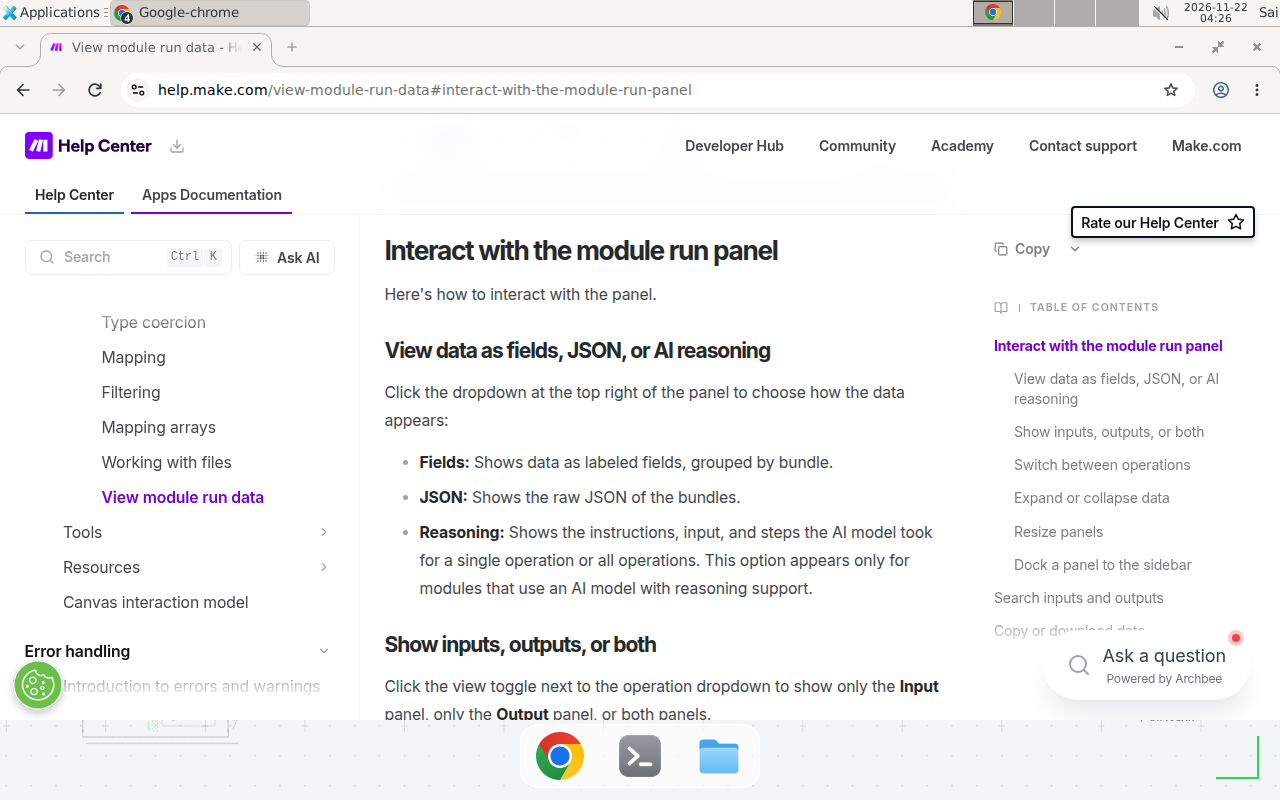
Screenshot: Make’s help page describing the module run panel’s Fields, JSON, and Reasoning views, checked 2026-11-22. The panel itself opens from the output bubble above a module after a run.
Why the panel changes debugging
Before this release, debugging meant opening the execution history and expanding bundles one operation at a time, with each module’s data shown in isolation. The new panel puts a module’s input and output in one place.
Make shipped the new module run panel and module search on 2026-11-12, and the release note states the goal plainly: “The module run panel and module search help you find modules, variables, and module data in your scenarios, and review inputs and outputs as you build, test, and debug.” The panel is available to all users on all plans, including the free plan, which gives you 1,000 credits a month and two active scenarios as of November 2026. For a limited time you can switch back to the previous version of the panel, so if your workspace still shows the old layout, the toggle is there on purpose.
Two numbers frame why the workflow matters. Every module that executes in a scenario run normally costs one credit, so a ten-module scenario costs at least 10 credits per execution, and re-running a whole scenario to reproduce one failure is the most expensive way to debug it. The free plan’s 1,000 credits a month disappear fast when a scheduled scenario polls every 15 minutes, so finding the fault in one look instead of five re-runs is real money on the free tier.
Prerequisites
- A Make account on any plan, including free. No paid feature is involved.
- A scenario that has run at least once, or a single module you can run on demand. The panel only shows data after a run exists.
- A failing or suspicious run to inspect. If everything is green, run one module with test data first.
- Basic familiarity with the Scenario Builder. If you have never built a scenario, start with our guide to scenario inputs and come back.
Step 1: Run the scenario and open the panel
Open the scenario in the Scenario Builder and run it, or run a single module with the “Run this module only” option. After the run finishes, every module shows a white output bubble above it, carrying two numbers: a checkmark count for operations and a coin count for credits consumed.
Click the output bubble above the module you want to review. The module run panel opens, showing what that module received and returned. The panel header shows the total credits used in the module run, and hovering over the operation dropdown shows the credits used per operation.
Do not open the panel only from the module you suspect. Open it from the module directly before the one that failed, too, because the bad value usually enters one step earlier than the error appears.
Step 2: Read the input and output side by side
The view toggle next to the operation dropdown switches between Input only, Output only, or both side by side. For debugging, keep both visible and drag the divider until the field you care about lines up on both sides.
Use the dropdown at the top right of the panel to choose how the data appears: Fields shows data as labeled fields grouped by bundle, best for reading values quickly; JSON shows the raw JSON of the bundles, best for copying an exact payload or spotting a type change, such as a number arriving as a string; Reasoning shows the instructions, input, and steps the AI model took, and appears only for modules that use an AI model with reasoning support.
Worked example with demo data: a scenario takes new orders from a webhook, writes a row to Google Sheets, and posts a Slack alert. Eleven operations succeed. Operation 7 fails at the Sheets module. In the panel, the Input side for operation 7 shows the email field empty while the other eleven operations show a value there. All values below are demo data. Example — replace with your values.
Operation 7, Sheets module, Input (Fields view):
  order_id:    ORD-1042
  email:       (empty)
  total:       49.00

Operation 6, Sheets module, Input (Fields view):
  order_id:    ORD-1041
  email:       buyer@example.com
  total:       29.00
The fix here is not in the Sheets module. It is upstream, either a required-field check on the form that feeds the webhook, or a filter that routes orders with an empty email to a review queue instead of the Sheets module. The panel told you that in one comparison. Without it, you would have guessed at the Sheets mapping first and wasted a run.
Step 3: Switch between operations, or view them all
Click the operation dropdown at the top left of the panel to view a specific operation, or select All operations to view every operation of that module at once. When a scenario processes a batch, the failing operation is rarely the first one, so the dropdown is how you jump straight to operation 7 instead of paging through 1 to 6. Expand or collapse data with the icons on or below an Input or Output header. If the panel feels cramped, drag its sides or click the expand icon in the panel header to resize it, and click the Dock to sidebar icon to dock it while you compare modules on the canvas.
Step 4: Search field names and values across all operations
This is the feature that replaces the old click-through-every-bundle routine. Click the search icon at the top right of the panel, or press Cmd or Ctrl + F, then type a field name or a value. The search covers all operations of the module, not just the one on screen. Optionally select Input or Output to limit results by type, then click a result to jump to it. Search for the value you expect to be wrong: in the order example, buyer@example.com returns eleven hits and one gap. The search recognizes diacritics, so z also finds z.
Step 5: Copy or download the exact bundle
Once you have found the bad operation, preserve the evidence before you change anything. The panel gives you three ways to take data out:
- To copy or download all data, click the three-dot menu in the panel header.
- To copy or download specific bundles, switch to the JSON view and click the three-dot menu in the Input or Output headers.
- To copy a single field value, stay in the Fields view, hover over the field, and click the copy icon.
Paste the failing bundle into the ticket or your run log. A screenshot shows what happened, but the JSON bundle is what lets someone else reproduce it.
Copy-paste template: a five-minute debug log
Keep one short note per failed run. It takes five minutes and it stops the same fault from being debugged twice. Copy the block below into your own notes and fill it in from the panel. Example — replace with your values.
Scenario:  New orders to Sheets and Slack
Date:      2026-11-22
Module:    Google Sheets, Add a Row
Operation: 7 of 12
Input:     order_id ORD-1042, email (empty), total 49.00
Output:    Sheets error, required field missing
Search:    "buyer@example.com" found in 11 of 12 operations
Cause:     Webhook payload for order ORD-1042 carried no email
Fix:       Add a filter before Sheets: empty email routes to review
Verified:  Re-ran module with corrected bundle, row written
The two lines that matter most are the search line and the cause line. The search line proves the fault is in the data, not the mapping, because the same field works in eleven operations.
The two lines that matter most are the search line and the credits line. The search line proves the fault is in the data, not the mapping, because the same field works in eleven operations. The credits line tells you what the debugging cost and whether a re-run is cheap enough to do twice.
When not to use this / Limits
The panel shows what a module received and returned, not whether the output was right. A Sheets row can be written successfully with the wrong customer name, and the panel will look perfectly green. It cannot judge business logic, so pair it with a spot check of the destination system after any fix.
It also only covers runs that already happened. If a scenario has never run, or its history was cleared, there is nothing to inspect. The Reasoning view appears only for AI modules with reasoning support. For failures before any module runs, such as a broken webhook, the fix belongs in the trigger or the connection instead. In that case, our guide to Make error handlers covers the retry, resume, and rollback options that catch failures the panel can only display afterward.
Cost and scale math
Debugging with the panel is cheap because reading a run costs nothing extra. The run already happened and its credits are spent. Re-running a scenario to reproduce a fault is where the cost lands.
Take a ten-module scenario on the free plan, with 1,000 credits a month and a 15-minute minimum interval. One full run costs at least 10 credits. Five reproduce-and-guess runs cost 50 credits, which is 5 percent of the monthly allowance for one bug. Running a single module with the saved bundle, by contrast, costs 1 credit. Over a month with four such bugs, the difference is roughly 200 credits for full re-runs against 4 credits for single-module re-runs.
At scale, a scenario processing 500 orders a day through ten modules burns 5,000 credits a day, so a 1 percent failure rate is 50 failed operations a day. The panel’s cross-operation search is the only part of the workflow that scales, because one search covers all 500 operations at once.
Troubleshooting
| Symptom | Likely cause | Command to check | Fix |
|---|---|---|---|
| Panel shows no data after a run | The scenario has no completed run yet, or you clicked a module that never executed | Check the execution history for a completed run | Run the scenario or run the single module first, then click its output bubble |
| Output bubble shows a number but the panel is empty | The module sits on a path the router never took | Open the execution history and confirm which route executed | Run the scenario with data that takes the failing route, or inspect the module on the route that did run |
| Search finds nothing for a value you know exists | You searched the wrong module, or the value is in the other panel | Switch the search scope between Input and Output | Open the panel on the module that actually receives the value, and clear the Input/Output filter |
JSON view shows a number as a string, such as "49.00" | The source app sends text, not a number | Compare the same field in a working operation in JSON view | Add a parseNumber step or fix the source field type before the failing module |
| Reasoning view is missing on an AI module | The model or module does not expose reasoning | Check the module settings for a reasoning-capable model | Switch to a model with reasoning support, or debug from the Fields and JSON views instead |
| Credits per operation look higher than expected | A module ran more times than you assumed, often inside an iterator | Hover the operation dropdown to see credits per operation | Check the iterator input count, and see our guide to preventing duplicate records if the same bundle is processed twice |
Common mistakes
- Stopping at the module that errored. The bad value usually enters one step earlier. Check the input of the failing module and the output of the module before it.
- Re-running the whole scenario to reproduce one failure. That spends a credit per module per run and can create duplicate rows or duplicate charges downstream. Re-run the single module with the saved bundle instead.
- Reading only the Fields view. Fields view hides type information, so
"49.00"and49.00look identical there. Switch to JSON view whenever a value looks right but the module still fails. - Fixing the mapping instead of the data. If eleven operations work and one fails with the same mapping, the mapping is fine and the data is bad. Fix the source, or add a filter.
Test before you rely on it
- Run the scenario once with test data and confirm the panel opens from the output bubble on every module you care about.
- Pick one operation, switch between Fields, JSON, and Reasoning views, and confirm the JSON view shows the exact payload you expect.
- Search for a value that appears in only one operation and confirm the search jumps to the right one.
- Copy a failing bundle from the JSON view and confirm the copied text pastes cleanly into your notes or ticket.
- After a fix, re-run the single module with the saved bundle and confirm the destination system shows the corrected result, not just a green checkmark in Make.
Conclusion
The module run panel does not fix scenarios. It shows you, in one place, what each module received, what it returned, what it cost, and, for AI modules, how the model reasoned. That turns debugging from re-running and guessing into reading and comparing. The next time a scenario fails on operation 7 of 12, ask this first: can you see the bad bundle in the panel without running anything again? If yes, you have already found the fault. If no, the fault is upstream of the panel, in the trigger or the data source, and that is useful to know too.
For the bigger picture of how Make scenarios fit beside other automation tools, read the complete n8n guide next, or go deeper on failure handling with our guide to Make error handlers.
Frequently asked questions
Do I need a paid Make plan to use the module run panel?
No. Make released the panel on 2026-11-12 for all users on all plans, including the free plan, which gives you 1,000 credits a month and two active scenarios. For a limited time you can switch back to the previous version of the panel.
Where do I open the module run panel?
Run a scenario or a single module in the Scenario Builder, then click the output bubble above the module you want to review. The panel shows that module's inputs, outputs, data transferred, credits used, and AI reasoning when applicable.
Can I search across every operation of a module?
Yes. Click the search icon at the top right of the panel or press Cmd or Ctrl + F, type a field name or value, and optionally narrow the results to inputs or outputs. The search covers all operations of that module, and it recognizes diacritics, so 'z' also finds 'z'.
What does the Reasoning view show?
It shows the instructions, input, and steps the AI model took for a single operation or all operations. It appears only for modules that use an AI model with reasoning support, so most regular modules show only the Fields and JSON views.
Does the panel show how many credits a run cost?
Yes. The panel header shows the total credits used in the module run, and hovering over the operation dropdown shows the credits used per operation. Each module that executes in a run normally costs one credit.
Can I re-run a module with the exact data that failed?
The Make community reports that you can run a module again using data from an earlier operation, which is useful for re-testing the exact bundle that failed. We could not verify that step in a live account; vendor docs describe viewing, searching, copying, and downloading run data, not re-running it.