How to Use Regex in Make.com Text Parser (Match Pattern)
Introduction
You pasted a customer email into a Make scenario, wrote a regex that works perfectly on regex101, and the Text Parser module returned nothing. No error, no warning, just an empty bundle and a scenario that silently did nothing downstream. That empty bundle is the most common regex failure in Make, and it has nothing to do with your pattern being wrong.
This tutorial shows you how to use regex in Make.com’s Text Parser Match Pattern module so extraction works: capture groups, the Global match trap, named groups, and copy-paste patterns for emails, phone numbers, URLs, and order numbers.
Quick answer
Add Text Parser’s Match Pattern module, put your regex in Pattern with at least one capture group in parentheses, map the text into Text, and set Global match to YES for every match. Test on regex101.com with ECMAScript flavor first.
The hard part
The hard part is not writing the regex, it is getting Make to hand you the match, because a pattern with no capture group returns an empty bundle even when it matches, and Global match set to NO silently drops every match after the first.
Checked on 2026-11-19 against the Make Help Center Text Parser page and the Make community regex guide. Interfaces change fast, so if a menu or label differs, trust the linked page.
Evidence: what the docs actually say
Make’s Help Center states the module’s job in one sentence: “The Match pattern module enables you to find and extract string elements matching a search pattern from a given text.” The same page carries the rule behind most empty results: “The pattern will contain at least one capture group in parenthesis () for the output bundle to contain some items. If the pattern does not contain any capture groups, the output bundle will be empty.”
Two numbers set the cost picture. First, the module costs one operation per incoming bundle, no matter how many matches the regex finds, so fifty matches cost the same as one. Second, Make’s free plan includes 1,000 credits per month with two active scenarios, as of November 2026, and Core starts at $9 per month billed annually for 10,000 credits. Make renamed operations to credits on August 27, 2025, one to one. The cost that catches people out is not this module, it is everything after it: each match becomes a separate bundle, and every downstream module runs once per bundle. Forty order numbers in one email means 40 Google Sheets runs.
Make uses the ECMAScript (JavaScript) flavor; the Help Center points readers to the MDN regular expressions guide for the full metacharacter list. So build every pattern on regex101.com with ECMAScript selected, then paste it into Make unchanged.
Prerequisites
- A Make account, the free plan is enough, because Text Parser is a built-in app with no connection to configure.
- A scenario with text to extract from, for example a Gmail, Slack, or webhook module.
- A regex101.com tab open with the ECMAScript (JavaScript) flavor selected.
- Basic regex familiarity: character classes like
\dand\w, quantifiers like+and*, and groups in parentheses. If those are new, the copy-paste patterns below are ready to use as-is.
Step-by-step guide
Step 1: Add the Match Pattern module
In the scenario editor, click the plus icon where the text arrives, search for “Text Parser”, and select Match Pattern. There is no connection to create and no API key to paste. The dialog has five fields that matter: Pattern, Text, Global match, Case sensitive, and a toggle to continue the route when no match is found.
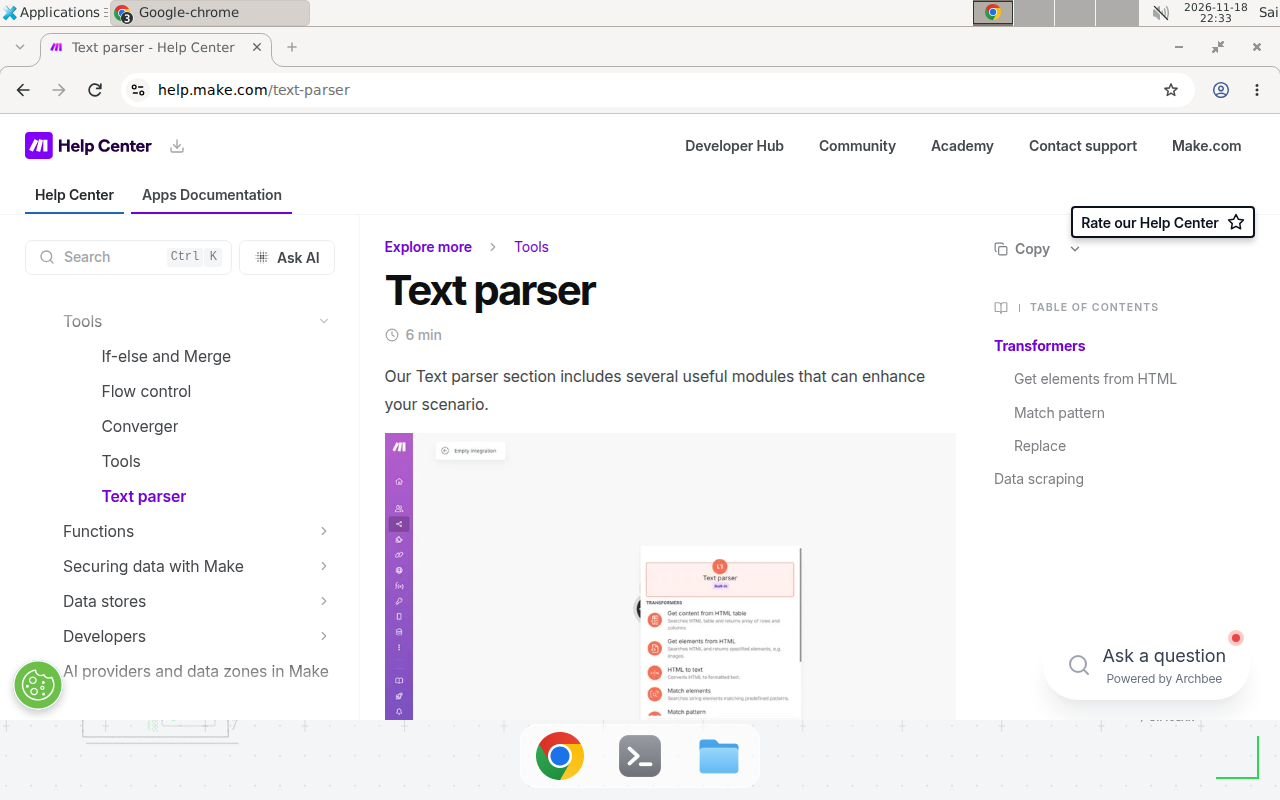
The Make Help Center Text parser page, screenshot taken 2026-11-19. Match pattern is listed under Transformers on the right.
Step 2: Write the pattern with a capture group
Put the regex in the Pattern field. The parentheses decide what you get back: Make returns the contents of your capture groups, and the full match alone is not enough. This pattern matches an email but returns nothing:
[A-Z0-9._%+-]+@[A-Z0-9.-]+\.[A-Z]{2,}
This pattern matches the same email and returns it:
([A-Z0-9._%+-]+@[A-Z0-9.-]+\.[A-Z]{2,})
The only difference is the wrapping parentheses. Make’s own docs example extracts numerals with [+-]?(\d+(\.\d+)?|\.\d+)([eE][+-]?\d+)?. Notice the parentheses. Without them, the output bundle would be empty.
Test the pattern on regex101.com first, with ECMAScript selected, using a real sample of your text, not a cleaned-up version. Real emails have line breaks, quoted replies, and signatures, and a pattern that works on one clean line often fails on the real message.
Step 3: Map the text and set Global match
Map the source text into the Text field, for example a Gmail or webhook module body. Then decide Global match:
- Global match NO returns only the first match. Use it when there is exactly one value, such as a single order number in a confirmation email.
- Global match YES returns every match, each as its own output bundle. Use it for lists: all addresses in a thread, all links in a newsletter, all prices on a page.
The community guide most Make users learn from puts it bluntly: for extraction jobs, Global match must be YES, because the default NO quietly throws away every match after the first. If your scenario processes only the first item of a list, check this toggle before anything else.
Step 4: Handle case sensitivity and multiline text
Case sensitive is on by default. An email pattern written with [A-Z] will miss Contact@Example.com. Two fixes work: write the class as [A-Za-z], or use the inline (?i) flag at the start of the pattern. Prefer [A-Za-z] in shared patterns, because the flag is easy to miss when someone reads the pattern later.
Multiline changes how ^ and $ behave. Without it, ^ matches only the start of the whole text. With it, ^ matches the start of every line, which is what you want when extracting labelled lines such as Order: 48210 from a multi-line message. Turn it on whenever your pattern anchors to a line start.
Step 5: Name your groups so the output is readable
Named groups turn cryptic output like $1, $2 into fields you can map by name:
Order: (?<order>\d+)
The output bundle then carries a field called order. The community’s key-value pattern shows the same idea at scale: (?<key>.+?): (?<value>.+) with Global match YES splits a block of Label: value lines into named pairs. Use named groups whenever a pattern has more than one group: mapping $3 into a Sheets column six months later is a guessing game, while mapping order is self-explanatory.
Step 6: Decide what happens when nothing matches
By default, a Match Pattern module that finds nothing stops the route with an error. Turn on Continue the execution of the route even if the module finds no matches when a missing value is normal, for example when scanning support emails for an order number some messages lack. Pair it with a filter that checks whether the output bundle is empty, so the scenario can branch instead of crashing. If a missing match should page someone, leave the toggle off, and read our guide to Make.com error handlers: skip, retry, resume, rollback, and commit to pick the right handler.
Step 7: Aggregate the bundles before writing them anywhere
When Global match is YES, each match is a separate bundle, and the next module runs once per bundle. Map the output into Google Sheets and you get one row per match, which is often what you want. But if you need a single message listing all matches, add a Text Aggregator after Match Pattern and join the bundles with a comma or line break. Forgetting the aggregator is the second most common mistake after the missing capture group: the scenario “works” but sends five Slack messages instead of one.
Copy-paste template: four extraction patterns
These four patterns cover the extractions Make users ask about most. Paste them into the Pattern field exactly as shown, with Global match YES unless the note says otherwise.
Email address (Global match YES):
([A-Za-z0-9._%+-]+@[A-Za-z0-9.-]+\.[A-Za-z]{2,})

Phone number, international format (Global match YES):
(\+?\d[\d\s().-]{7,}\d)

URL, http or https (Global match YES):
(https?://[^\s"'<>]+)

Order number after a label (Global match NO, Multiline YES):
^Order:\s*(?<order>[A-Z0-9-]+)
Example input and expected output:
Input (Example — replace with your values):
"Hi, reach me at jordan@example.com or +1 (415) 555-0132.
See https://example.com/invoice/48210 and quote Order: ORD-48210."

Email pattern returns: jordan@example.com
Phone pattern returns: +1 (415) 555-0132
URL pattern returns: https://example.com/invoice/48210
Order pattern returns: order = ORD-48210
Test each pattern on regex101.com against your real text before pasting it into Make. The URL pattern stops at whitespace and quotes, so it will not swallow a trailing quote from HTML, but it will include a trailing period if a sentence ends with a link; strip that with a Replace Pattern step when your source is prose.
When not to use this / Limits
Do not use Match Pattern to parse HTML or JSON. Regex cannot reliably handle nested tags or escaped quotes, and a pattern that works on today’s email template breaks on the next one. Use Make’s JSON Parse module for JSON and an HTML parser or the source app’s structured fields for HTML. Do not use it for validation either: a regex can confirm an email looks well formed, it cannot confirm the mailbox exists. Very long inputs can also hit the scenario’s execution time, so extract from the message body, not from a full thread export with attachments. When the text comes from a form, Make scenario inputs are a cleaner fit than regex, because the values arrive as typed fields instead of substrings you have to carve out.
Cost / scale math
Match Pattern itself is cheap: one credit per incoming bundle, whether it finds one match or fifty. The bill comes from what follows it. Assume 200 support emails a day, each with an average of 3 order numbers, each match written to Google Sheets:
Match Pattern runs:      200 x 1 credit = 200 credits/day
Sheets writes:           200 x 3 bundles x 1 credit = 600 credits/day
Scenario total:          800 credits/day, about 24,000/month
Free plan allowance:     1,000 credits/month
Result:                  the free plan lasts about 1 day at this volume
Core plan (10,000/month): about 12 days, then extra credits are needed
The fix is not a cheaper regex, it is fewer bundles. Aggregate the three matches into one row per email with a Text Aggregator, and the Sheets cost drops from 600 to 200 credits a day, cutting the scenario total to 400. At that rate the free plan lasts about two and a half days, Core about 25. If you need this extraction at real support-desk volume, compare the platforms first in n8n vs Make for AI agents, because n8n’s self-hosted plans do not meter per module run the way Make does.
Troubleshooting
| Symptom | Likely cause | Command to check | Fix |
|---|---|---|---|
| Output bundle is empty though the pattern matches on regex101 | Pattern has no capture group | Open the module output and look for $1 or a named field | Wrap the value in parentheses, for example (\d+) |
| Only the first match is processed | Global match is NO | Check the module settings for Global match | Set Global match to YES so every match becomes a bundle |
| One Slack message per match instead of one list | No aggregator after Match Pattern | Count the operations in the run history | Add a Text Aggregator after the module and join with a separator |
Pattern misses Contact@Example.com | Case sensitive is on, pattern covers one case | Test with a mixed-case sample | Use [A-Za-z] classes or the (?i) flag |
^Order: never matches in a long message | Multiline is off, so ^ only matches the text start | Test with the real multi-line message | Turn Multiline on so ^ matches each line start |
| Scenario fails when a message has no order number | Missing match stops the route by default | Check the run history error on the module | Enable continue-when-no-match and filter on empty output |
Common mistakes
- Testing with clean text, running on real text. A pattern tested on one tidy line fails on the real message with quoted replies and signatures. Always test on a pasted copy of a real message.
- Forgetting that downstream modules run once per bundle. Five matches means five Sheets rows or five Slack messages. Add an aggregator when you want one action per email.
- Using
.*greedily across a whole message.Order: (.*)swallows everything to the end when the message has line breaks. Use([^\n]+)or(\S+)to stop at the line end or the next space. - Copying a PCRE-only pattern from Stack Overflow. Features like
\Kor recursive patterns do not exist in ECMAScript. If regex101 in ECMAScript mode flags it, Make will not run it.
Test before you rely on it
- Run the scenario once with a real message and confirm the output bundle contains the captured group, not an empty bundle.
- Send a message with two or more matches and confirm Global match YES produces one bundle per match.
- Send a message with no match and confirm the scenario behaves as designed, either continuing the route or failing loudly.
- Map the captured field downstream and confirm the value lands in the right column or field.
- Run the scenario at expected daily volume for one day and check the credit usage against the math above.
- Re-test after any change to the source app’s message format, because an upstream template change is the usual reason a working pattern stops matching.
FAQ
Why does my Match Pattern module return an empty bundle even though the regex matches?
Your pattern has no capture group. Make only returns captured groups, so wrap the value in parentheses.
Should Global match be YES or NO in Make Text Parser?
Set Global match to YES for every match, each as its own output bundle, and NO when you only need the first match. Most real extraction jobs need YES.
Which regex flavor does Make.com use?
Make uses the ECMAScript (JavaScript) flavor. Test on regex101.com with ECMAScript selected, and what you test is what Make runs. Named groups as (?<name>...) work, and (?i) switches on case-insensitive matching.
How do I combine all matches from Match Pattern into one text?
Add a Text Aggregator after the Match Pattern module. It collects the bundles into a single string for Google Sheets, Slack, or email.
Does Match Pattern cost an operation per match?
No. The module costs one operation, or credit, per incoming bundle, no matter whether the regex finds one match or fifty. The cost multiplies downstream, because every module after it runs once per output bundle.
Can I use regex in Make without the Text Parser app?
Yes, for simple replacements. Make’s built-in replace() function accepts a regex pattern, and the Text Parser Replace Pattern module does the same. Use Match Pattern to extract values, and replace() to clean text in place.
Conclusion
Regex in Make comes down to three settings, not regex skill: a capture group around the value, Global match YES when there is more than one, and ECMAScript flavor on regex101. Get those three right and the module does exactly what the docs promise. If this flow fails at 3 a.m., can you tell from the run history whether the pattern found nothing or the email simply had no order number? If not, turn on continue-when-no-match and log the empty case. Next, read how to migrate from Make to n8n if your volume is outgrowing Make’s pricing, or start from the complete n8n guide if you are weighing a second platform.