How to Connect the Figma Remote MCP Server to Claude Code
Introduction
A designer drops a Figma link into the ticket. You open the file, guess whether that 16-pixel gap is a token or a one-off, and rebuild the layout from a screenshot. Days later the designer opens your build and points at the drift: the wrong radius, a hard-coded color, a button that is close but not the component. The design was precise. The transfer was lossy.
The Figma remote MCP server fixes the transfer. It hands Claude Code the structured data behind the frame, layers, components, variables, and Auto Layout rules, so the agent generates code from the design itself instead of from your reading of a picture.
Quick answer
Install Figma’s official plugin with claude plugin install figma@claude-plugins-official, restart Claude Code, open /plugin, select the figma server, and click Allow access in the browser. That is the whole setup for most people.
The hard part is not the install, it is the scope and seat you connect with. A server added to the wrong scope silently vanishes in the next project, and a View seat burns its whole monthly allowance of 20 read calls on a single screen.
Checked on 2026-11-09 against Figma’s developer docs (remote server installation, MCP server introduction, and rate limits pages) and the Claude Code MCP docs. Interfaces change fast. If a menu or label differs, trust the linked page.
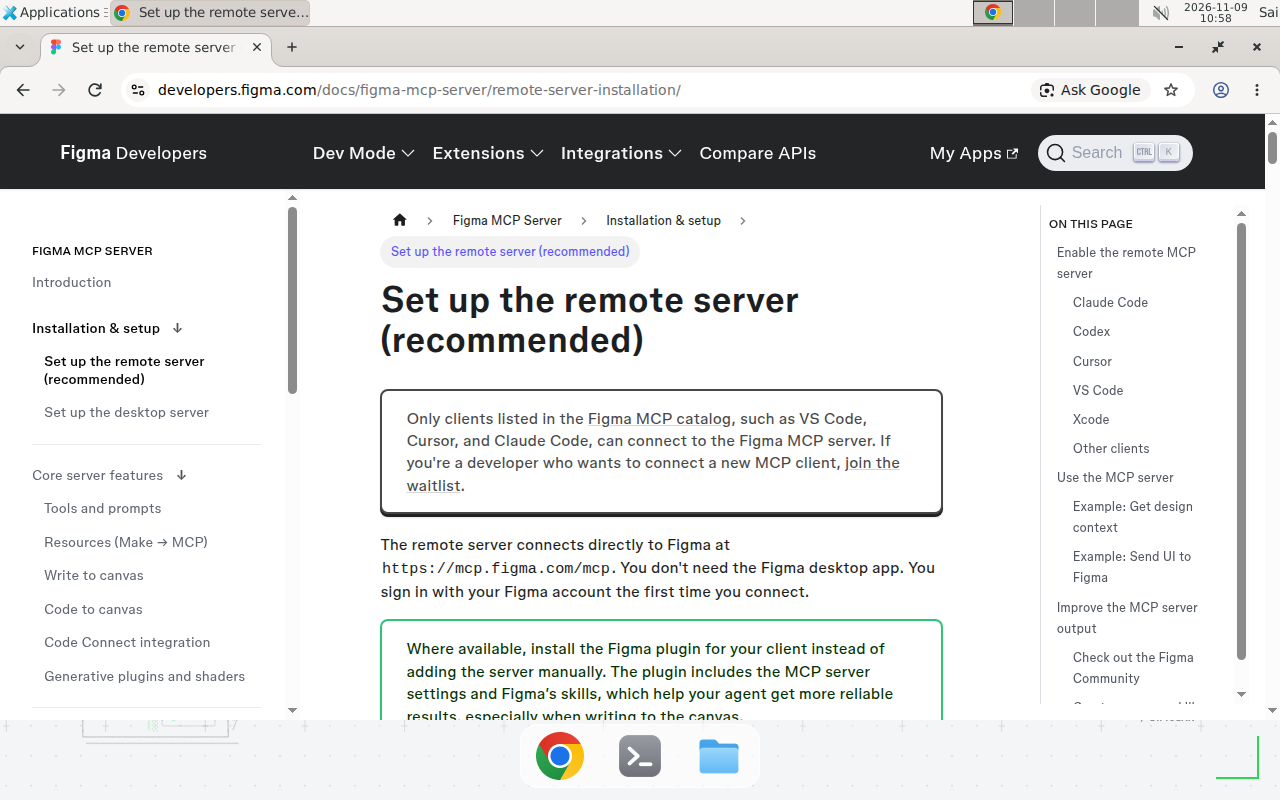
Screenshot: Figma’s official remote server installation page for Claude Code, checked 2026-11-09.
Evidence
Figma’s docs settle the two decisions that matter. On the method, the remote server installation guide says: “The recommended way to set up the Figma MCP server in Claude Code is to install the Figma plugin. The plugin includes the MCP server settings and Figma’s skills for common workflows.” On the server choice, the Figma MCP server introduction says: “The remote server offers the broadest set of features and is the best choice for most users.” The desktop server exists for specific organization and enterprise needs, not as the default.
The numbers that decide whether this setup survives a real workday come from Figma’s rate limits page, current as of November 2026. View and Collab seats get up to 20 read tool calls per month on every plan. Full and Dev seats get up to 200 calls per day and 10 per minute on Professional, 200 per day and 15 per minute on Organization, and 600 per day and 20 per minute on Enterprise. Write tools such as create_new_file are exempt. Figma also says write to canvas “is free during the beta period and will eventually become a usage-based paid feature.”
One more fact shapes the setup: only clients listed in the Figma MCP catalog can connect to the remote server, and Claude Code is one of them, alongside VS Code, Cursor, and Codex. The underlying standard is the Model Context Protocol, per the official MCP introduction, and the Claude Code MCP docs cover how Claude Code loads and scopes servers. Our MCP server tutorial builds one from scratch.
Prerequisites
- Claude Code installed and working. Run
claude --versionfirst. If the command is not found, install Claude Code before you start, exactly as Figma’s docs instruct. - A Figma account with access to the files you want to read. Any seat works for reading, but your seat decides your call limits.
- A browser for the one-time OAuth sign-in. The remote server authenticates through Figma’s OAuth flow, not through an API key you paste into a config file.
- A project directory to work in. Scope matters here, and Step 4 explains why.
Step-by-step guide
Step 1: Pick remote or desktop
The remote server connects to https://mcp.figma.com/mcp, needs no desktop app, and supports the broadest features, including writing to the canvas and generating designs from live UI. The desktop server runs locally through the Figma desktop app at http://127.0.0.1:3845/mcp, requires a Dev or Full seat on a paid plan, and lets Claude work from your current selection. Choose remote unless you have a specific reason not to.
Step 2: Install the Figma plugin (recommended)
In your terminal, run:
claude plugin install figma@claude-plugins-official
This installs the MCP server settings and Figma’s skills in one step. Skills are agent-level instructions that tell Claude Code which tools to call, in which order, and how to apply the results. Figma says skills “help your agent get more reliable results, especially when writing to the canvas.” The plugin is the only path that installs them automatically. If the command fails, your organization may have blocked plugin installation, so contact your Claude administrator or fall back to the manual setup in Step 4.
Step 3: Sign in from inside Claude Code
If Claude Code was already running when you installed the plugin, restart it so the plugin loads.
- In Claude Code, type
/pluginand press Enter. - Press the right arrow key to open the Installed tab.
- Select the
figmaserver and press Enter twice to start signing in. A browser page opens. - Click Allow access to let Claude Code access your Figma account.
- Back in Claude Code, type
/pluginagain. Thefigmaserver shows as connected.
Claude Code stores the token and refreshes it for you.
Step 4: Add the server manually (fallback)
If plugins are blocked, add the remote server by hand. This does not install Figma’s skills, which you can add separately later through Figma’s skills guide.
claude mcp add --transport http figma https://mcp.figma.com/mcp
By default, Claude Code adds the server to the current project only. That is the scope trap: the server works today and is gone tomorrow in a different repo. To make it available in every project on your machine, add --scope user:
claude mcp add --scope user --transport http figma https://mcp.figma.com/mcp
For a team, --scope project writes the server into .mcp.json at the repository root, a file you commit so the whole team shares the setup. Our Claude Code MCP setup guide covers all three scopes.
Then sign in: start a new Claude Code session, type /mcp, select figma, and choose Authenticate. Click Allow access in the browser. You should see Authentication successful. Connected to figma.
Step 5: Verify the connection before you trust it
Run /mcp and confirm figma shows as connected. Then ask Claude to run the whoami tool and report your account and seat. Figma’s own troubleshooting advice is to run whoami first when anything looks wrong, because it shows the email you are signed in with, your plans, and your seat on each plan. If the seat is View, you have 20 read calls for the month. Verify that now, not after you have spent them.
Step 6: Run your first design-to-code prompt
Pointing Claude at a design is link-based. In Figma, right-click a frame and select Copy link to selection, then paste the link into your prompt. Claude does not open the link. It extracts the node ID the MCP server needs to find the right object.
Try this prompt, replacing the example URL and file names with your own values (Example, replace with your values):
Here is the pricing page frame: https://www.figma.com/design/AbC123XyZ/Example-Project?node-id=12-34

Implement it in src/components/Pricing.tsx using our existing
Button and Card components. Match the spacing tokens and colors
from the Figma variables, do not hard-code values, and tell me
which Figma variables had no matching token in our codebase.
Asking for the unmapped-variables report forces Claude to show its mapping decisions instead of silently inventing values. That list is the design-system gap you actually need to close.
Copy-paste template
The setup connects the server. What makes the output usable is a short rules file for how your team wants designs translated. Save this as CLAUDE.md in your project root and adjust the example values (Example, replace with your values):
# Figma design-to-code rules

- Source of truth: Figma variables and components. Never hard-code
  a value that exists as a Figma variable. If none exists, say so
  instead of inventing one.
- Reuse existing components first: Button, Card, Input, Modal in
  src/components. Create a new component only when no existing one
  matches the Figma component.
- Use the project's Tailwind tokens (see src/styles/tokens.css).
  Map Auto Layout to flexbox, and constraints to responsive
  breakpoints, not fixed widths.
- After generating code, list every variable you could not map and
  every frame you could not read.
- Never write to the Figma canvas without being asked. Reading is
  the default; writing is opt-in per prompt.
Pair it with a prompt template:
Implement the Figma frame at <paste frame link> in <target file>.
Follow the Figma rules in CLAUDE.md. Report unmapped variables
and any frame you could not read. Do not write back to Figma.
That last line matters: a careless prompt can create frames in a shared file. Default to read-only until you deliberately want a write.
When not to use this / Limits
Do not use the remote server when your files live in Figma for Government, which supports the desktop server only, or when your organization blocks OAuth sign-in to third-party AI clients. Do not use it for pixel-perfect reproduction of complex animations, deeply nested component overrides, or responsive layouts with many breakpoints. Claude reads structure well and still guesses at motion and edge cases, so a human should review anything with animation or dense responsive behavior. If your team has no design tokens, the server will faithfully reproduce hard-coded values from Figma, and you will have automated the mess instead of fixing it. Fix the token layer first.
Cost / scale math
A single design-to-code prompt typically makes 5 to 15 read calls: one to fetch the frame, several to resolve components and variables, a few more to walk nested layers.
- View or Collab seat, 20 calls per month: one screen costs roughly a third to three quarters of your monthly allowance, or 1 to 4 prompts per month. Fine for a trial, not for daily work.
- Full or Dev seat on Professional, 200 calls per day: at 10 calls per prompt, about 20 prompts a day, or roughly 4,000 calls in a 20-day working month. Comfortable for one developer implementing screens daily.
- Full or Dev seat on Enterprise, 600 calls per day: about 60 prompts a day at the same rate.
- Per-minute limits (10 to 20 calls): a prompt that fans out across many nested components can hit the per-minute cap before the daily one. If Claude reports rate limiting mid-prompt, wait a minute and re-run it.
Write tools are exempt, and most read tools do not consume Figma AI credits. The exceptions are generate_image (credits per image) and send_prompt (credits when the Figma Make agent creates or changes code). Keep image generation out of routine prompts, or those credits become the real cost.
Troubleshooting
| Symptom | Likely cause | Command to check | Fix |
|---|---|---|---|
claude plugin install fails | Organization blocked plugin installation | claude plugin list | Contact your Claude administrator, or add the server manually |
/mcp shows figma as disconnected | OAuth token expired or never completed | /mcp, select figma | Choose Authenticate, click Allow access, and confirm the success message |
| Server works in one project but not another | Server added with default local scope | claude mcp list | Re-add with --scope user, or --scope project to share it through .mcp.json |
| Rate limit errors mid-prompt | View seat allowance spent, or per-minute cap hit | Ask Claude to run the Figma whoami tool | Check your seat, wait a minute, or upgrade to a Full or Dev seat |
| Claude reads the wrong frame | Pasted link points at the file, not the selection | Right-click the frame in Figma | Use Copy link to selection |
Common mistakes
- Adding the server without a scope flag, then wondering where it went. The default is local scope, current project only. Use
--scope userfor yourself everywhere, or--scope projectfor a shared team setup. - Installing the manual server and expecting the skills. The manual command adds the server alone. The skills that make canvas writes reliable only come with the plugin. If plugins are blocked, add the skills separately instead of assuming they are present.
- Pasting a file link instead of a selection link. A bare file URL has no node ID, so Claude guesses which frame you mean. Always copy the link to the selection.
Test before you rely on it
Run this checklist before the setup carries a real sprint task:
/mcpshows figma as connected in a fresh Claude Code session, not just the session where you signed in.whoamireturns the account and seat you expect, on the plan that owns your files.- Claude reads one real frame from a selection link and names its components, variables, and spacing tokens correctly.
- Generated code reuses your existing Button and Card components instead of inventing new ones.
- A write prompt you did not ask for never writes to the canvas. Confirm Claude treats reading as the default.
FAQ
Do I need the Figma desktop app to use the remote MCP server?
No. You only need the app for the desktop server at http://127.0.0.1:3845/mcp.
What is the difference between the Figma plugin and adding the server manually?
The plugin installs the server settings plus Figma’s agent skills. The manual command adds the server alone, without the skills.
How many Figma MCP tool calls do I get per day?
View and Collab seats get up to 20 read calls per month. Full and Dev seats get 200 per day on Professional and Organization, and 600 per day on Enterprise.
Can Claude Code write back to my Figma canvas?
Yes, but only through the remote server, and only with a Full seat to write outside your drafts. Writing is free during the beta.
Why does Claude Code say my Figma server is not connected?
Usually an expired OAuth session, the wrong scope, or a conflicting figma-desktop server. Run /mcp, select figma, and choose Authenticate.
Conclusion
The Figma remote MCP server turns design handoff from a reading exercise into a data transfer: one plugin install, one OAuth sign-in, and Claude Code reads the same layers, variables, and components the designer defined. Whether it survives real work comes down to the scope flag you choose and the seat you sign in with, so check both before your first real prompt.
If this flow breaks at 3 a.m. the night before a launch, can your team see which Figma frame Claude read, which variables it could not map, and undo the generated code? If not, add the CLAUDE.md rules file and the unmapped-variables report to every prompt first. Next, read our Claude Code MCP setup guide to wire up your other MCP servers the same way.
Frequently asked questions
Do I need the Figma desktop app to use the remote MCP server?
No. The remote server connects directly to Figma at https://mcp.figma.com/mcp, and Figma's docs state plainly that you do not need the desktop app. You only need the desktop app for the desktop server at http://127.0.0.1:3845/mcp, which exists mainly for specific organization and enterprise needs.
What is the difference between the Figma plugin and adding the server manually?
The plugin (claude plugin install figma@claude-plugins-official) installs the MCP server settings plus Figma's agent skills for common workflows, which Figma says produce more reliable results, especially when writing to the canvas. The manual command (claude mcp add --transport http figma https://mcp.figma.com/mcp) adds the server alone, without the skills.
How many Figma MCP tool calls do I get per day?
It depends on your seat and plan. View and Collab seats get up to 20 read tool calls per month on every plan. Full and Dev seats get up to 200 per day and 10 per minute on Professional, 200 per day and 15 per minute on Organization, and 600 per day and 20 per minute on Enterprise. Write tools such as create_new_file are exempt from these limits.
Can Claude Code write back to my Figma canvas?
Yes, but only through the remote server, and only with a Full seat to write outside your drafts. Figma says writing to the canvas is free during the beta period and will eventually become a usage-based paid feature. Install Figma's skills first, because they make the write tools far more reliable.
Why does Claude Code say my Figma server is not connected?
The usual causes are an expired OAuth session, the server added to the wrong scope, or a second Figma server fighting it. Run /mcp, select figma, and choose Authenticate to sign in again. If figma-desktop is also listed, disable it, because the local read-only server conflicts with the remote one.
Does the Figma MCP server work with Claude Code on a free Claude plan?
We could not verify this; vendor docs say Claude Code requires a Pro, Max, Team, Enterprise, or Console account. The Figma side works on every Figma seat and plan, with call limits set by your seat, so check your Claude Code plan first if the plugin install or sign-in step fails.