How to Fix Claude Code Asking Permission for Every Sandboxed Bash Command
You update Claude Code, kick off a familiar build, and suddenly every Bash command stops for approval. npm test, git status, make build, one prompt after another, on commands that ran silently yesterday. Nothing in your project changed. The update did.
Quick answer: Set sandbox.autoAllowBashIfSandboxed to true in ~/.claude/settings.json. That restores the old behavior: sandboxed Bash commands run without prompts. The change takes effect at the next command, no restart needed.
The hard part is knowing which settings file actually wins, not finding the toggle.
Checked on 2026-11-20 against the official Claude Code changelog and the sandboxing docs.
What broke, and why
Claude Code 2.1.325, dated November 13, 2026, changed the default for sandboxed Bash commands. The changelog states it plainly: “Changed sandboxed Bash commands to follow the normal permission flow by default; set sandbox.autoAllowBashIfSandboxed: true to keep running them without prompts.”
Before the update, the sandbox meant auto-allow mode: a command inside it was approved automatically because the operating system already limited what it could touch. After the update, the same sandbox runs in regular permissions mode by default, and every Bash command goes through the normal permission flow. The sandbox itself did not change, only the prompt behavior did. The same release made two related tightenings: read-only git commands now ask first in repositories that are neither the project’s nor trusted, and scheduled tasks and /loop now ask before running a skill that declares its own tools or hooks.
One wrinkle: the settings reference dates the switch to 2.1.324, which shipped to npm the same day with no changelog entry. If you updated on or after November 13, either version shows the new behavior.
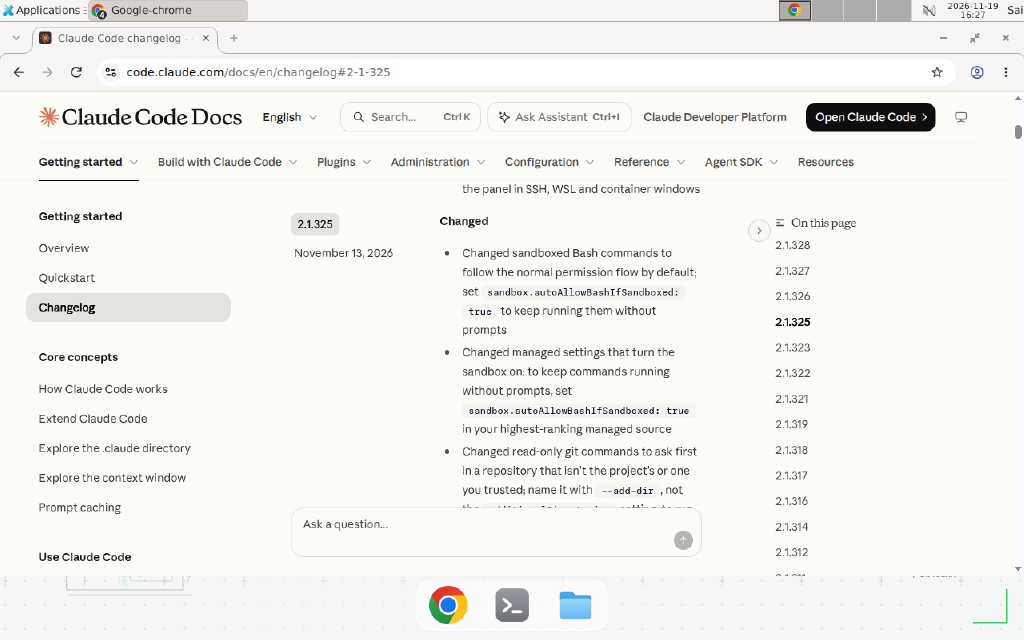
The 2.1.325 changelog entry, checked 2026-11-20, names the exact setting that restores the old behavior.
The fix
For a personal setup, add the key to your user settings file at ~/.claude/settings.json:
{
  "sandbox": {
    "enabled": true,
    "autoAllowBashIfSandboxed": true
  }
}
If your organization enables the sandbox through managed settings, the same key must go in the highest-ranking managed source, since your own file cannot override a managed one. The change takes effect at the next shell command, and the Mode tab of /sandbox then shows auto-allow mode in effect. The settings reference lists every settings key if you want to check the full set of sandbox options.
Pitfalls that make it look like the fix did not work
| Symptom | Likely cause | Fix |
|---|---|---|
Still prompted after setting true | The key landed in a file that a higher-priority source overrides | Run /status, read Setting sources, and set the key in the winning source |
/sandbox says “Sandbox settings can’t be changed here” | The key is set above the local settings level | Change it at that source, or ask your administrator if it is an enterprise managed setting |
Some commands still prompt, like FOO=bar npm test or make CC=clang | These forms go through the permission flow by design, even in auto-allow mode | Add a matching allow rule, for example Bash(make *), including the variable assignment |
| Prompts on native Windows | The sandbox does not run on native Windows, so this setting has nothing to restore | Run Claude Code inside a WSL2 distribution to use the sandbox at all |
Two reminders: turning auto-allow back on does not weaken the sandbox boundary, and it does not touch tools that run outside the sandbox. File tools, MCP servers, and hooks follow permission rules instead. If you use Claude Code MCP servers or guard hooks, their approval behavior is separate from this setting.
How to verify the fix worked
Run /sandbox and check the Mode tab: it should show auto-allow mode in effect. Then ask Claude to run a harmless command, for example npm --version, and confirm no prompt appears. If a prompt still appears, run /status and check which setting source supplied the sandbox keys: a value from enterprise managed settings beats anything in your own files.
We could not verify the settings reference default for this key at write time, because the reference and the changelog disagreed on the date the switch landed. The changelog is the authority here, and it is explicit: the new default is the normal permission flow.
When this article does not apply
If you never enabled the sandbox, this change does nothing for you: the sandbox is off by default. If your organization enforces regular permissions mode through managed settings, you cannot override it from your own settings file. Keep the new default instead and add narrow allow rules for the commands you run repeatedly, such as Bash(npm run *). That keeps approval for everything else while removing prompt spam from your everyday loop.
Conclusion
The update did not break your sandbox. It changed one default, and one setting restores the old behavior. Set sandbox.autoAllowBashIfSandboxed to true in the settings source that wins, confirm the Mode tab in /sandbox, and ask one check question: can your allow and deny rules still show exactly which commands run without a prompt? If not, tighten them first.
Frequently asked questions
Does setting autoAllowBashIfSandboxed to true turn off the sandbox?
No. The sandbox keeps enforcing its filesystem and network limits. The setting only changes the prompt behavior: sandboxed commands run without asking. Deny rules, rm on critical paths, and content-scoped ask rules still apply.
Do I need to restart Claude Code after changing the setting?
No. The change takes effect at the next shell command Claude runs, and the Mode tab of /sandbox shows the mode in effect.
Why do some commands still ask for permission after I set it to true?
Commands with an environment variable in front, like FOO=bar npm test, and commands such as make CC=clang or eval still go through the permission flow by design. Add a matching allow rule, for example Bash(make *), to stop the recurring prompt.
What about scheduled tasks asking before running a skill?
That is a separate change in the same release. Add Skill(name) to permissions.allow to run the skill unattended.