How to Fix ChatGPT Business Custom MCP Connector Showing 0 Tools with 401 and Plugins Unavailable
You are the owner and admin of a ChatGPT Business workspace. Your MCP server is healthy and OAuth completes. ChatGPT still shows 0 tools, a PATCH to the workspace-connections endpoint returns 401, and the Admin Console says you cannot access plugins in your own workspace.
Quick answer: Your MCP server is almost certainly fine. Prove it with MCP Inspector, check the workspace permission, refresh the plugin instead of recreating it, and escalate to Support with the HAR file and x-request-id.
The hard part is not fixing your server, it is proving the failure sits on OpenAI’s side.
Checked on 2026-11-22 against OpenAI’s Help Center guide, the developer guide, and the community thread. If a label differs, trust the link.
What broke, and why
A Business workspace owner reported this on the OpenAI community forum on October 8, 2026. The MCP server was healthy, OAuth discovery worked, and Entra authentication succeeded, yet a HAR file showed the failure happens on OpenAI’s side before the server is contacted. What the owner saw: the custom MCP app was created and enabled but showed 0 tools; creating the workspace connection returned 401 on a PATCH to the workspace-connections endpoint; later came “Failed to load plugin” with a backend 404; and the Admin Console under Plugins read “Plugins unavailable. You don’t have access to plugins in this workspace.”
A second owner reported the same shape on October 30: their server exposed 23 tools through successful initialize and tools/list requests, yet both the legacy Apps and newer Plugins interfaces showed 0 tools. Their support case, #14443160, was closed unresolved. OpenAI staff said an October 9 outage affecting plugin availability “has now been resolved”, but the October 30 report shows the same symptoms.
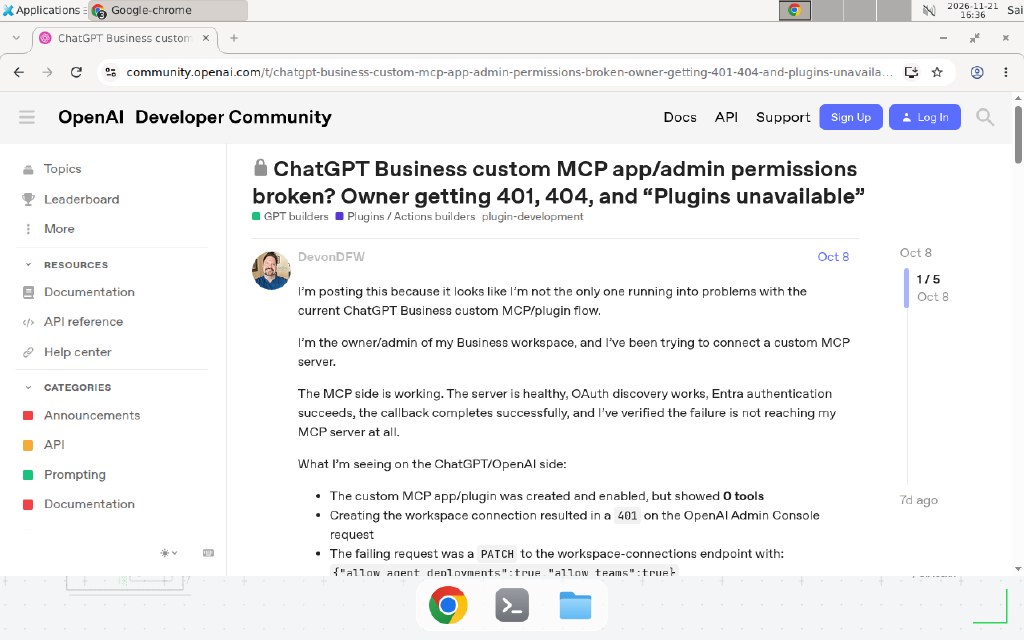
The OpenAI Developer Community thread reporting the failure, checked 2026-11-22.
A reply in the thread gives the model: seven states, from a reachable server through OAuth, the connector object, workspace policy, identity authorization, and tool catalog resolution to dispatch. A 401 or 404 before the server is contacted means the failure is in states three to six.
The fix
Step 1: Prove the server is healthy with MCP Inspector. OpenAI’s own connect-and-test guide prescribes this check:
npx @modelcontextprotocol/inspector@latest
Point it at your public HTTPS endpoint or Secure MCP Tunnel and run initialize and tools/list. If the tools appear, the server is fine.
Step 2: Check the workspace permission. The Help Center states that full custom MCP support is available for Business and Enterprise/Edu customers on ChatGPT web, and that only admins and owners can create and publish plugins. The relevant permission is Create plugins with MCPs. Confirm it is granted for your workspace.
Step 3: Refresh, do not recreate. In ChatGPT Plugins, open the connection and select Refresh to pull new tools and metadata. Then install the plugin and pick it with @ in a new conversation. Do not repeatedly delete and recreate the app: stale records make the evidence harder to reconcile, and the first reporter watched plugin IDs change across attempts.
Step 4: Check the authentication type. The developer guide lists three authentication options: OAuth, No authentication, and OAuth or no authentication. There is no fixed API key or Bearer-token option. The second reporter used static Bearer-token auth. If your server is guarded by a fixed token, ChatGPT has nowhere to present it, so switch to OAuth or no authentication behind a tunnel. We could not verify that the Bearer setup caused that failure; the OAuth reporter failed the same way.
Step 5: Escalate with evidence. Open a case at help.openai.com with the HAR file showing the 401 PATCH, the x-request-id, the plugin IDs, and the Inspector output proving the server lists tools. Ask Support to check the workspace plugin state; if your earlier case was closed, open a new one.
Pitfalls that make the fix look like it failed
| Symptom | Likely cause | How to check | Fix |
|---|---|---|---|
| 0 tools, but Inspector lists them | Platform failure | Inspector tools/list works | Escalate to Support |
| PATCH 401 on workspace-connections | Workspace policy | HAR shows 401 before the server | Escalate with x-request-id |
| “Plugins unavailable” as owner | Admin plugin state broken | Same message in Admin Console | New support case with HAR |
| Bearer-token server, 0 tools | No fixed-key auth option | Auth options are OAuth or no authentication | Switch to OAuth or no-auth |
Test before you rely on it
- MCP Inspector lists every tool your server exposes, 23 in the reported case.
- After Refresh, ChatGPT Plugins shows the discovered tools.
- A new conversation with @ names the tools it has.
- The same server works in a second client: see our Claude Desktop MCP connection guide.
When this article does not apply
If Inspector shows 0 tools or cannot connect, the problem is your server: fix the endpoint, authentication, or tool schemas. On a personal Free, Plus, or Pro plan, full custom MCP support is a Business and Enterprise feature, so the option may simply be absent. If the 401 comes from your own MCP server rather than the workspace-connections endpoint, that is the handshake layer, see our guide to fixing a remote MCP OAuth 401 on the WWW-Authenticate header.
Frequently asked questions
My MCP server works in Claude Desktop but shows 0 tools in ChatGPT. Is my server broken?
Almost certainly not. If MCP Inspector lists your tools, your server is healthy and the failure is in ChatGPT's discovery or workspace state. Prove it with Inspector, refresh the plugin in ChatGPT, and escalate to OpenAI Support with the HAR file. Rebuilding the server will not help.
Should I delete the connector and create it again?
No. Use Refresh on the existing connection instead. Repeatedly recreating the app creates orphaned plugin records with different IDs, which is exactly what the thread reporter saw, and it makes the evidence harder for Support to reconcile. Delete and recreate only if Support tells you to.
OpenAI said the October 9 outage is resolved, but I still see the error. What now?
Open a new support case at help.openai.com with your HAR file and x-request-id. The staff reply in the thread says the October 9 outage is resolved, and it also says a closed case, like the second reporter's #14443160, needs a new case rather than a reopen.